Attaching Copyright Payment Information
Attaching Copyright Payment from the Copyright Clearance Workform
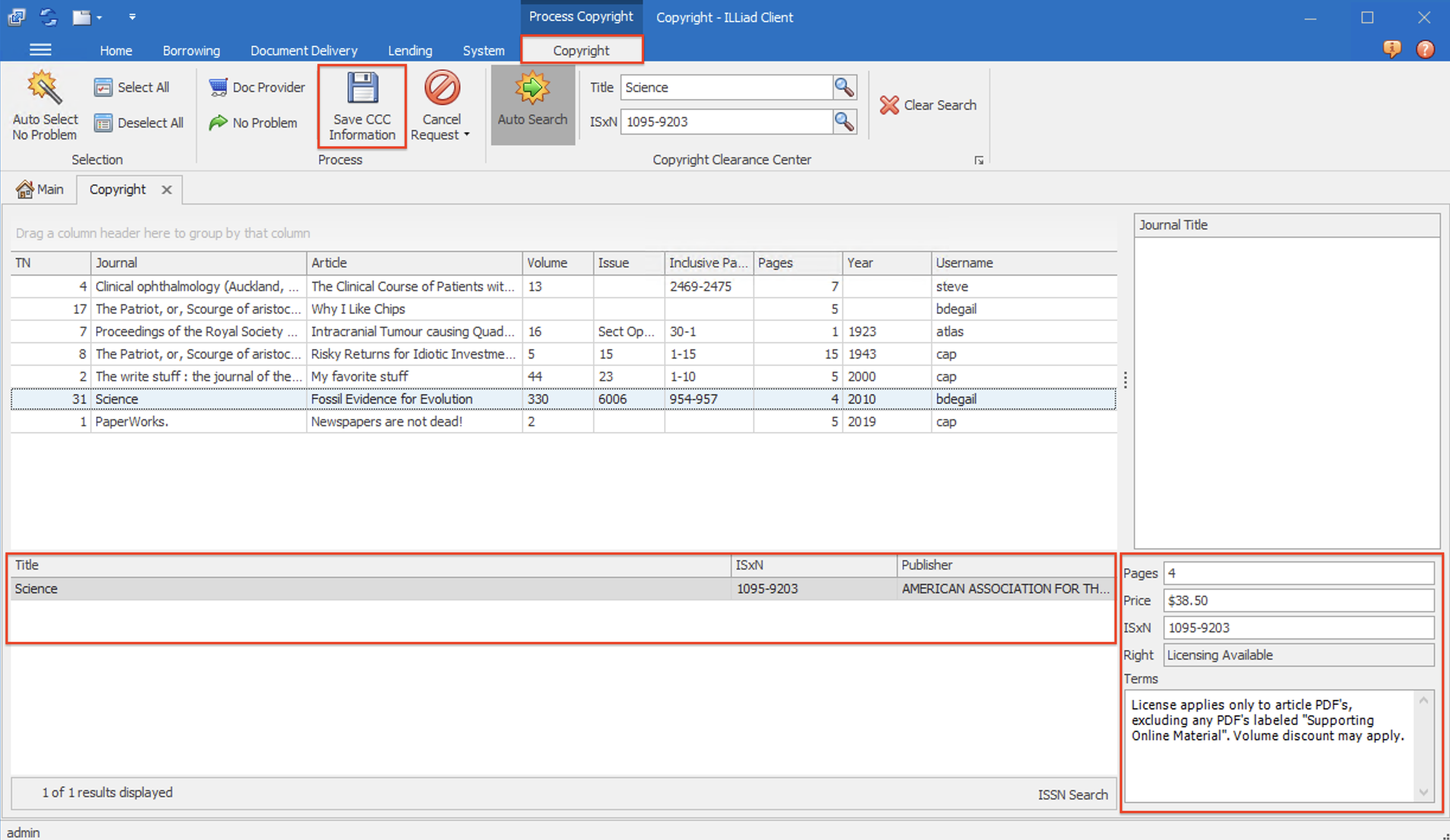
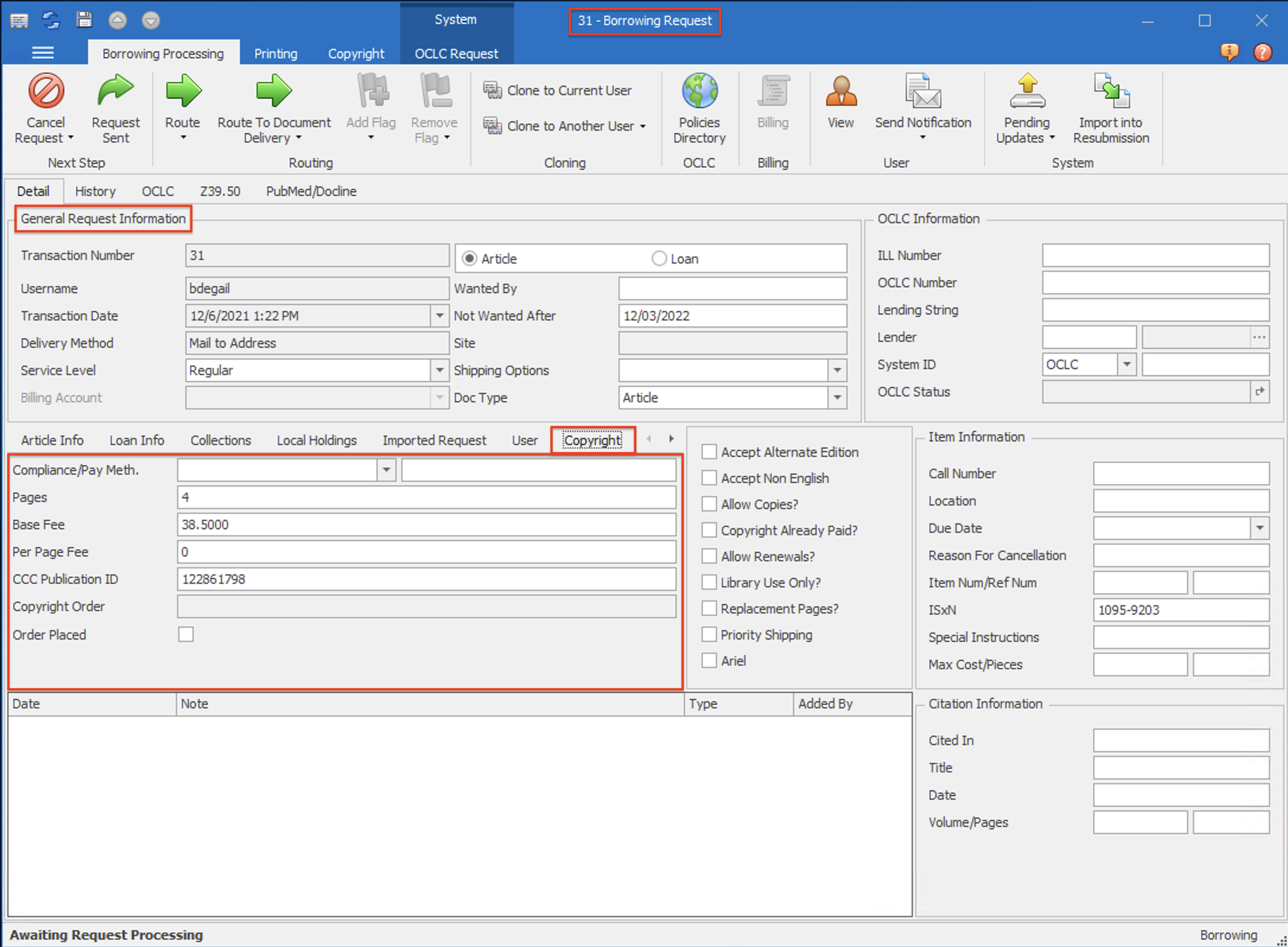
When the appropriate copyright royalty fee information shows in the copyright payment information section for the transaction, click the Save CCC Information button to attach the copyright information to the request. Please be aware that the system will only let you attach copyright payment information to one transaction at a time. If you have multiple checkboxes checked rather than a single transaction selected, the Save CCC Information icon will not be active. Also, please be aware that clicking the Save CCC Information button does not actually make any payments or send any payment information to anyone. It simply attaches the information to the selected transaction record so that, IF it is delivered successfully, it will show up on a copyright report as requiring payment. This information is stored under the Copyright tab in the General Request Information section of the Request Form. Staff can choose to remove the copyright information using the Process Menu. This is to correct items that were marked for copyright payment by mistake without marking them as copyright already paid.
Attaching and Removing Copyright Payment from the Request Form
Copyright information can be edited after it's been processed in the Copyright Clearance Workform on the ILLiad Request Form.
To add copyright information:
-
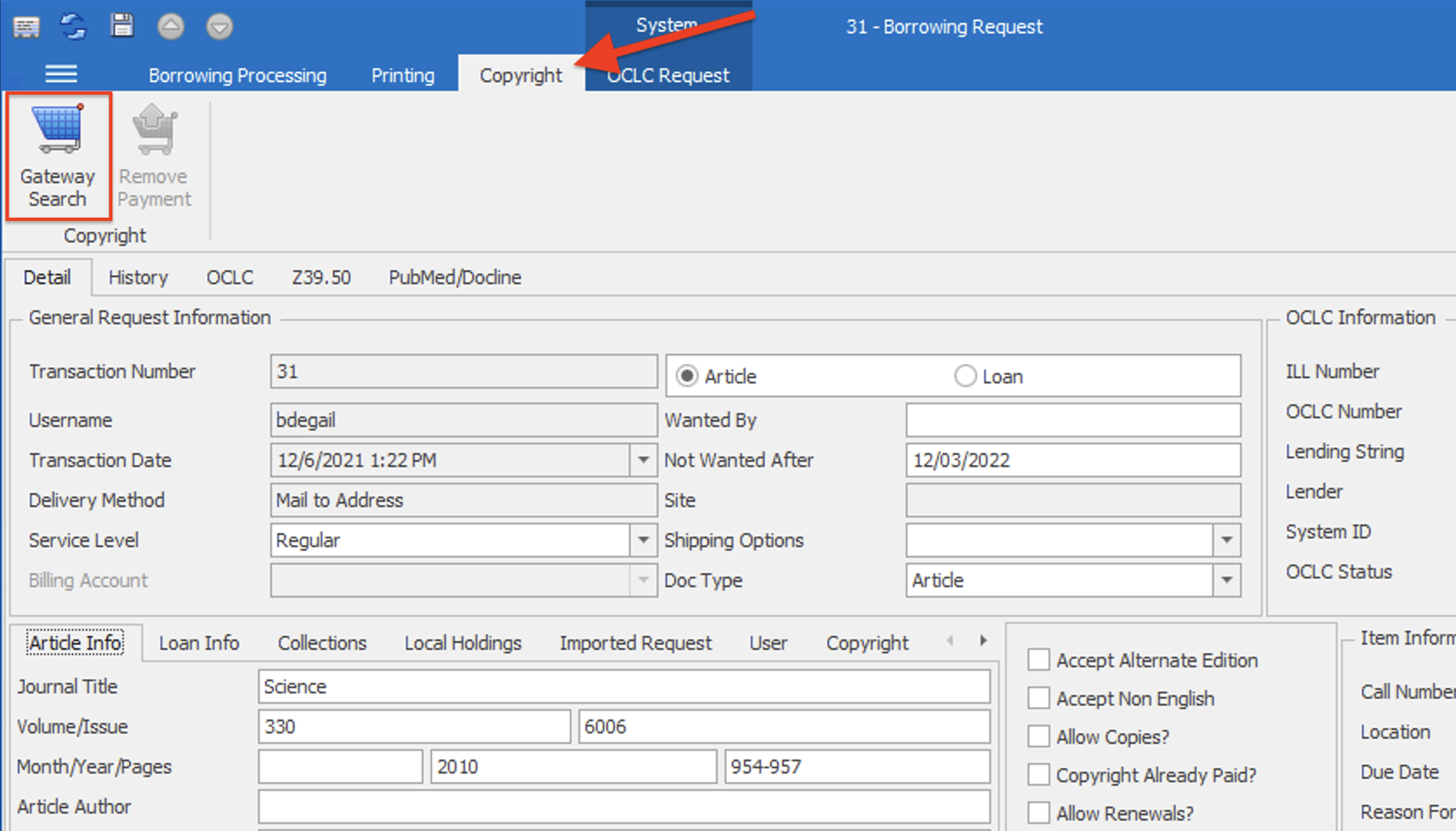
Select the Copyright ribbon on the request form.
-
Click the Gateway Search button to look up Copyright fees.
-
A new workform will open displaying CCC payment options. Click Save Copyright Information to add CCC information to the ILLiad request.

-
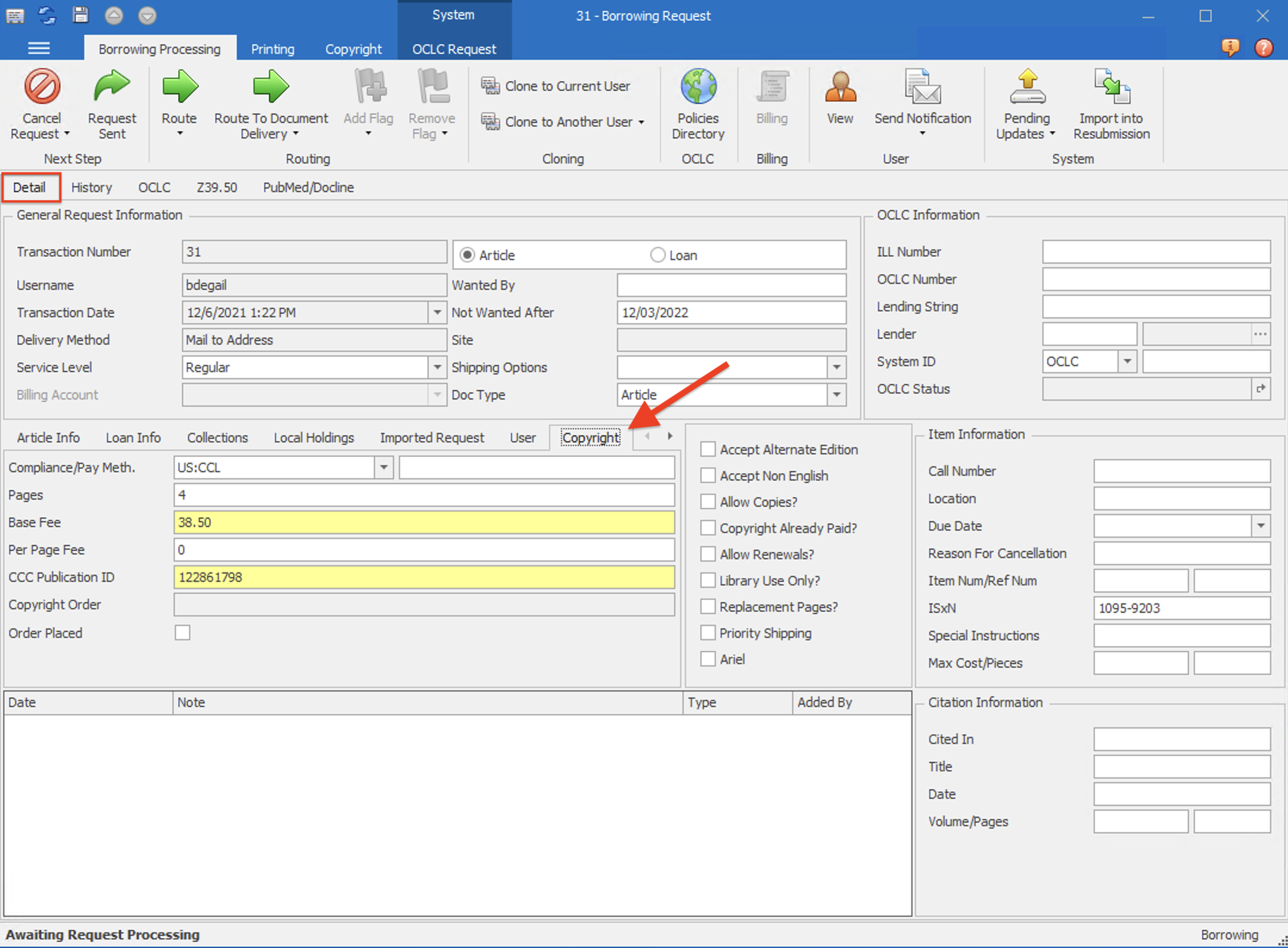
Information saved to the request will display in the Detail tab on the Copyright sub-tab. Save the Request form to save the new information.
-
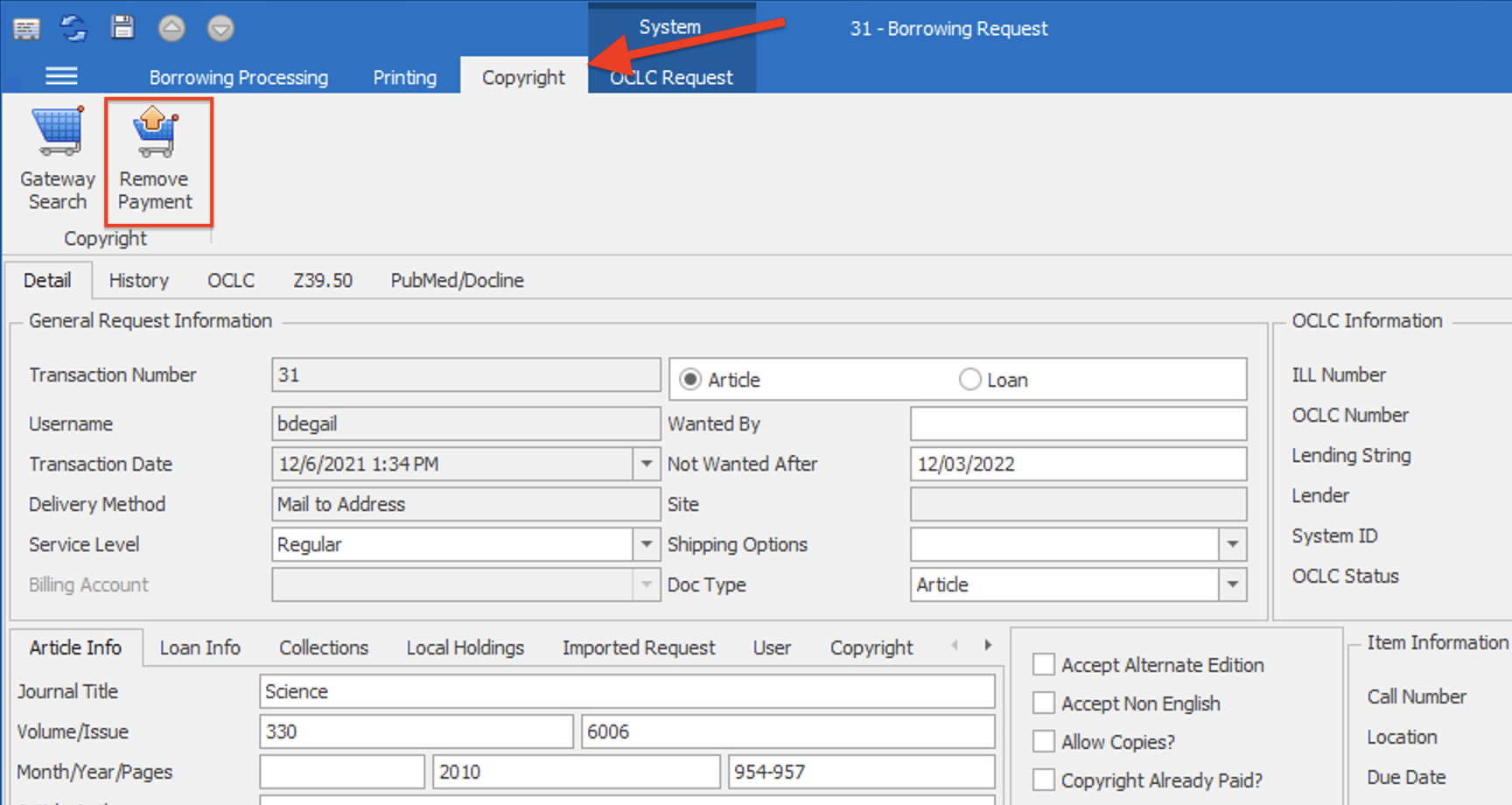
To remove copyright information:
- Select the Copyright ribbon on the request form.
- Click the Remove Payment info button.
- The button will deactivate.