Requesting a WSKey from OCLC Article Exchange
Starting with ILLiad 8.4, you will need a Web Service Key (WSKey) to utilize new Article Exchange features. You will also need the WSKey for other OCLC functionality in ILLiad in the future.
Create OCLC Account
Before you are able to request a WSKey from OCLC, you first need to have an OCLC account set up. This account is separate from your OCLC/Firstsearch Admin Authorization and password (which you will use later in this process) . It's recommended to use your institution's contact information instead of your personal information when creating this account. If you have a shared server ILLiad installation and you have multiple OCLC symbols, you will need to request a WSKey and secret for each symbol.
-
Go to the Developer Network WSKey user interface.
-
Enter your OCLC symbol, institution name, or zip code and click Continue.
-
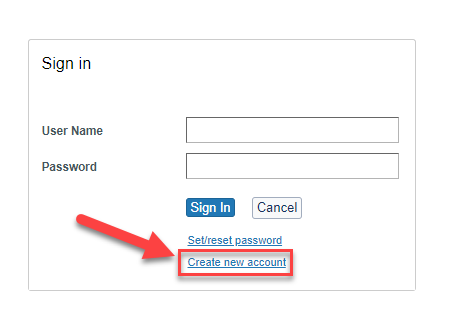
On the Sign In page, click Create new account.
- If you already have an OCLC WorldCat account, log in with your username and password.
- If you already have an OCLC WorldCat account, log in with your username and password.
-
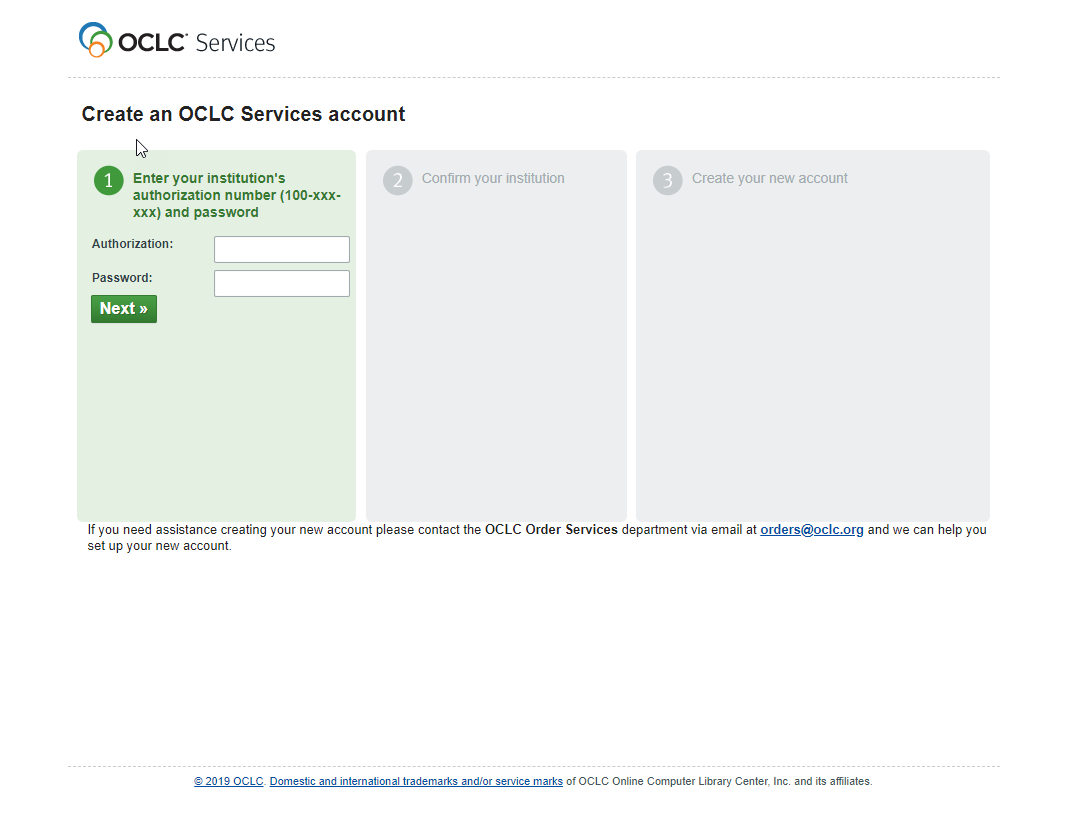
Fill out the application to create an OCLC services account. See image below.
Request the WSKey
- After you have an account you can request your WSKey, click Request a Production WSKey.
- Fill in the Request a WSKey page as follows—
- Environment: ProductionServices. Select the following:
- Article Exchange
- ILL Fee Management API
- Interlibrary Loan Policies Directory
- *Optional- If you are going to be using the Item Availability, select the Availability Query.
- WSKey Name: ILLiad
- Reason: ILLiad functionality
- Registry ID: Beginning April 2018, you will need to include the Registry ID. Here is how to locate your libraries Registry ID.
- Open http://www.worldcat.org/webservices/registry/xsl/identifiers.
- Search for your institution by name or OCLC symbol.
- Select Identifiers from the left menu.
- Your Idenitifer will display in the new window that opens.

- Symbol: (Your institution's OCLC symbol)
- Redirect URI: (leave blank)
- Usage: (leave blank)
- Environment: ProductionServices. Select the following:
- You will be notified once the key has been created by OCLC Order Department.
Generate the WSKey Secret
- After receiving the notification, you will need to generate the WSKey Secret.
- Select WSKeys.
- Click the link under the Secret column to display your WSKey secret.
- To learn how to configure ILLiad to use the WSKey and secret, see Configuring Article Exchange Integration.
Add WSKey to Customization Manager
- Copy the information to the Customization Manager under System | OCLC.
- Add the generated key from the OCLC Order Department to the OCLCWebServiceV2APIKey key.
- Add the generated WSKey secret to the OCLCWebServiceV2APISecret key.
- *Optional- If you selected Item Availability during your WSKey request, add the information to the OCLCItemAvailabilityWsKey.