Using the Message Board
The Instructor and Student Course Tools menu on the Ares web pages contains a Messageboard option that allows Instructors and students to upload messages to the Message Board for the course.
Viewing the Message Board
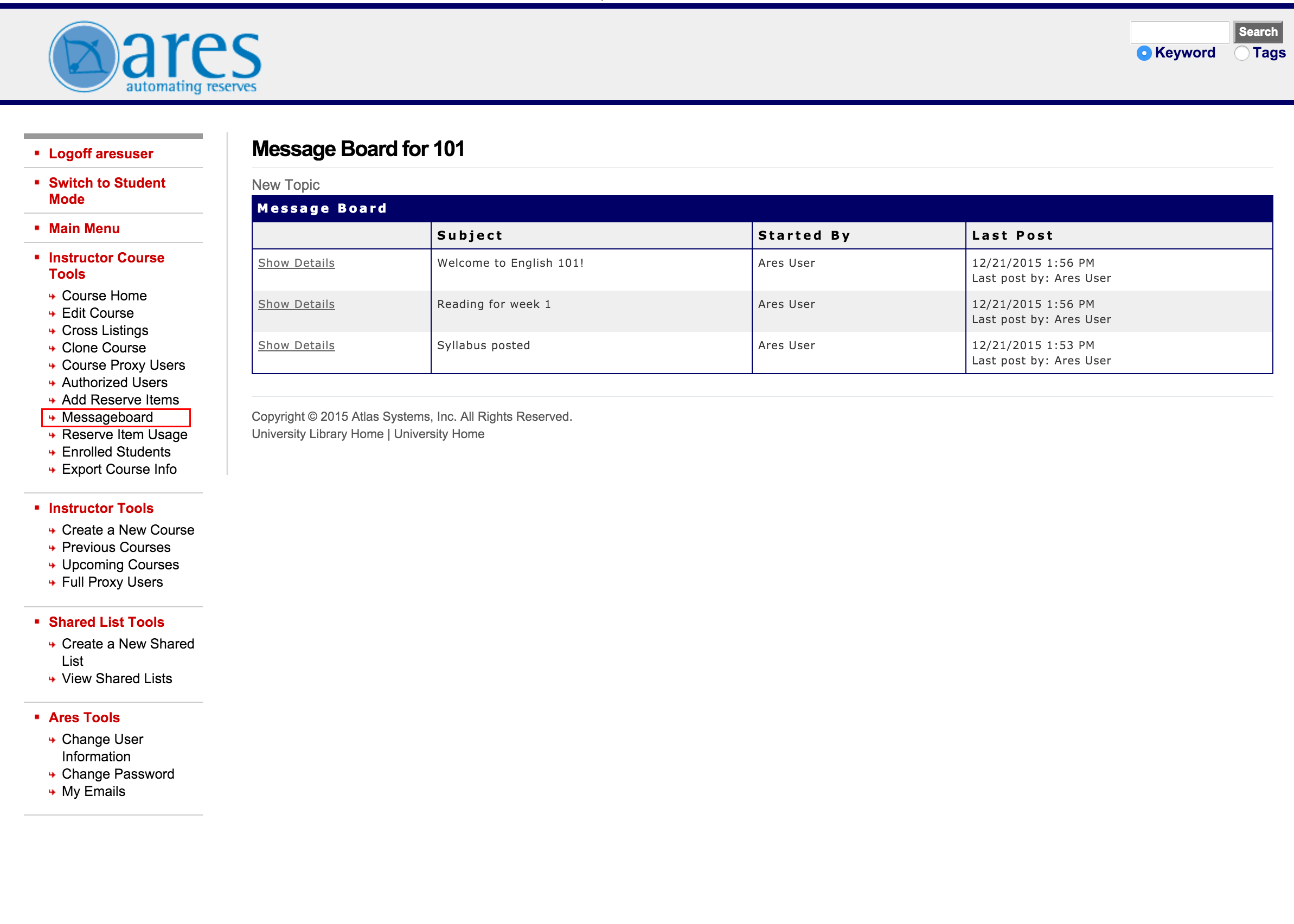
To view a course's Message Board, click the Messageboard link under the Instructor or Student Course Tools menu.
Posting a New Topic
- On the Message Board page, click New Topic.
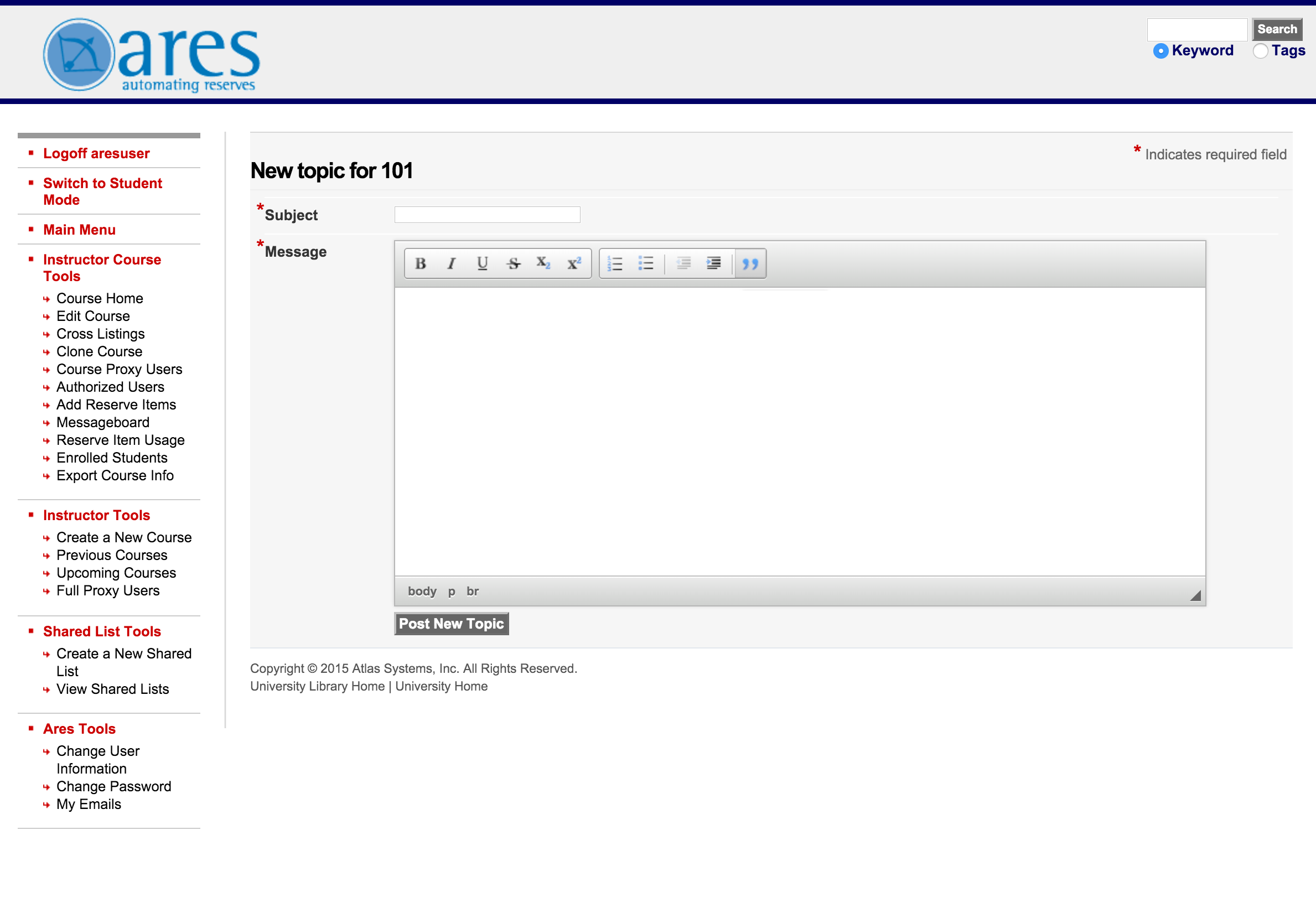
- In the New Topic box, type the subject and message for your new topic.
- Click Post New Topic. The post will display on the Message Board page for the course.
The Message Board displays the User's name (first name and last name) in all topic and reply posts. This is controlled by the DLL and cannot be edited in the Ares web pages.
Formatting
As of Ares 5.0, message board posts are now saved using Markdown rather than HTML. The free text editor for these will still display the formatted text correctly in plain text. All previous message board threads, reply pages, and posts will be converted to the new format during the 5.0 update.