Adding Notes to Users
Staff can add notes about a User on the User form. The ten most recent notes will appear in the Recent Notes drop-down.
info
You can open the User form from a list of search results by double-clicking your selection or selecting the User and hitting the Enter button on your keyboard.
Adding a Note
- On the User form, right-click anywhere in the Notes section.
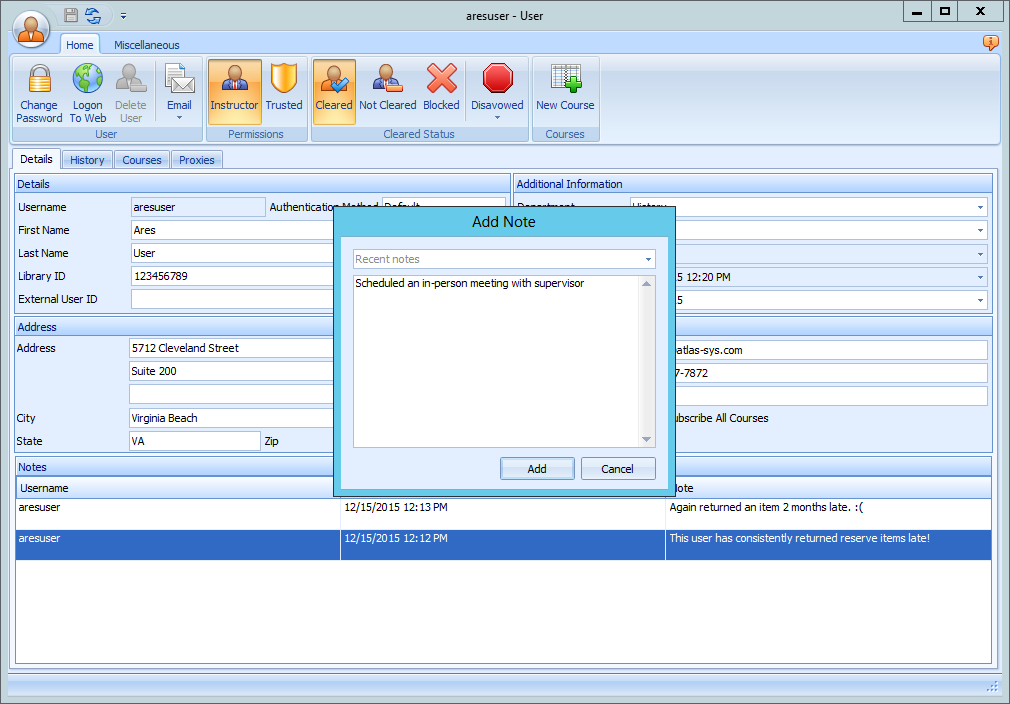
- Select Add Note. The Add Note box will appear.
- Type in your note, then click Add.
- Alternately, you can re-use one of your most recent notes by clicking on the Recent Notes drop-down and selecting the note you want to use, then clicking Add.
- The note will appear in the Notes section.
Deleting a Note
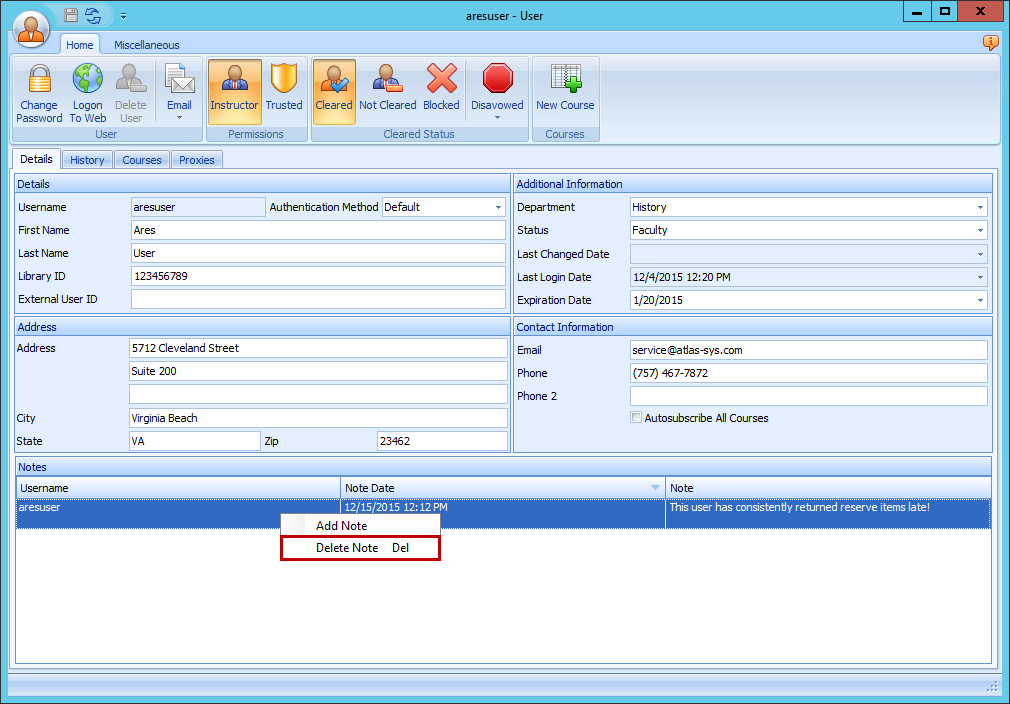
- On the User form, right-click on the note in the Notes section that you want to delete.
- Select Delete Note from the list.
- A confirmation box will display. To delete, click Yes.