Searching Basics
From the main Ares screen, staff users can do quick searches for specific Items, Courses, or Users. Results for searches will appear on grids in a separate tab for easy reference. More complex searches can be performed with custom searching. See Custom Searching for more information.

You can expand or narrow the scope of your search by entering several search terms in a search box or including more than one search box in your search. The more information you enter, the more exact your results will be.
Searching for Items
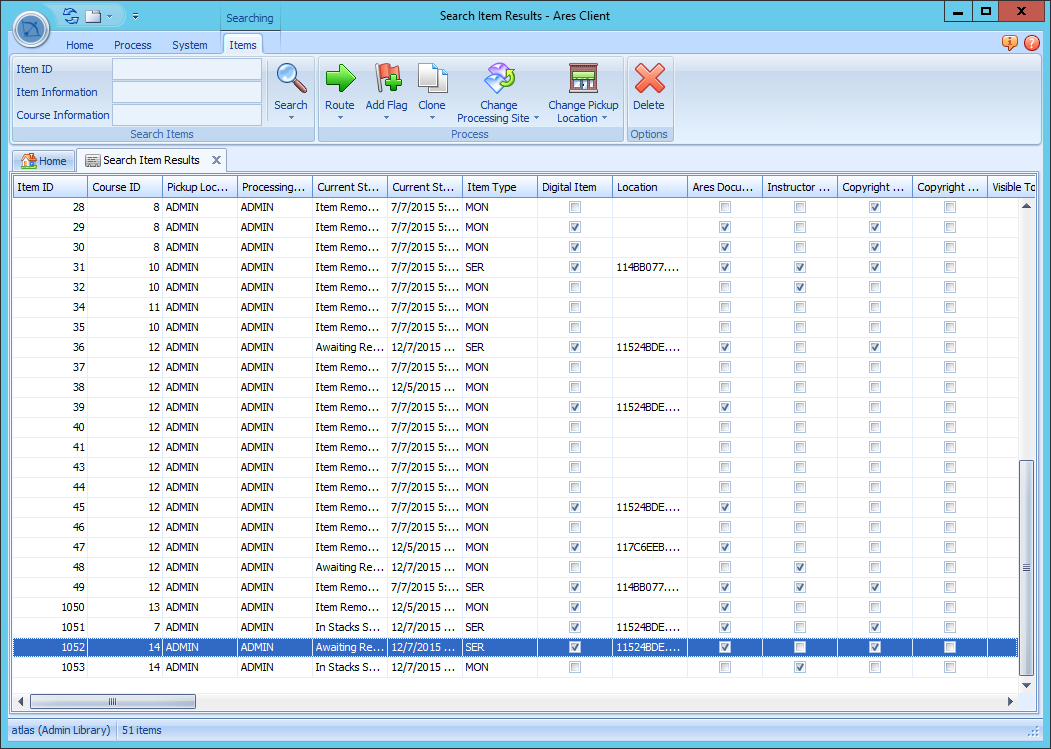
You can search for Ares Items using criteria based on Item ID, Item Information, and Course Information.
Processing Items from the Search Results Grid
From the Item search results, you can perform the following functions:
- Route Items to a different status
- Add flags to Items
- Clone Items to Courses or Shared Lists
- Change the Processing Site of Items
- Change the Pickup Location of Items
- Delete Items
Searching for Courses
You can search for Ares Courses using criteria based on the Course ID, Course Information, and Instructor Information.
Searching for Users
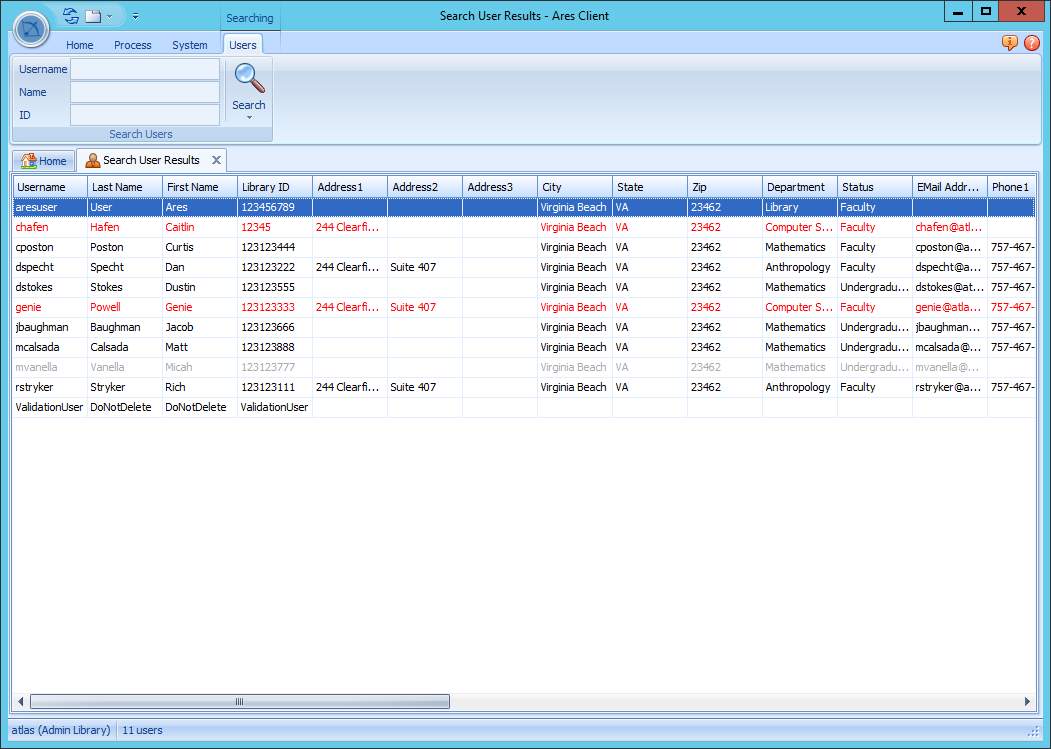
You can search for Ares Users using criteria based on the Username, Name, and ID. The Cleared column in the search results indicates the User's cleared status. Rows are also color coded based on this status:
- Cleared Users are displayed in Black
- Blocked Users are displayed in Red
- Disavowed Users are displayed in Gray