Changing Print Settings
This article contains an overview of the basic configurable print settings and options in the Ares Client.
Changing Print Configurations | Enabling Legacy Mail Merge Functionality
Changing Print Configurations
Once you have printed using a document template you can view and change future template printing options manually on the Print Configurations form.
- Click the Main Menu Icon (
 ) and choose Print Configuration. The Print Configurations form opens.
 - Change the Printer, Edit, and Prompt settings by clicking the Save icon.
- If Edit is unchecked, the word template will not open for viewing and editing. If Prompt is unchecked, the Printer Settings form will not display when you print.
- Your Filter and Sort Columns settings can also be edited here.
- These settings are stored for each template on the local machine and not in your staff user profile, because the printers available on each workstation may be different.
- The Sort and Filter settings are saved to the print template directory while the remaining settings are saved locally per Windows user.
- The saved settings are now your default settings for printing your documents.
If you elect to be prompted to view the Printer Settings form before a print job, you can change the settings. When you click Print they are saved to Print Configurations.
Enabling Legacy Mail Merge Functionality
Ares Client v5.0.8 introduced a new default mail merge method to resolve printing errors caused by an issue found in recent Microsoft Word updates. The legacy mail merge method can be re-enabled via the Ares Client Options form for troubleshooting purposes if printing errors are encountered when using the new default mail merge method:
-
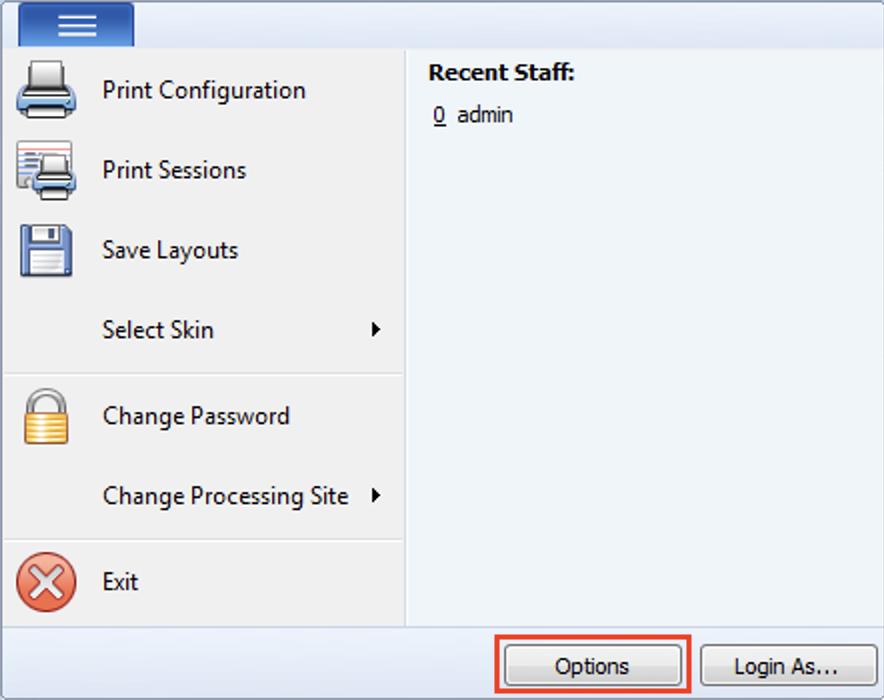
Click on the Main Menu Icon (
) at the top of the Ares Client window -
Click the Options button:
-
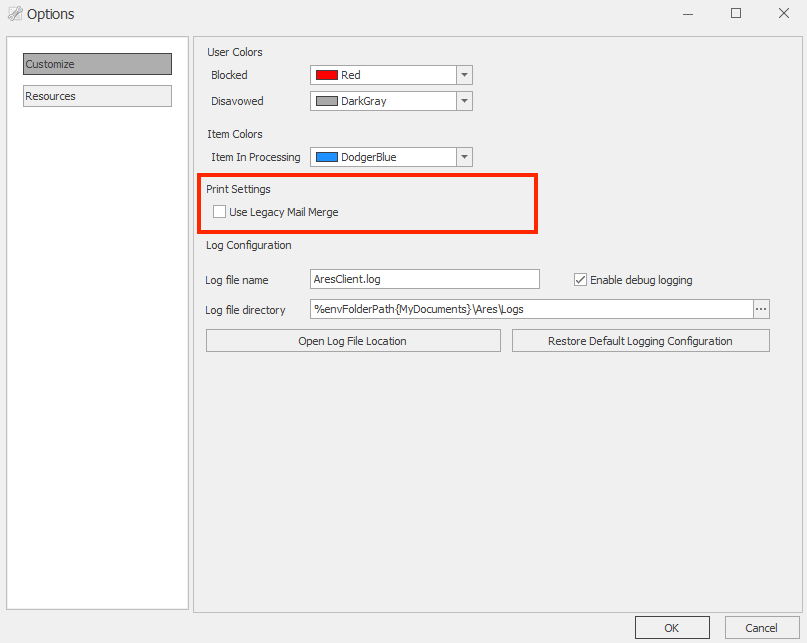
The Ares Options window opens
-
Under Print Settings, check the Use Legacy Mail Merge option:
-
Click OK to close the Options form
-
Re-attempt to print your document(s) from the Ares Client
-
If printing errors are still not resolved, contact support@atlas-sys.com