Blackout Date Calendar for Aeon Requests
As of Aeon 5.0, blackout dates can be configured within the Customization Manager in addition to the scheduled-date.js.
In order to utilize the scheduled closures feature in the Customization Manager, you'll need to replace your current scheduled-date.js with the new scheduled-date.js file in the Aeon 5.0 default webpages.
The ScheduledClosures Table
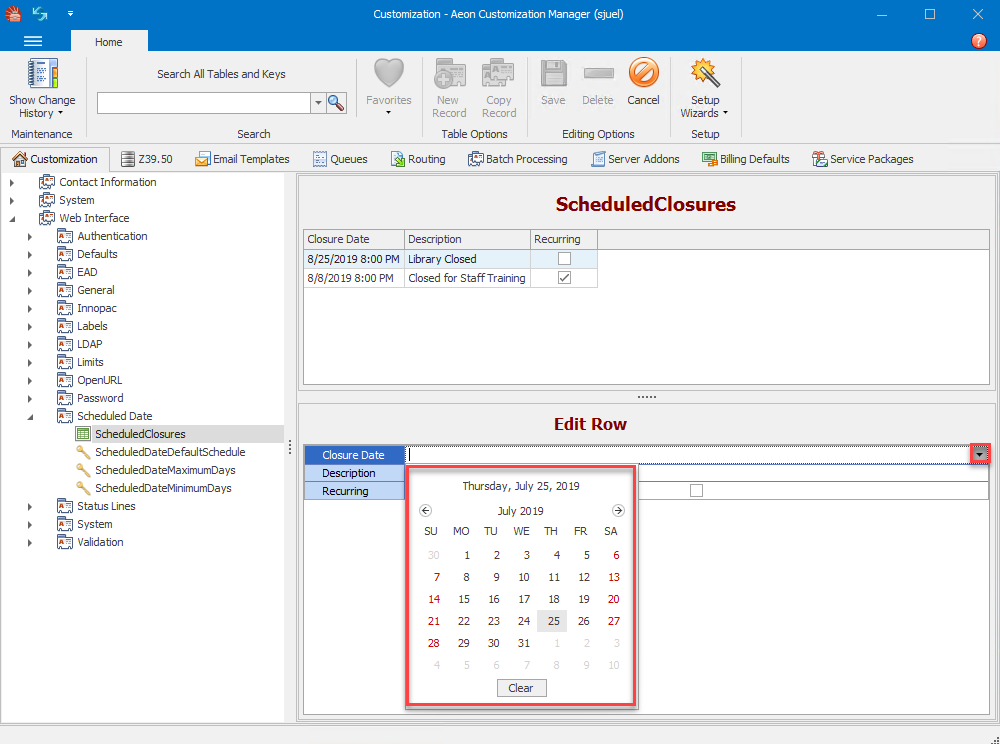
The ScheduledClosures table in the Aeon Customization Manager (located under Web Interface | Schedule Date | Scheduled Closures) allows you to select dates, add a description, and choose if the event should reoccur every year.
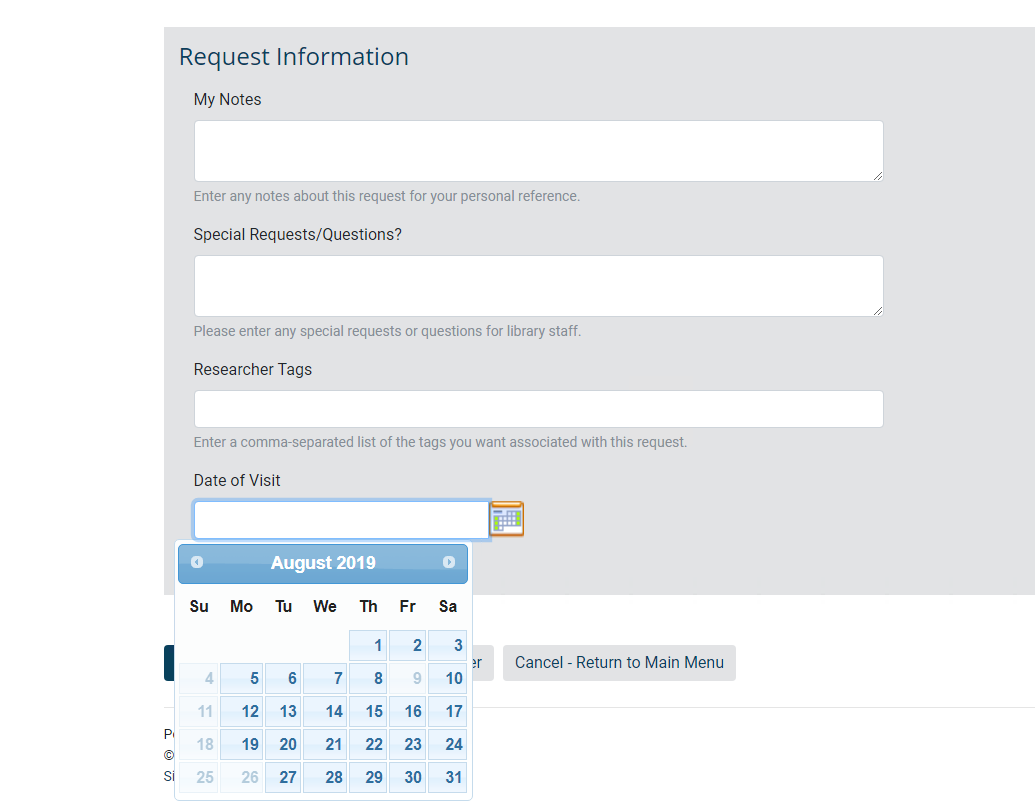
When a patron logs into the web, the request form will black out the date so the user can't select it from the calendar.
Customization Keys
In addition to the ScheduledClosures table, three blackout date customization keys are also available in the Customization Manager under Web Interface | Schedule Date | Scheduled Closures:
- ScheduledDateMinimumDays- Determines the minimum enabled date for the Scheduled Date calendar on web request forms in the terms of days. For example, if staff requires 48 hours to process a request the minimum should be set to 2. Default value 0.
- ScheduledDateMaximumDays- Determines the maximum enabled date for the Scheduled Date calendar on web request forms in the terms of days. For example, if staff doesn't want patrons requesting items 6 months in advance, the maximum should be set to 180. Default value 0.
- ScheduledDateDefaultSchedule- Determines the weekdays that should be enabled as operating days for the Scheduled Date calendar on web request forms. Default values Monday, Tuesday, Wednesday, Thursday, Friday.