Accessible and Responsive Web Pages
The ILLiad default web pages are built to be accessible and to work on any screen size. This page describes what they provide and how they are laid out, for anyone customizing them or designing a set of pages for a site.
- WCAG 2.1 and Section 508 compliant — ILLiad web content is reachable by assistive technology.
- Mobile responsive — supports mobile devices and varied desktop configurations.
- Built on Bootstrap — its grid and utility classes carry the layout.
- Patron-focused interfaces — the navigation and forms are written to be understood without instruction.
Updating ILLiad does not overwrite your current web pages, so that no custom work is erased. The default pages are available for download separately from the ILLiad Downloads page.
When moving to a new set of default pages, carry your customizations across to the new pages rather than the reverse, so the new pages stay compatible. For help with the move, or for Concierge Services, contact support at support@atlas-sys.com.
To keep any change accessible, review the Bootstrap documentation first. As an example, a logo image can be made to scale in both desktop and mobile views by adding the Bootstrap img-fluid class, as described in the Bootstrap image documentation.
How the web pages work
The web pages are ordinary HTML files on your server. Customizing them means editing HTML and CSS. There is no code to compile and nothing to rebuild.
Wherever a page needs live information, it carries a placeholder that the web DLL replaces as it serves the page. A placeholder looks like this:
<#TRANSACTION field="LoanTitle">
Placeholders work in two ways. Most drop a single value where they stand, such as a request title or a due date. Others repeat a block of markup once for every row of data, taking that markup from a small template file you also control.
That second kind is how request lists are built. The default pages have no tablesorter.css and no fixed HTML tables — the lists are div elements generated a row at a time by the <#DATAREPEATER> and <#DATAROW> placeholders, so the markup and CSS stay under your control. For the attributes, values, and examples, see DATAREPEATER and DATAROW Tags.
The same mechanism decides what a patron can do. A placeholder can test whether an action applies to a request and write a CSS class based on the answer, which is why an action that isn't available appears grayed out rather than missing.
Navigation bar
Navigation is a horizontal bar, which stays usable when it condenses into a mobile view.
| Tab | What it holds |
|---|---|
| Main Menu | Electronically Received Articles, Checked Out Items, and Outstanding Requests |
| New Requests | The request forms |
| History | Completed requests. There is no RSS notification option, as browsers no longer support RSS. |
| Profile | Account details. Notifications are on the main menu rather than in this drop-down. |
| Logoff | Signs the patron out of the web pages |
The default request forms are:
| Article (called Photocopy in older page sets) | Report |
| Book | Thesis |
| Book Chapter | Standards Document |
| Conference Paper | Multimedia |
| Patent |
Search bar
A search bar in the navigation menu searches requests in all statuses. It also locates a request so an electronically delivered PDF can be restored — select the request in the results, then click Undelete.
Two layouts are available. The default puts Search in the menu alongside the other items, and is included by include_nav.html:
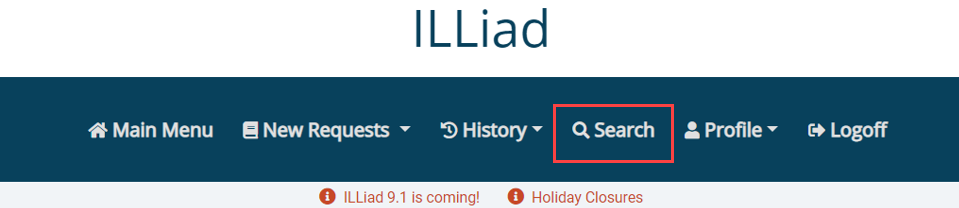
The alternative puts a search box and button at the end of the bar:

To use the alternative layout, edit include_menu.html and replace this:
<#INCLUDE filename='include_nav.html'>
with this:
<#INCLUDE filename='include_nav_search.html'>
Main menu layout
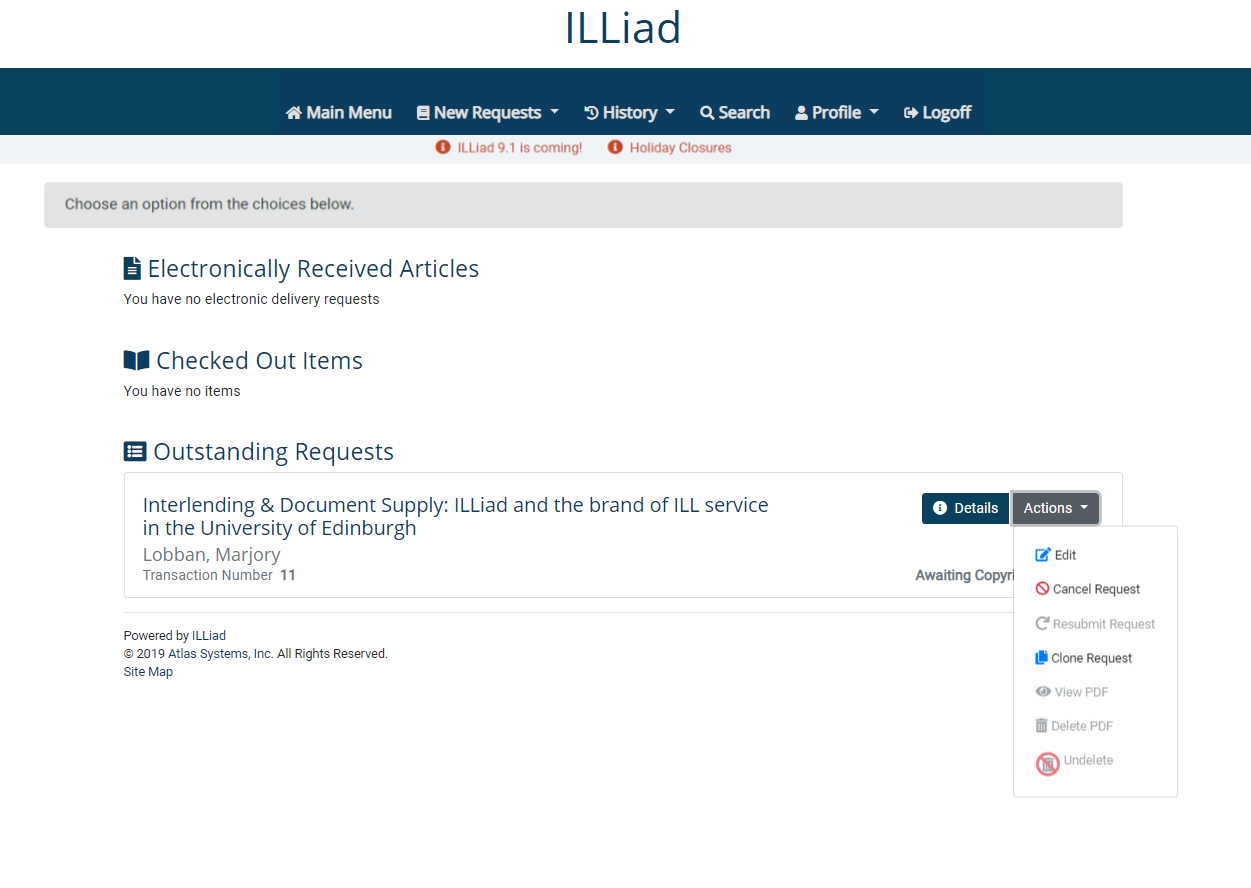
The main menu shows three sections, in this order: Electronically Received Articles, Checked Out Items, and Outstanding Requests. Each appears whether or not there is anything in it.
Every request carries a Details button and an Actions menu. The Actions menu holds Edit, Cancel Request, Resubmit Request, Clone Request, View PDF, Delete PDF, and Undelete. A row in Checked Out Items carries a Renew button, and one in Electronically Received Articles carries View.
An action is hidden or grayed out when it doesn't apply. Renew never appears on an article, because renewal is meaningless there. On a loan it appears but is grayed out when renewals aren't allowed or aren't available yet.
Request details
The Details button on a request opens the view below.

It shows the fields below. A field with no value is hidden rather than shown empty.
| Article fields | Loan fields | Other fields |
|---|---|---|
| Journal Title | Title | ISSN/ISBN |
| Volume | Author | Cited In |
| Issue | Publisher | Cited Title |
| Month | Place | Cited Date |
| Year | Date | Cited Volume |
| Call Number | Edition | Cited Pages |
| Inclusive Pages | Not Wanted After | |
| Article Author | Accept Non-English | |
| Article Title | Accept Alternative Edition | |
| Item Author | Document Type | |
| Item Title | Due Date | |
| Item Place | Renewals Allowed? | |
| Item Publisher | Max Cost | |
| Item Edition | Reasons for Cancellation |
Forms
Multimedia form
The Multimedia form covers material that doesn't fit the other forms, and the DLL handles each of its fields into the correct place on the request.
There is no general-purpose Other form. A free-form request left staff parsing the request text by hand to work out what had been asked for, so Multimedia, with named fields, takes its place. A set of custom pages carrying an Other form will still work, but it isn't part of the default pages.
Fields not on the default forms
Several fields are absent from the default forms. The fields remain in the database — they are hidden or left off the form, not deleted. The reasoning is that patrons rarely have the answers to these questions, and the values can still arrive through OpenURL or another external system.
Hidden on the form:
- OCLC/DOCLINE Number
- Call Number
- The whole Where did you learn about this item section
- Not Wanted After Date
Not on the form:
- Will you accept other languages
- Account Number
- Patron Notification Methods — both account notifications, such as cleared, and request notifications, such as item delivered
Hidden user fields aren't required on the HTML forms in order to preserve values in the user record. The DLL updates only the user fields that exist on the form, rather than every field.
The Publication Date field accepts any format; there is no mm/dd/yyyy requirement.
To put a hidden field back on a form, remove the surrounding <!-- --> comment tags. A field that isn't on the form at all can also be added, but it won't be present in the default pages.
Recommendations
- Account Number isn't on the default forms. If your site uses Borrowing or Document Delivery billing together with DefaultAccounts, set the ShowAccountsPageWithDefaultAccount customization key under Web Interface > General to Yes. The patron is then shown the UserAccounts page after registration.
- If a patron will accept other languages, they can say so in the Notes field.
- The hidden Not Wanted After Date field uses the value in the WebDefaultNotWantedAfter customization key, which defaults to 365 days.
- The Notification Method for every user defaults to Electronic unless another value is passed in with the request. To default to Phone or Mail instead, add an entry to the RemoteAuthValidation table. Account and request notification preferences default to Email for new users, and can be set to Text/SMS through the same table.
Site map
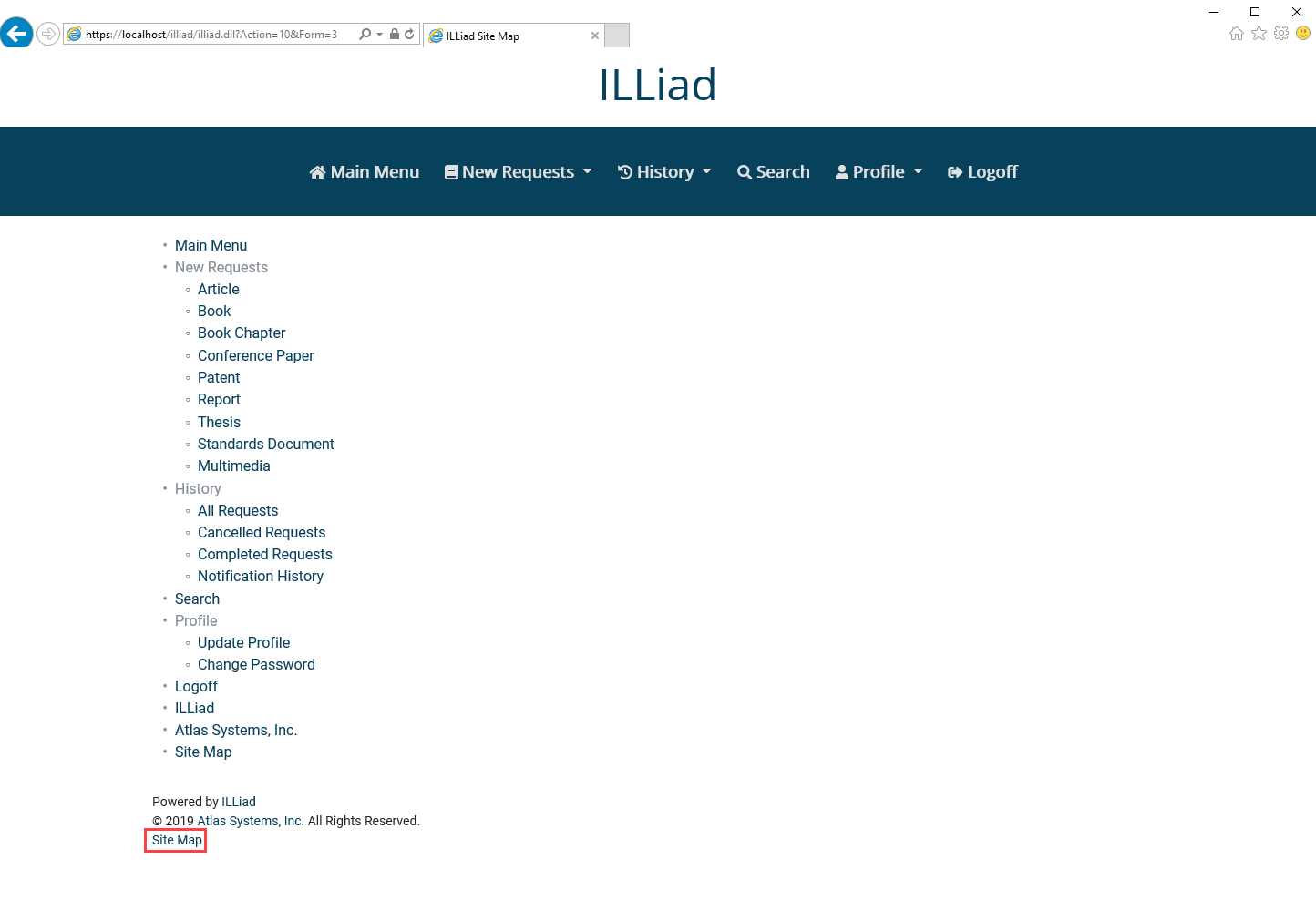
A SiteMap page lists links to every navigation item. Patrons reach it from the link in the footer of any page.
Cookie notification
A cookie notification tells patrons that cookies are used on the ILLiad web pages, in line with EU cookie law. A patron must accept it before creating and submitting a request, and it appears only once, at their first login.
To point the notification at your own privacy policy, see Adding a Custom Hyperlink to the Cookie Consent Banner.
Web alerts as JSON
Web alerts can be retrieved as JSON through an AJAX request, which makes them easier to customize than reading the rendered markup. For creating the alerts themselves, see Creating Web Alerts.
Related documentation
- Best Practices for Implementing New ILLiad Web Pages — moving pages from testweb to production
- Creating Custom Request Forms
- Required Fields
- ILLiad Customization Keys