DATAREPEATER and DATAROW Tags
The DATAREPEATER tag renders a template file once for every row of data. The DATAROW tag goes inside that template file and is replaced with a value from the row being rendered. Together they build the request lists on the default web pages as div elements, rather than as fixed HTML tables.
The two tags are always used as a pair. A DATAROW tag has no meaning outside a repeater's template file.
<#DATAREPEATER>
Renders a template file once for each row of data. The customizations are made in the tag itself and cannot be changed from the web interface.
| Attribute | Value | Description |
|---|---|---|
name | Name of the repeater | Which set of data to iterate over. Required. See the lists below. |
TemplateFile | "<Path/To/File>" | Relative path to the template file used to format each row. Required. |
noDataAction | Any string | Text displayed in place of the list when there is no data |
orderby | "<columnName> [ASC|DESC]" | Column used to order the data |
A repeater as it appears in the default ViewAllRequests.html:
<#DATAREPEATER name="ViewAllRequests" TemplateFile="templates/DataRow_DefaultRequest.html" noDataAction="You have no requests" orderby="TransactionNumber DESC">
The <#DATAREPEATER> tag produces the whole list. The template file it names describes a single entry, and the DLL renders that file once for every row of data. Inside the template file, each <#DATAROW> tag is replaced with one field value — a title, an author, a transaction number — so one entry usually contains several of them.
In the Checked Out Items list below, the outlined block is what the repeater produced. Each entry inside it is one render of DataRow_CheckedOutItems.html, and every value shown in that entry comes from a separate <#DATAROW> tag:
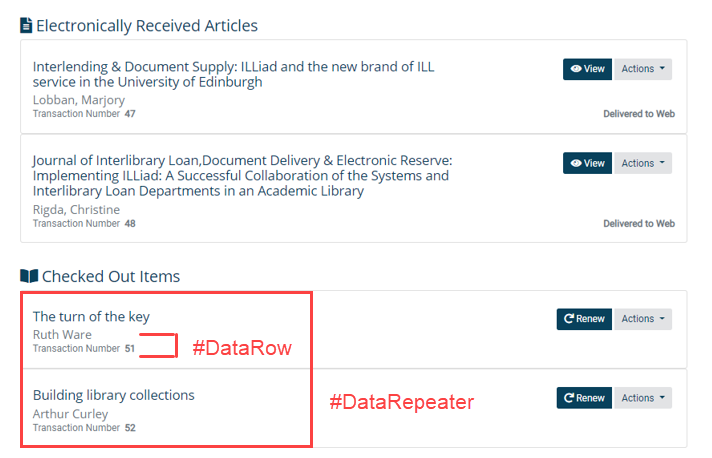
noDataAction does not work the same way here as it does on a TABLE tag. On a DATAREPEATER it holds the message text itself, and there is no noDataMessage attribute. On a TABLE tag it takes one of a set of values — ShowMessageRow, ShowEmptyTable, or ShowNone — and the message text goes in noDataMessage.
If name is left out, or TemplateFile is left out or points at a file that isn't there, the repeater produces nothing at all and records the reason in the web log.
Repeaters available in the Borrowing web DLL
ViewAllRequests | NotesInformation |
ViewSearchResults | TrackingInformation |
ViewOutstandingRequests | BillingInformation |
ViewRequestHistory | ElectronicDelivery |
ShowCurrentAccounts | ElectronicDeliveryUndelete |
ViewRenewCheckedOutItems | ViewEmailNotifications |
ViewResubmitCancelledItems | ViewSMSNotifications |
HistoryInformation | NotificationInformation |
Repeaters available in the Lending web DLL
BillingInformation | ViewOutstandingLendingRequests |
HistoryInformation | ViewLendingRequestHistory |
NotesInformation | ViewSearchResults |
NotificationInformation | ViewShippedItems |
TrackingInformation | ViewLendingCancelledItems |
ViewAllRequests | ViewNotifications |
A repeater and a TABLE tag draw on the same named sets of data, so most names work with either tag. There are exceptions. DetailedInformation is available to TABLE tags only, in both web DLLs. In the Borrowing web DLL, the deprecated ViewNotifications is also available to TABLE tags only.
<#DATAROW>
Used inside a repeater's template file. Each tag is replaced with a value from the row currently being rendered.
Attributes
| Attribute | Description |
|---|---|
field | The name of the row element to insert |
displayStyle | How to format the replacement text, or which conditional behavior to apply |
name | Used with field='RequestActionAllowed' to name the action being tested |
enabledValue | String inserted when the action is allowed |
disabledValue | String inserted when the action is not allowed |
Field values
Some field values are reserved words that trigger specialized behavior:
-
FileSize— the default is a human-readable size such as203.99 KB. SettingdisplayStyle='Bytes'gives the raw figure instead, such as208885.<#DATAROW field='FileSize'><#DATAROW field='FileSize' displayStyle='Bytes'> -
Title— for a loan,LoanTitle. For an article, the title field in the database matching the document type, such asPhotoJournalTitle. -
Author— for a loan,LoanAuthor. For an article, the author field matching the document type. -
TransactionStatus— the display status. -
RequestActionAllowed— substitutes a value depending on whether an action is available for that request. See below.
Formatting styles
| Style | Result |
|---|---|
ISO8601 | Formats a date to the ISO 8601 standard, YYYY-MM-DD |
Currency | Formats a numeric field to the USD standard |
Percentage | Formats a decimal value as a percentage |
Using both the formatted and the raw date, so the page can convert to local time:
<span class="convert-local" data-iso8601="<#DATAROW field="CreationDate" display="ISO8601">"><#DATAROW field="CreationDate"></span>
Conditional display
A DATAROW tag accepts the same displayStyle='CompareValue' and displayStyle='CheckHasValue' behaviors as a TRANSACTION tag, applied to the row being rendered rather than to a single request. For a fuller treatment of the pattern, including multiple conditions and troubleshooting, see Transaction Conditional Display.
Enabling and disabling request actions
RequestActionAllowed tests whether an action applies to the current request, then inserts one string or the other. It's how the default pages decide which CSS classes land on a request's action buttons, and it's the way to build a custom actions menu — the role <#MENU> tags filled in older sets of web pages.
| Attribute | Value | Description |
|---|---|---|
field | RequestActionAllowed | Selects this behavior |
name | An action name | The action to test for this request |
disabledValue | Usually disabled | Inserted when the action isn't available |
enabledValue | Any string | Inserted when the action is available |
Action names in the Borrowing web DLL: Edit, Cancel, Renew, Resubmit, Clone, ViewPDF, DeletePDF, UndeletePDF
Action names in the Lending web DLL: Edit, Cancel, Renew, Resubmit, Clone
From the default DataRow_DefaultRequest.html, the View PDF menu item:
<a class="dropdown-item btn btn-light menuViewPdf <#DATAROW field='RequestActionAllowed' name='ViewPDF' disabledValue='disabled'>" href="<#ACTION action='10' form='75'>&Value=<#DATAROW field='TransactionNumber'>">View PDF</a>
When there is no file to view, disabled is added to the class list and the option isn't offered. When a file exists, nothing is substituted and the button works normally.
Related documentation
- TABLE Tags — the other tag that renders a named set of data
- TRANSACTION Tags — field values for a single request, outside a repeater
- INCLUDE Tags — pulling a shared fragment into a page
- Transaction Conditional Display — conditional display patterns in depth
- Accessible and Responsive Web Pages — what the default pages provide and how they're laid out