Signing Out Users
Signing a user out ends their current reading room session: it records when they left, who signed them out, and removes them from the Signed In Users list on the dashboard. It's the bookend to signing a user in — you do it when a researcher packs up and leaves the reading room for the day.
Most of the time you'll sign someone out from the dashboard: the front desk watches the Signed In Users panel all day, so when a researcher leaves, you sign them out right there. But because the same researcher might be on screen in a few different places, Aeon lets you sign them out from wherever you happen to be — the dashboard, their open appointment, or their user record. They all do exactly the same thing, and they all stop to warn you the same way if the researcher still has items checked out.
- A researcher finishes for the day and leaves the reading room — sign them out from the Signed In Users panel on the dashboard.
- You have a researcher's appointment open and they've just left — sign them out from the appointment's action bar.
- You're already on a researcher's user record and want to end their session there.
Signing out from the dashboard (the usual way)
The Signed In Users panel on the dashboard lists everyone currently in the reading room, grouped by room. This is the fastest place to sign someone out.
- On the dashboard, find the researcher in the Signed In Users panel.
- Hover over their row and click the actions button (the "..." icon at the end of the row).
- Choose Sign Out.
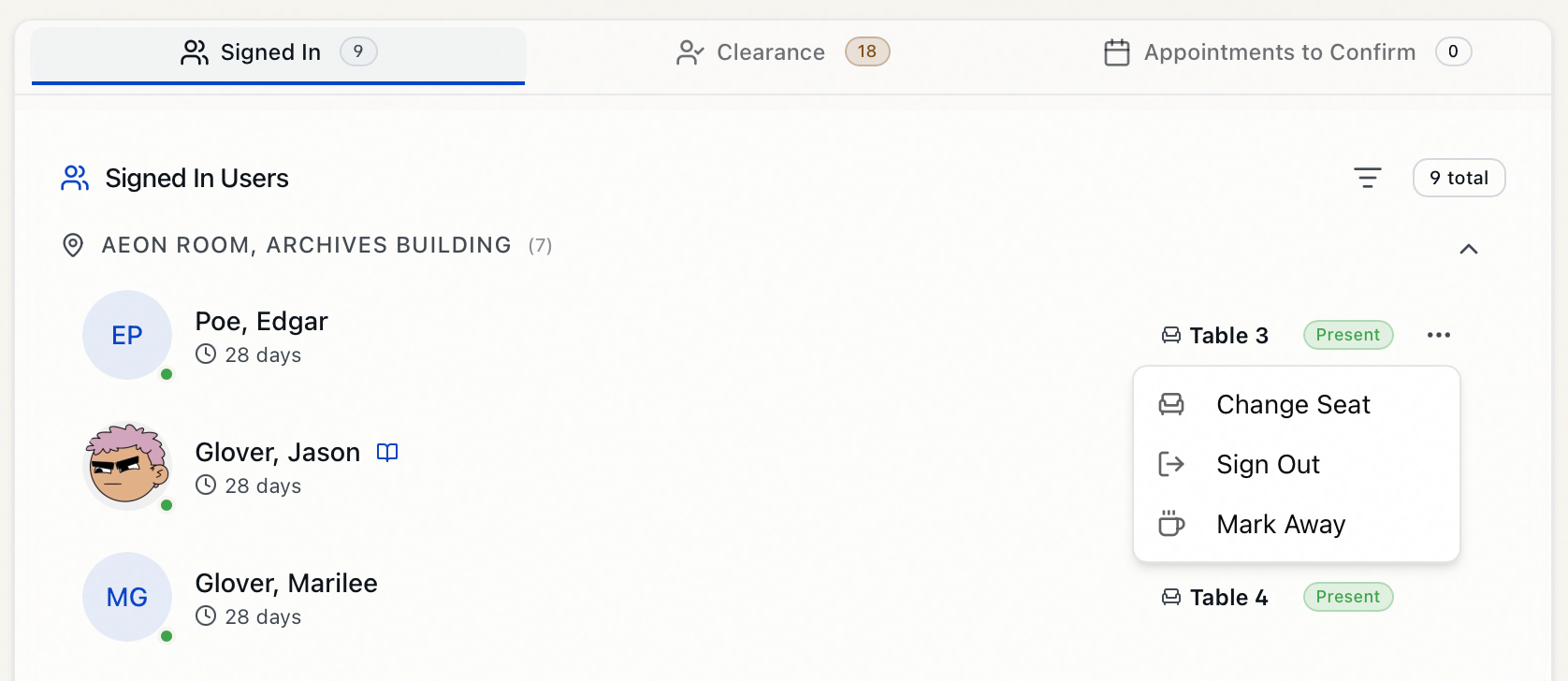
The researcher is signed out and drops off the list, and the panel's total count at the top updates to match. (If they still have items checked out, Aeon asks you to confirm first — see When the researcher still has items checked out below.)
Each row shows the researcher's name, a colored status dot (green when active, amber when away), how long they've been signed in, and their seat if one is assigned. A small book icon next to the name means that researcher still has items checked out — useful to spot before you sign them out. See Marking Users as Away and Assigning Seating and Locations for the other actions on this menu.
Signing out from an appointment
If you have the researcher's appointment open in the detail panel, you can sign them out without leaving it.
- Open the appointment (for example, from the appointment calendar).
- In the action bar at the top of the detail panel, click Sign Out.
The Sign Out button only appears when the appointment is Confirmed and the researcher is currently signed in. (When they aren't signed in yet, you'll see Sign In in its place instead.) A confirmation toast — "User signed out" — tells you it worked.
Signing out from the user record
You can also sign a researcher out directly from their user record — handy when you've opened their record for some other reason and notice they're still signed in.
- Open the researcher's user record (for example, search for
jdoeand open the result). - In the toolbar, click Sign Out. (This button appears whenever the researcher is signed in; if they aren't, you'll see Sign In in its place instead.)
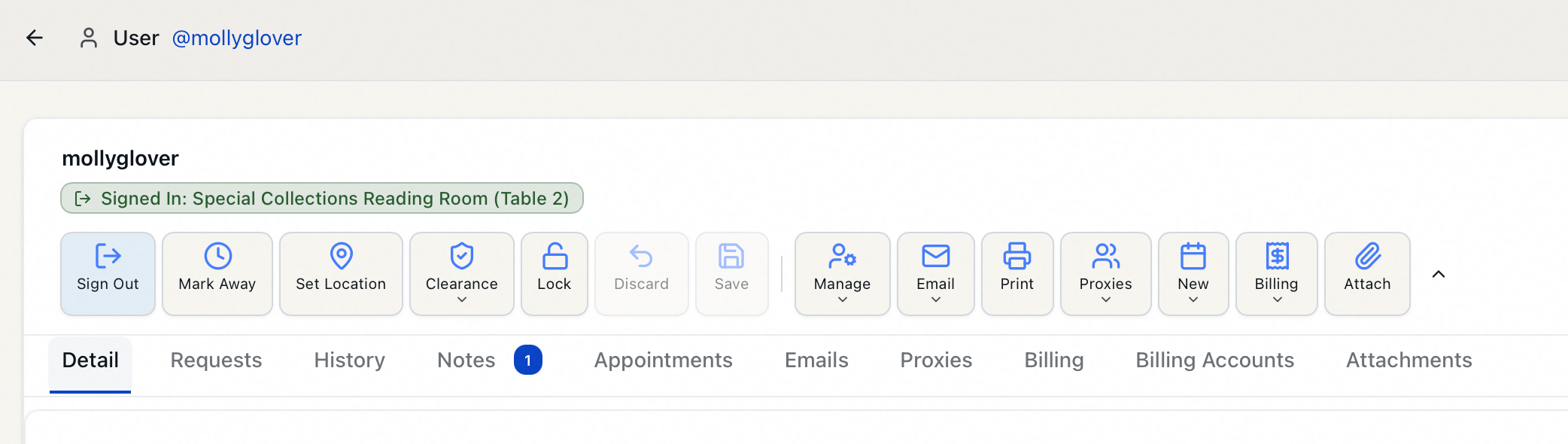
A toast confirms the result. The reading-room status badge on the record — which reads Signed In: [reading room] ([seat]) while they're in — flips to Signed Out, and the change shows up in the Reading Room History for that user (see Reading Room History and Status).
The reading-room buttons on the record follow the researcher's current status: while they're signed in you see Sign Out (alongside Mark Away and Set Location); once they're signed out, those give way to Sign In. So there's no disabled "Sign Out" to puzzle over — if the researcher has no open session, the button simply isn't there.
When the researcher still has items checked out
Signing a researcher out does not check their items back in. So if you sign out someone who still has material checked out — from any sign-out surface, not just the dashboard — Aeon stops to confirm first:
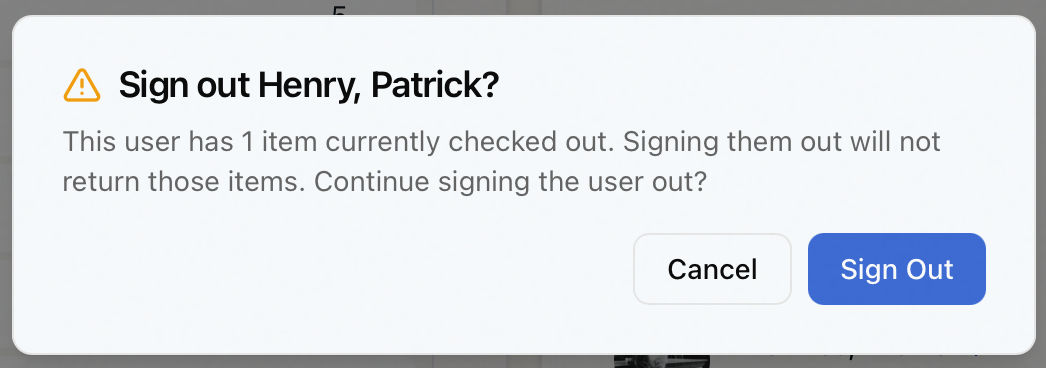
Click Sign Out to go ahead, or Cancel to leave them signed in until the items come back. When Aeon knows the count it names it ("3 items", or "1 item" for a single one); if the count isn't available it just says "items." Cancel is the default button, so a reflexive Enter dismisses the dialog rather than signing the researcher out. Returning and checking the items back in is a separate step from signing the researcher out.
On the dashboard, you can spot this before you even open the menu: a researcher who still has items checked out shows a small book icon next to their name in the Signed In Users panel.
A reading room sign-out only ends the session — it never reshelves or checks in items. If a researcher leaves with material still checked out to them, handle the items through the request workflow; signing them out won't change the items' status.
What happens behind the scenes
Whichever surface you use, signing out does the same thing:
- The current reading room session is closed and stamped with the sign-out time.
- Aeon records who signed the researcher out, so it shows in their reading room history.
- Any Away status is cleared as part of signing out.
- Other staff see the change in real time — the researcher disappears from the Signed In Users panel on everyone's dashboard, not just yours.
Signing a user out requires the Edit level (or higher) of the Reading Room permission — the same level needed to sign users in, mark them away, or change their seat. Aeon enforces this on every surface: the sign-out request is rejected if your role only has View for Reading Room. On the user record, the reading-room toolbar buttons — Sign Out included — are disabled when your role lacks Edit, or while another staff member has the record locked.