Signing In with an Authenticator App
Aeon asks for two things when you sign in: your password, and a short code from an authenticator app on your phone. The second one exists because a password on its own can be guessed, phished, or reused from somewhere it leaked — a code that changes every few seconds can't be.
You set the app up once, the first time you sign in. After that it's a few extra seconds each time: open the app, read the code, type it in.
- It's your first sign-in and Aeon is showing you a QR code.
- You've got a new phone and need your authenticator moved across.
- You've lost the device your authenticator was on and can't get in.
Every Aeon account that signs in with a password uses an authenticator — it isn't a per-account setting an administrator can switch off for you. If your library uses institutional sign-on instead, you'll still be asked for a code; see Logging In and Changing Your Password.
Setting it up the first time
You'll need an authenticator app on your phone. Any standard one works — Microsoft Authenticator, Google Authenticator, Authy, 1Password, and others all use the same standard. If your institution recommends one, use that.
- Sign in with your username and password as usual.
- Aeon shows the Two-factor authentication screen with a QR code and the instruction "Scan the QR code with your authenticator app, then enter the code it shows."
- In your authenticator app, add a new account and scan the code.
- Type the six-digit code the app displays into Authentication code.
- Click Verify & continue.
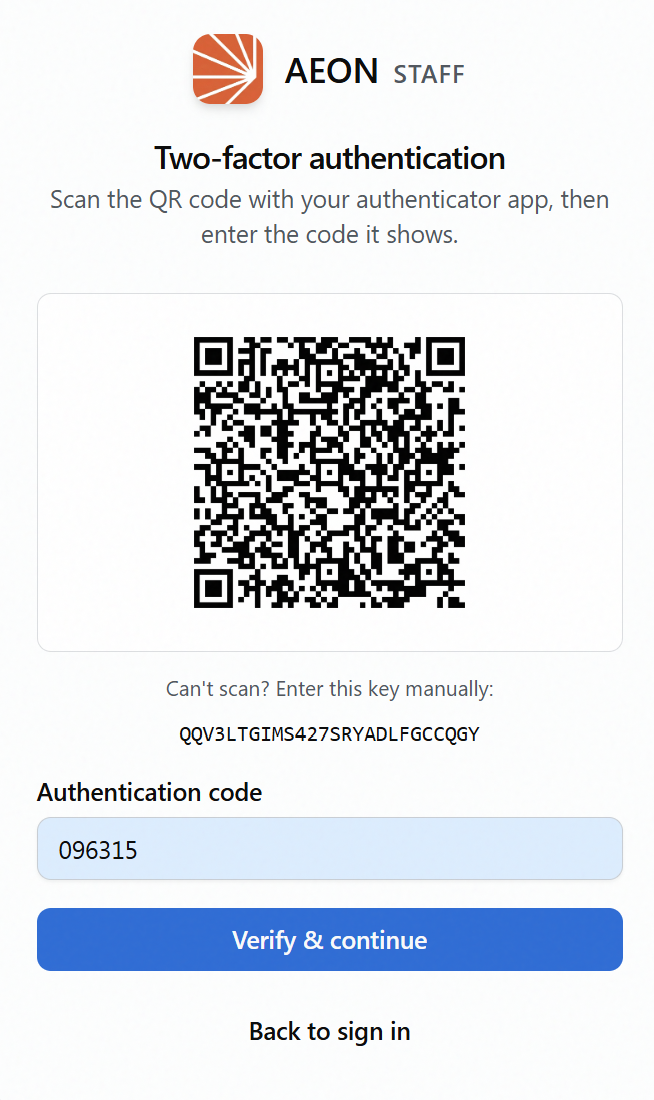
Underneath it, Aeon shows the same secret as text — "Can't scan? Enter this key manually:" — for typing into an app on the same device, or into one that doesn't have camera access.
You've got about ten minutes to finish enrollment once that screen appears. If you take longer, start the sign-in again and Aeon will offer a fresh code to scan. Don't keep an old QR code around to use later.
Save your recovery codes
As soon as enrollment succeeds, Aeon shows a screen headed Save your recovery codes with ten codes on it, each looking something like A7K2M-9PQRS.
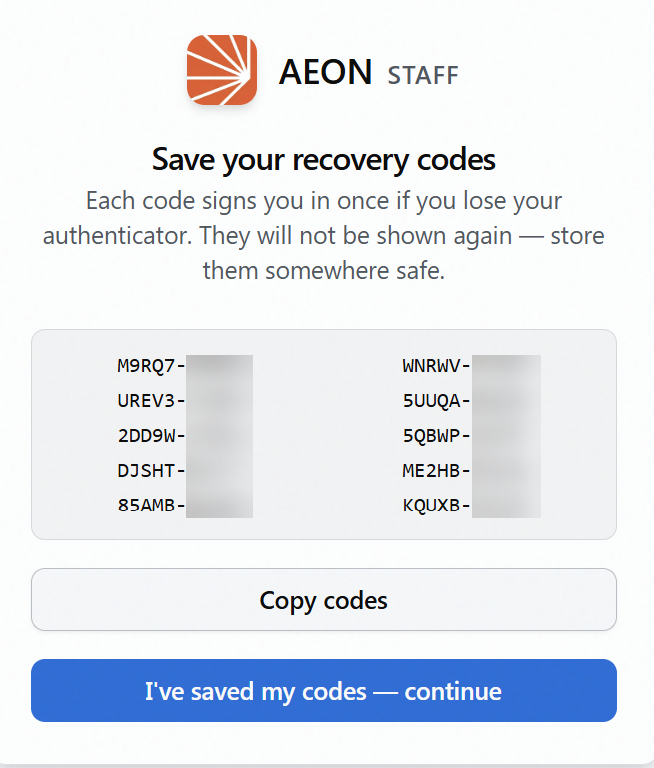
These are your way back in if you lose your phone. The screen says it plainly: "Each code signs you in once if you lose your authenticator. They will not be shown again — store them somewhere safe."
- Copy codes puts all ten on your clipboard.
- I've saved my codes — continue finishes signing you in.
Aeon deliberately waits for that button rather than moving on by itself, because this is the only time you will ever see these.
The codes can't be retrieved or re-displayed afterwards. Put them somewhere you'll still have access to when your phone is the thing that's missing — a password manager, or printed and somewhere secure. Not a note on the phone itself.
If Copy codes doesn't work — some browsers block clipboard access — Aeon tells you so and you can select the codes on screen and copy them by hand.
Each code works once. Using one doesn't affect the other nine.
Signing in from then on
- Enter your username and password.
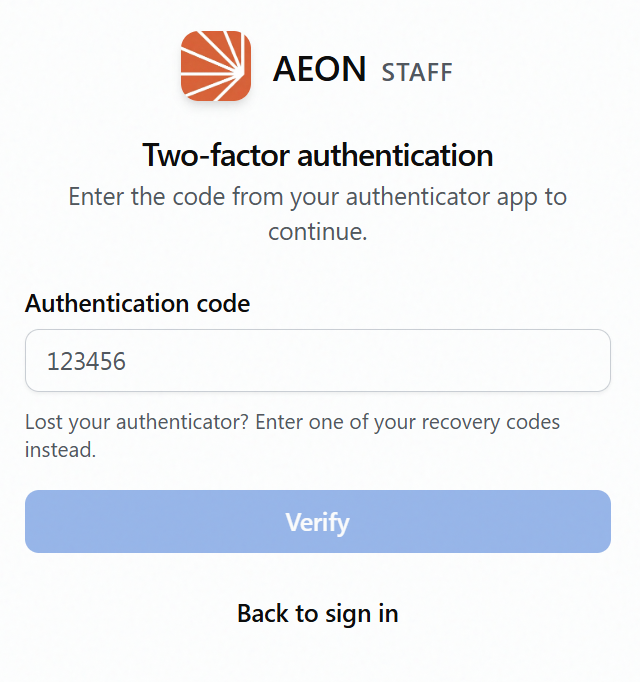
- On the Two-factor authentication screen, type the current code from your app into Authentication code.
- Click Verify.
A few things worth knowing, because each of them looks like a fault the first time it happens:
- Codes expire while you type. Your app's codes rotate on a timer. If one is rejected, read the current one rather than retyping the same digits.
- A code you just used won't work again straight away. Sign out and back in within a couple of minutes and the code still showing in your app is refused. Wait for the next one. (This is deliberate — it stops a code being reused if someone shoulder-surfed it.)
- Repeated failures pause you. After five wrong codes Aeon stops accepting attempts for about ten minutes. If you're guessing, stop and use a recovery code instead.
If you lose your authenticator
Use a recovery code. On the Two-factor authentication screen, type one into the same box you'd normally put a code in — Aeon recognizes it and signs you in. The screen reminds you: "Lost your authenticator? Enter one of your recovery codes instead."
Then, once you're in, get your authenticator re-set up: ask an administrator to reset it for you. That clears the old enrollment so you can scan a fresh QR code at your next sign-in — and it issues a new set of recovery codes at the same time.
If you work through all ten, there's no button that gives you a fresh set. The route back is an administrator resetting your authenticator, which issues new codes as part of the reset.
So treat your codes as a finite supply: each one you spend is one fewer, and it's worth asking for a reset once you're down to your last couple rather than waiting until they're gone.
Getting a new phone
Plan this before you wipe the old device, if you can.
Some authenticator apps can transfer or restore their accounts to a new phone — if yours does, follow its own migration process and Aeon needs no changes at all, because the underlying secret travels with it.
If your app can't transfer, ask an administrator to reset your authenticator. You'll set up a new one at your next sign-in and get new recovery codes. Failing both, a recovery code will get you in.
If your role can manage staff accounts, you can reset your own authenticator from the staff area rather than asking a colleague — useful precisely when you're switching devices. It signs you out immediately, including the tab you're working in, so save anything first. See Resetting a Staff Member's Authenticator.