Getting Started with Aeon 7
Aeon 7 is the browser-based staff client for Aeon. It runs the same special collections request management you already know, rebuilt as a modern web application — no desktop install, accessible from any supported browser.
How these docs are organized
- Daily Work for Staff — the everyday workflows: browsing queues, processing requests, managing patrons, sending email, and billing.
- Reading Room, Appointments & Activities — front-desk operations and the appointment calendar.
- Customization & Designers — everything you configure in the Customization Manager: roles and permissions, the form and card designers, data fields, workflow and status settings, the web interface, and integrations and messaging.
Start here
New to the web staff client? These orientation pages walk you through the basics:
- What is Aeon 7 (Web Staff Client) — how the web client replaces the desktop client, and the pieces you'll use most: the dashboard, top-bar navigation, and the global search palette.
- Logging In and Changing Your Password — signing in, finishing sign-in with a code from your authenticator app, choosing your site or site group, single sign-on, recovering from an expired password, and changing your own password.
- Signing In with an Authenticator App — setting up your authenticator the first time, entering your six-digit code, and what to do if you lose the device.
- Navigating the Workspace: Dashboard, Queues, Search, and the Command Palette — how those pieces fit together, including the
Ctrl+K/⌘Kcommand palette. - User Permissions and Role-Based Access — how your role decides which menus, buttons, and fields you can see and use.
Guided tours
Aeon includes guided tours that walk you through the interface in the app itself, highlighting each control as you go.
-
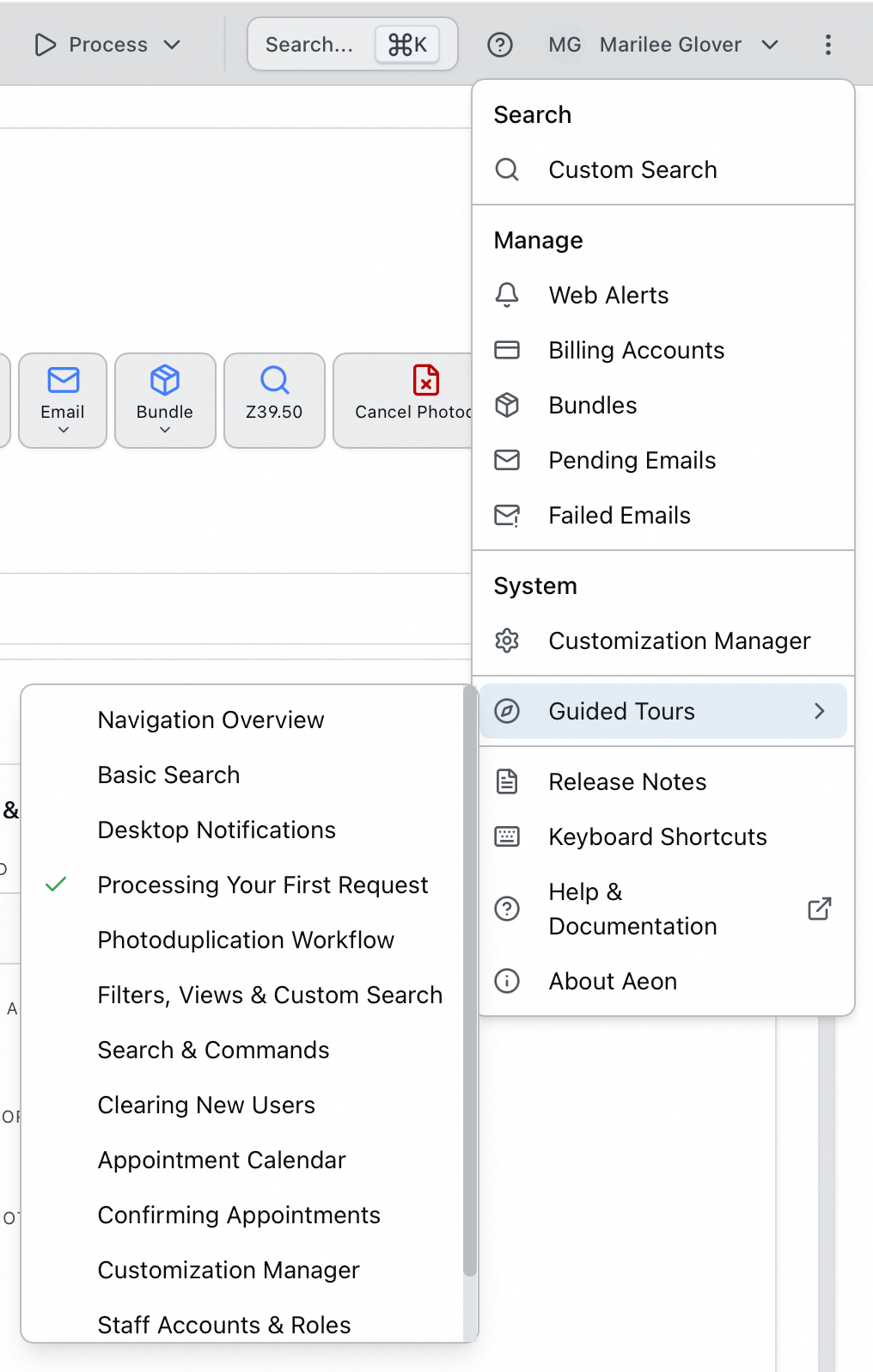
To start one, click the ? button in the top navigation bar, or open the more (three-dot) menu and choose Guided Tours. The list shows the tours your role has access to, with a check beside any you've already finished.
-
To move through a tour, use Back and Next. The last step's button is Done.
-
To leave a tour, click Skip or press
Esc.
The first time you sign in, a New to Aeon? card appears offering a short tour of how to get around. Take the tour starts it; Not now dismisses it. Either way the card doesn't come back — and you can still start that tour, or any other, from the ? menu.