User Attachments
Some user records need supporting documents kept alongside the researcher's profile — a signed reading-room agreement, a scanned ID, a copy of a letter of introduction, or a permission form. Aeon stores these as attachments on the user record, in the database itself, so they travel with the user and aren't scattered across staff machines.
Most user records have no attachments at all. You'll only open the Attachments tab when you have a file to keep on a specific researcher, or when you need to retrieve one a colleague saved earlier.
- A researcher hands you a signed form or document you want to keep on file — attach it to their record.
- You need to look at, download, or print a document someone attached earlier (for example, to confirm an agreement is on file before clearing a researcher).
- A document is outdated or was attached by mistake — replace it with a new copy, or delete it.
In earlier versions of Aeon, user attachments could only be managed from the desktop client. In Aeon 7 you add, view, download, and delete user attachments directly in the web staff client. Files attached here are stored in the same place as before, so attachments added in either client are visible in both.
Opening the Attachments tab
- Open the user record — search for the researcher and open their record, or click them from anywhere their username appears (for example,
jdoe). - In the user record's tabs, click Attachments. The tab label shows a count of how many files are attached, so you can tell at a glance whether a record has any.
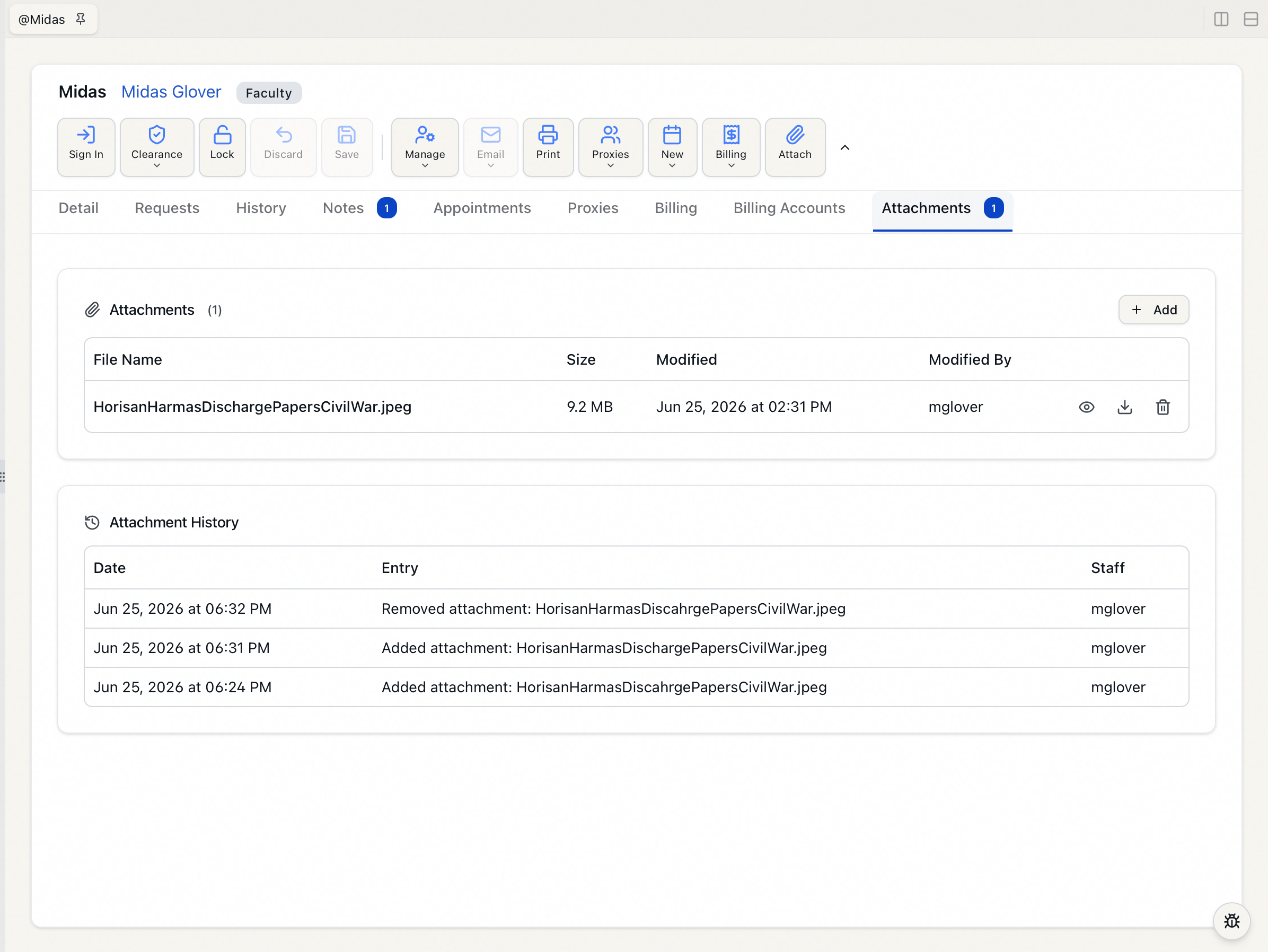
- The tab shows two stacked sections:
- Attachments — the files currently on this user, one row each.
- Attachment History — a running log of every attachment added, updated, or deleted for this user.
If the user has no files yet, the Attachments section reads No attachments, with a prompt to "Click Add to attach a file to this user". The Attachment History section shows No attachment history until the first action is recorded.
What's shown for each attachment
The Attachments list shows one row per file, with these columns:
| Column | What it shows |
|---|---|
| File Name | The original name of the uploaded file. |
| Size | The file's size. |
| Modified | When the file was last added or replaced. |
| Modified By | The staff member who last uploaded or replaced it. |
Each row also has icon buttons at the right: a view (eye) icon, a download icon, and a delete (trash) icon. The view icon only appears on files Aeon can display in the browser — PDFs and images (.png, .jpg, .jpeg, .gif, .bmp, .webp, .avif, .svg). For anything else, download the file to open it.
Adding an attachment
- Open the user's Attachments tab.
- Click Add (top-right of the Attachments section). Your browser's file picker opens.
- Choose the file and confirm. A brief progress indicator shows on the Add button while the file uploads, and on success Aeon shows an "Attachment uploaded" confirmation. The new file appears in the list and a matching entry is written to Attachment History.
Aeon accepts these file types as user attachments: PDF, DOC, DOCX, and images (PNG, JPG, JPEG, GIF, BMP, TIFF, WEBP). If you pick anything else, the upload is refused with a message listing the allowed types. Each file can be up to 25 MB.
Replacing a file with the same name
If you upload a file whose name already exists on this user, Aeon doesn't create a duplicate — it offers to replace the existing one. An Overwrite Attachment dialog appears:
A file with the name <filename> has already been attached to this user's records and will be overwritten.
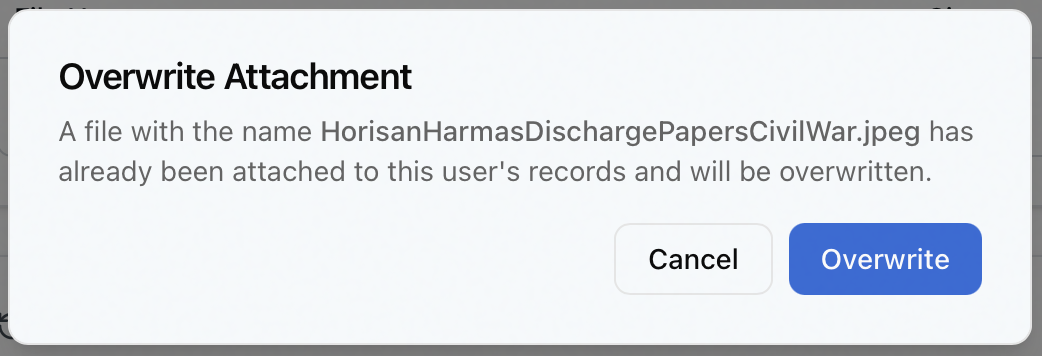
- Click Overwrite to replace the existing file with the new copy. The Modified date and Modified By update to reflect the change, and Attachment History records that the file was updated.
- Click Cancel to leave the existing file untouched.
To attach a different version without overwriting, give the new file a different name before uploading it.
You can also start an upload from the Attach action in the user record's action toolbar (the paperclip). It opens the same file picker as the Add button on the Attachments tab.
Viewing or downloading an attachment
For a PDF or an image, click the view (eye) icon to read it without leaving Aeon. The file opens in a dialog titled with its filename, and a Download button sits at the bottom in case you want a copy after all. Close the dialog to go back to the list.
To save any attachment, click the download icon on the file's row. Aeon retrieves the file and saves it through your browser; open it from there with whatever application handles that file type. This is the only route for file types Aeon can't display. Word documents have no view icon, and neither do TIFFs — a TIFF is a perfectly valid attachment, it just can't be previewed in the browser.
For security, Aeon only serves the allowed file types listed above. If a record carries a file of a now-disallowed type — for example, something attached long ago through the desktop client — the download is blocked with a message that the file type can't be downloaded. Newly attached files are always one of the allowed types, so this only affects legacy files.
Deleting an attachment
-
In the Attachments list, click the delete (trash) icon on the file's row.
-
A Delete Attachment dialog asks you to confirm:
Are you sure you want to delete <filename>? This action cannot be undone.
-
Click Delete to remove the file, or Cancel to keep it. On deletion Aeon shows an "Attachment deleted" confirmation, drops the file from the list, and records the removal in Attachment History.
Deleting an attachment removes the file from the user record and the database. There is no undo, and the file itself is gone — only the history entry noting the deletion remains. Download a copy first if you might need it later.
Attachment History
The Attachment History section below the file list logs every attachment action for this user, newest first. Each entry shows:
- Date — when the action occurred.
- Entry — what happened (for example, an attachment being updated or deleted).
- Staff — the staff member responsible.
These same events also appear in the user's overall change history, so attachment activity is auditable whether you're looking at this tab or the user's full history.
The Attachment History list is capped at the 20 latest actions and has no paging control. On a record with a long attachment history, use the user's History tab to see the rest.
- Viewing the Attachments tab and downloading files is available to any staff member who can open the user record.
- Adding or replacing an attachment requires the Edit level of the Users permission. If your role is view-only for users, the toolbar Attach action is unavailable.
- Deleting an attachment requires the Full level of the Users permission — a higher bar than uploading.
- While a user record is locked by another staff member, the toolbar Attach action is disabled until they're done.