Logging In
Signing in is the first thing you do each day. The Aeon staff client runs in your web browser, so there's nothing to install — open the staff URL your library gave you and you land on the Sign in screen. Enter your staff username and password, finish with a code from your authenticator app, and Aeon drops you on your dashboard, ready to work.
Two parts of the sign-in vary by library. Choosing which site (or site group) you're working in applies to multi-site libraries; if your library runs a single site, you'll never see that step. And some libraries have staff sign in through the institution's own login instead of an Aeon password.
- Every day, to start working. Open the staff URL, sign in, and enter your authenticator code.
- When you work across multiple sites. Pick the site or site group for the session; Aeon remembers your last choice.
- When you've forgotten your password. Forgot password? emails you a reset link.
- When sign-in won't go through. The screen tells you why (wrong password, locked or inactive account, an expired password that needs changing, or a site-assignment problem) — this page covers each case.
Signing in
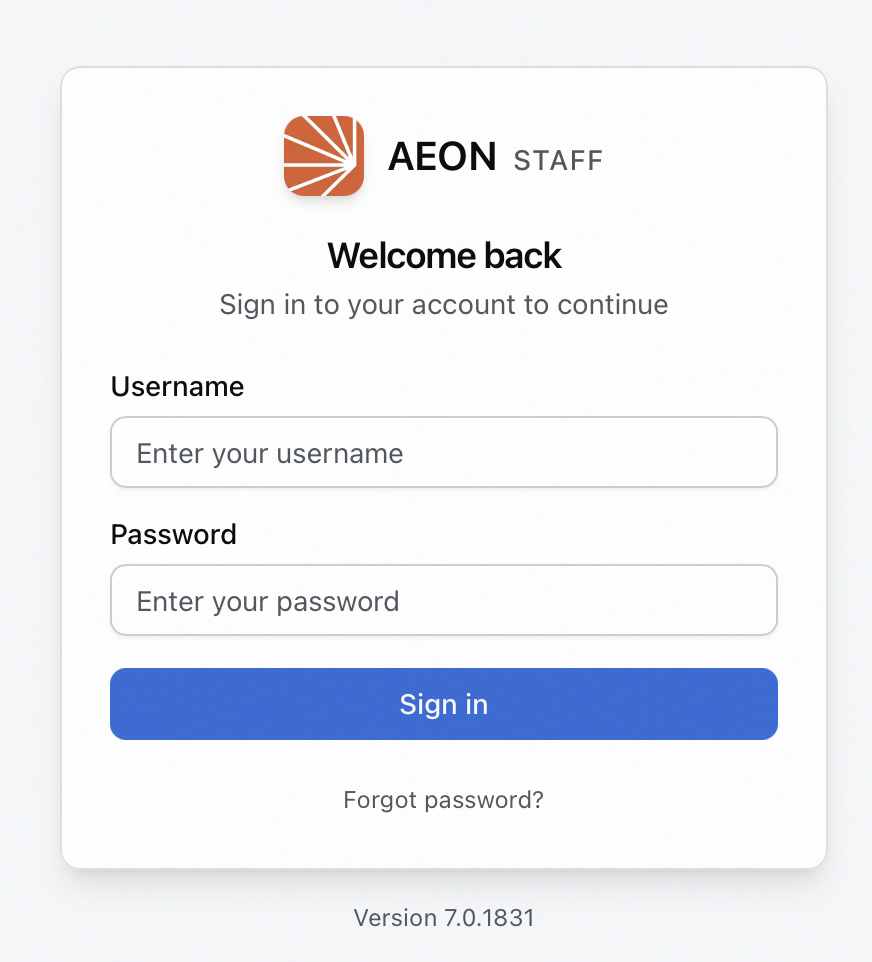
- Open your library's Aeon staff URL in a browser. You'll see the Sign in card with the AEON / Staff logo and the heading Welcome back.
- In Username, type your staff username (for example,
jdoe). - In Password, type your password.
- Click Sign in. The button reads Signing in... while Aeon checks your credentials.
- If your account has access to more than one site, choose your Site / Site Group and click Sign in again — see Choosing a site or site group.
- On the Two-factor authentication screen, type the code from your authenticator app and click Verify.
Aeon then opens your dashboard.
Step 6 applies to every account that signs in with a password, and an administrator can't switch it off for you. If you've never set up an authenticator, Aeon walks you through it the first time you sign in and gives you a set of recovery codes to keep somewhere safe. That setup, and what to do if you lose the device, are covered in Signing In with an Authenticator App.
Normally you land on the dashboard. But if you arrived at the sign-in screen by following a link to a specific page (say a coworker sent you a request URL while you were signed out), Aeon sends you on to that page once you're signed in, instead of the dashboard. The same applies when your session lapses while you're working — you come back to the page you were on, including your queue, filters, and search.
Choosing a site or site group
If your account has access to more than one site, a third field appears after your first sign-in attempt: Site / Site Group. Aeon needs to know which one you're working in before it moves on to the authenticator code.
- Enter your Username and Password and click Sign in as usual.
- The Site / Site Group dropdown appears. Open it and pick one. The list is split into two headings:
- Site Groups — a named bundle of several sites, shown by name, description, and the number of sites it covers, for example Admin - All Sites (5 sites).
- Individual Sites — a single site, listed by its code and description, for example ARCHIVES - University Archives.
- Click Sign in again.
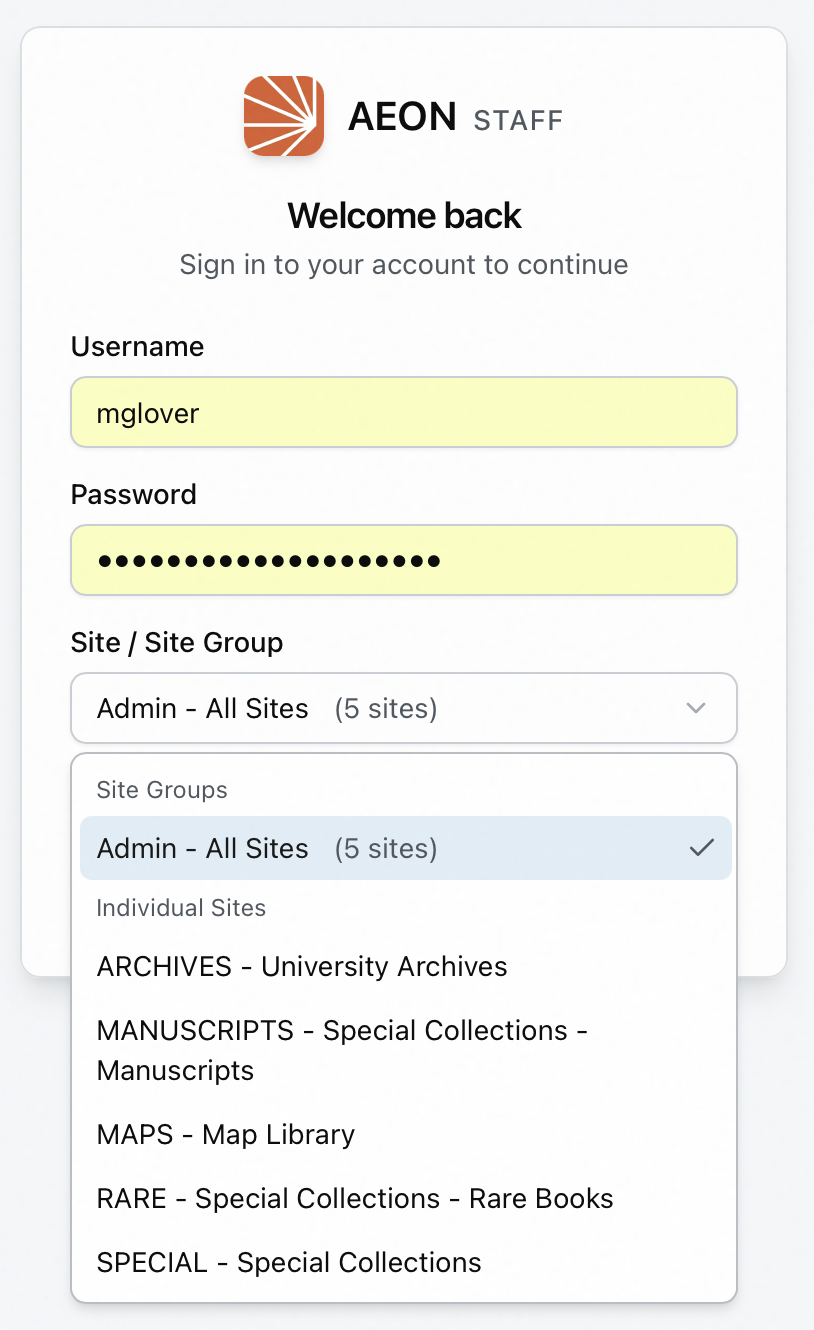
The site or site group you choose scopes the session: the queues, requests, reading rooms, and appointments you see are the ones for that site. User (patron) records aren't restricted by site, though — searching for and opening users works the same no matter which site or group you picked. You're not locked in for the day: open the user menu (your name, top-right) and choose Sites to re-scope your session on the spot. Sites appears only when your library runs more than one site.
Aeon remembers your last choice
After you sign in, Aeon saves the site or site group you picked in your browser. The next time the selector appears, that choice is pre-selected for you — so most days you just enter your password and click Sign in twice without touching the dropdown.
If your access changes and a remembered choice is no longer valid (for example, an administrator removed you from that site), Aeon quietly drops the stale selection and pre-selects the first available option instead. Because the choice is stored per browser, a different computer — or a different browser on the same computer — starts fresh.
If your library runs only one site, or your account is assigned to exactly one site or one site group, Aeon picks it automatically and goes straight to the authenticator code. The Site / Site Group field only appears when you genuinely have a choice to make.
Entering your authenticator code
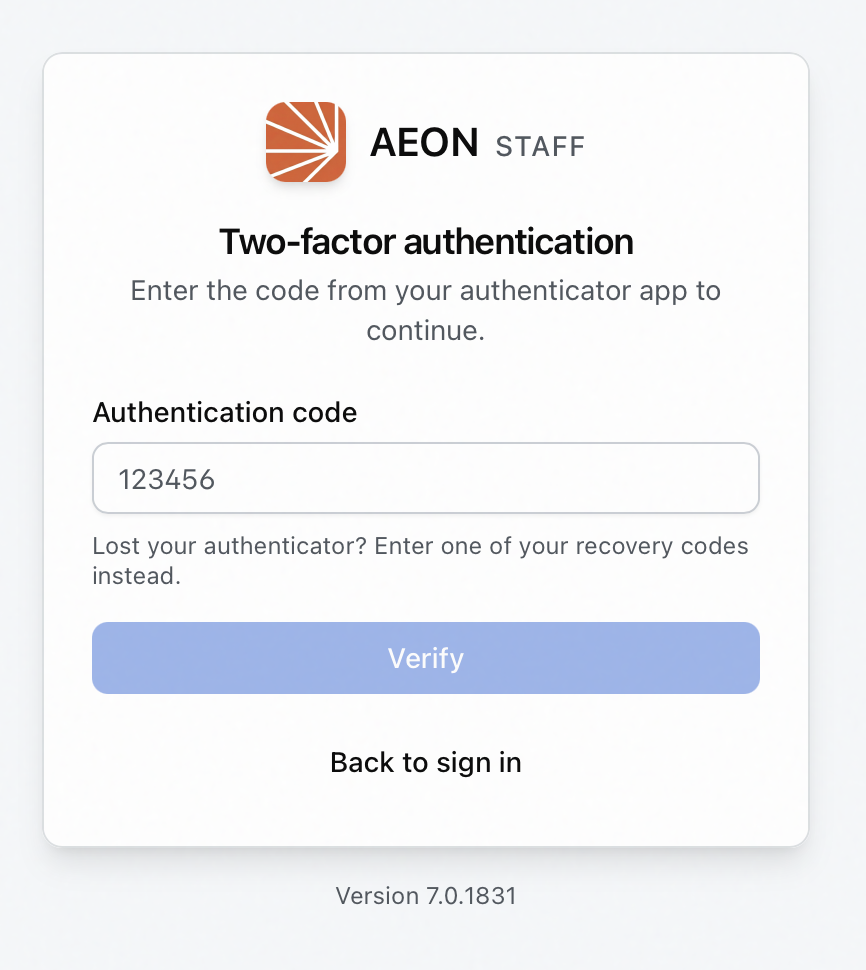
The Two-factor authentication screen asks for one thing: Authentication code. Open your authenticator app, read the current code for Aeon, type it in, and click Verify.
- Codes rotate on a timer. If Verify rejects one, read the current code from your app rather than retyping the one you just used.
- Lost your authenticator? Type one of your recovery codes in the same box — the screen reminds you: "Lost your authenticator? Enter one of your recovery codes instead." If you're out of recovery codes, an administrator has to reset your authenticator for you.
- Back to sign in returns you to the username and password fields.
If you forget your password
Forgot password? sits under the Sign in button. It emails you a link to set a new password, so you don't need an administrator.
- Click Forgot password?.
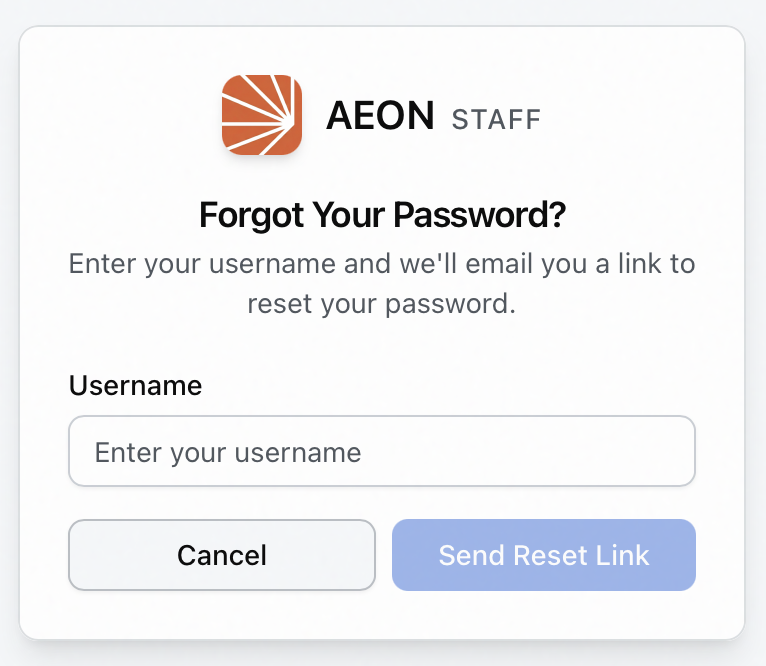
- On the Forgot Your Password? screen, type your Username and click Send Reset Link. (Cancel takes you back to the sign-in screen.)
- Aeon shows Check Your Email: "If an account with that username has an email address on file, a password reset link is on its way. The link is valid for one hour."
- Open the link from your email, set your new password, and sign in with it.
The link only reaches you if your staff record has an email address. Aeon shows the same Check Your Email message whether or not it found an account, so the screen never confirms that an account exists. If nothing arrives, ask an administrator to check the email address on your record.
If your library uses institutional sign-on
Some libraries have staff sign in through the institution's own login — the same credentials you use for email and other campus systems — instead of an Aeon password. On those installs the Sign in card shows a button, labeled Sign in with your institution unless your library renamed it, above or instead of the username and password fields.
Click it, sign in at your institution's page, and you come back to Aeon. If you already have a campus session going, that hop is often invisible. You'll usually enter an authenticator code afterwards as well — libraries whose institutional login already enforces its own second factor can turn that step off.
If the card shows only the institution button and you need to sign in with a password — an emergency administrator account, for example — use the small Admin sign-in link, which is always available.
Configuring institutional sign-on is an administrator task. See Single Sign-On: Overview and Prerequisites.
When sign-in is blocked
If something's wrong, Aeon shows a message at the top of the card and leaves you on the sign-in screen. The common cases:
| What you see | What it means | What to do |
|---|---|---|
| Invalid username or password. | The username or password didn't match. | Re-type carefully (both are case-sensitive). Aeon won't tell you which one was wrong — that's deliberate. If you've forgotten the password, use Forgot password?. |
| Account is locked. | Your staff account is locked. | Reach out to an Aeon administrator; a locked account can't be unlocked from the sign-in screen. |
| Account is inactive. Contact an administrator. | Your account has been marked inactive. An inactive account can't sign in by any method. | An administrator has to make the account active again. |
| Your account has no site assignment. Contact an administrator. | Your library runs multiple sites but your account isn't assigned to any of them. | An administrator needs to assign you a site before you can sign in. |
| None of your site assignments currently provide a site. | You are assigned, but every assignment resolves to nothing — an empty site group, or a direct assignment to a site that's gone. | The message names the fix: an administrator adds sites to your assigned site group, or repairs the assignment. |
| Site group '<name>' has no sites. | The group you picked is empty, but your other options still work. | Choose a different site or site group, or ask an administrator to add sites to that group. |
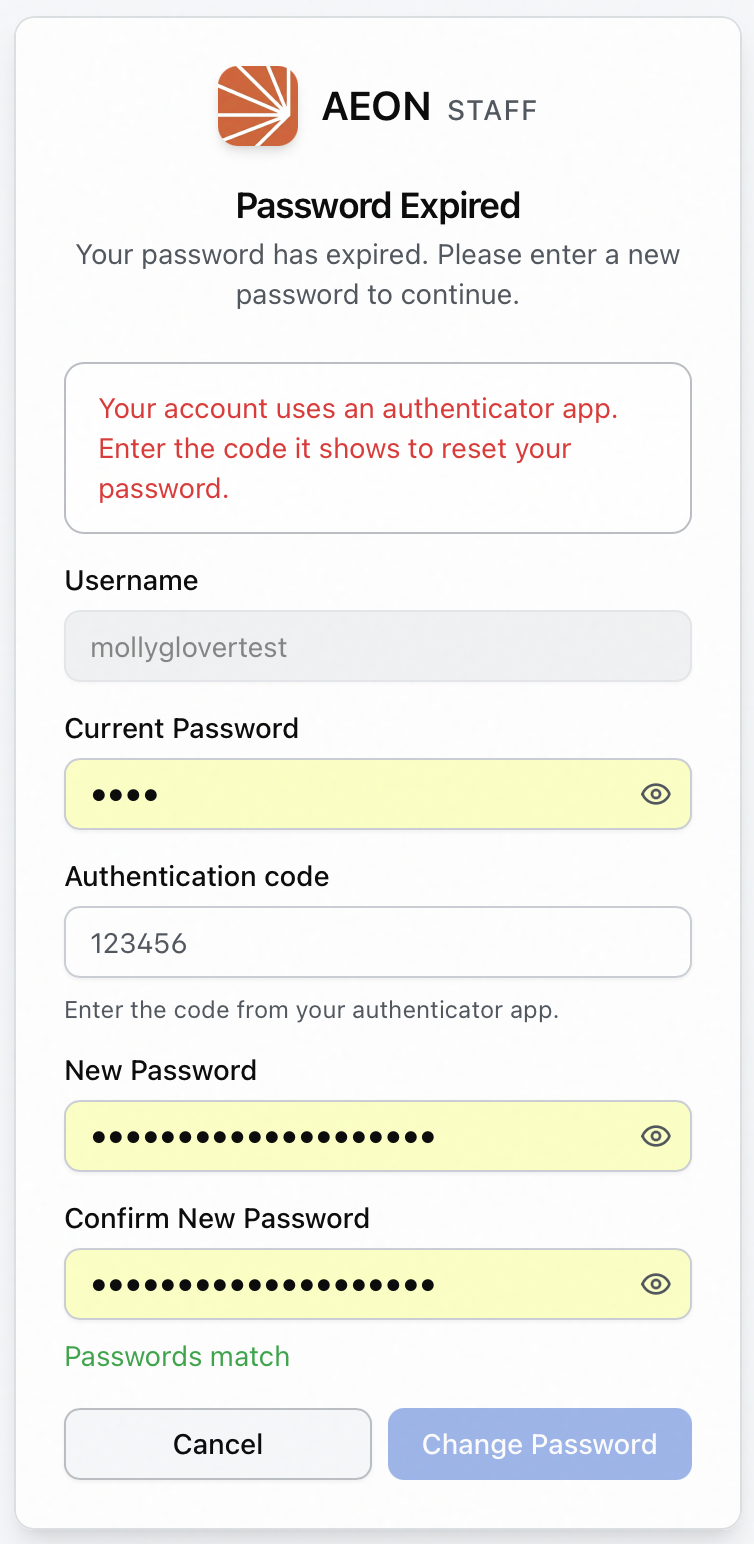
If your password has expired, or an administrator has flagged your account to require a password change, Aeon doesn't show an error — it sends you to a Password Expired screen instead. Enter your current (expired) password, then a new password twice, and click Change Password. Aeon confirms with Password Changed and returns you to the sign-in screen to log in with the new password. The new password must meet your library's complexity rules and can't repeat a recent one; if it doesn't, the screen tells you why.
If your account has an authenticator enrolled, Aeon answers your first attempt with "Your account uses an authenticator app. Enter the code it shows to reset your password." and adds an Authentication code box. Type the current code and submit again. This box takes authenticator codes only — recovery codes don't work here — and each attempt uses up the code, so read a fresh one if you have to retry.
This is different from changing your password whenever you like once you're already signed in — that's done from the user menu and is covered in Logging In and Changing Your Password.
Staying signed in
Once you're in, Aeon keeps your session alive in the background so you're not asked to sign in again mid-shift. If you leave Aeon idle for about an hour, though, the session lapses and Aeon returns you to the sign-in screen — sign in again and you pick up on the page you left. To end your session yourself, use Sign Out from the user menu.