The Outgoing Emails Queue: Pending and Failed
Almost every email Aeon sends — request status updates, user notifications, appointment confirmations — doesn't go out the instant you click Send. It's written to an outgoing queue, and a background mail process picks it up and delivers it. In normal operation this is invisible: an email sits in the queue for a moment, sends, and disappears. You never have to look.
The outgoing emails queue is where you look when something isn't normal. It has two views:
- Pending — emails that are waiting to be sent. Under healthy conditions this list is empty or clears quickly. A growing pile of pending emails usually means the mail process is stopped or your mail server is unreachable.
- Failed — emails the mail process tried to send but couldn't (a bad address, a rejected message, a server error). These won't retry on their own. They sit here until a staff member fixes and resends them, or cancels them.
- You notice the pending or failed email counter in the status bar climbing and want to know what's stuck.
- A patron says they never got an email Aeon should have sent — check Failed to see if it bounced, and why.
- After a mail-server outage, you have a batch of failed emails to correct and resend.
- You queued an email by mistake and want to stop it before it goes out — cancel it while it's still Pending.
Getting to the queue
The fastest way in is the status bar at the bottom of the screen. When there are emails waiting or stuck, Aeon shows small counters there:
- An amber envelope with a number — that many pending emails. Click it to open the Pending view.
- A red warning-envelope with a number — that many failed emails. Click it to open the Failed view.
These counters only appear when there's something to show (a count above zero) and only for staff whose role can view email. If both counts are zero, nothing appears — which is the normal, healthy state.
You can also open either view directly, which is how you get there when the counters aren't showing: click the More options menu (the ⋮ button at the top right of the screen) and choose Pending Emails or Failed Emails under Manage. Both entries appear only if your role can view email.
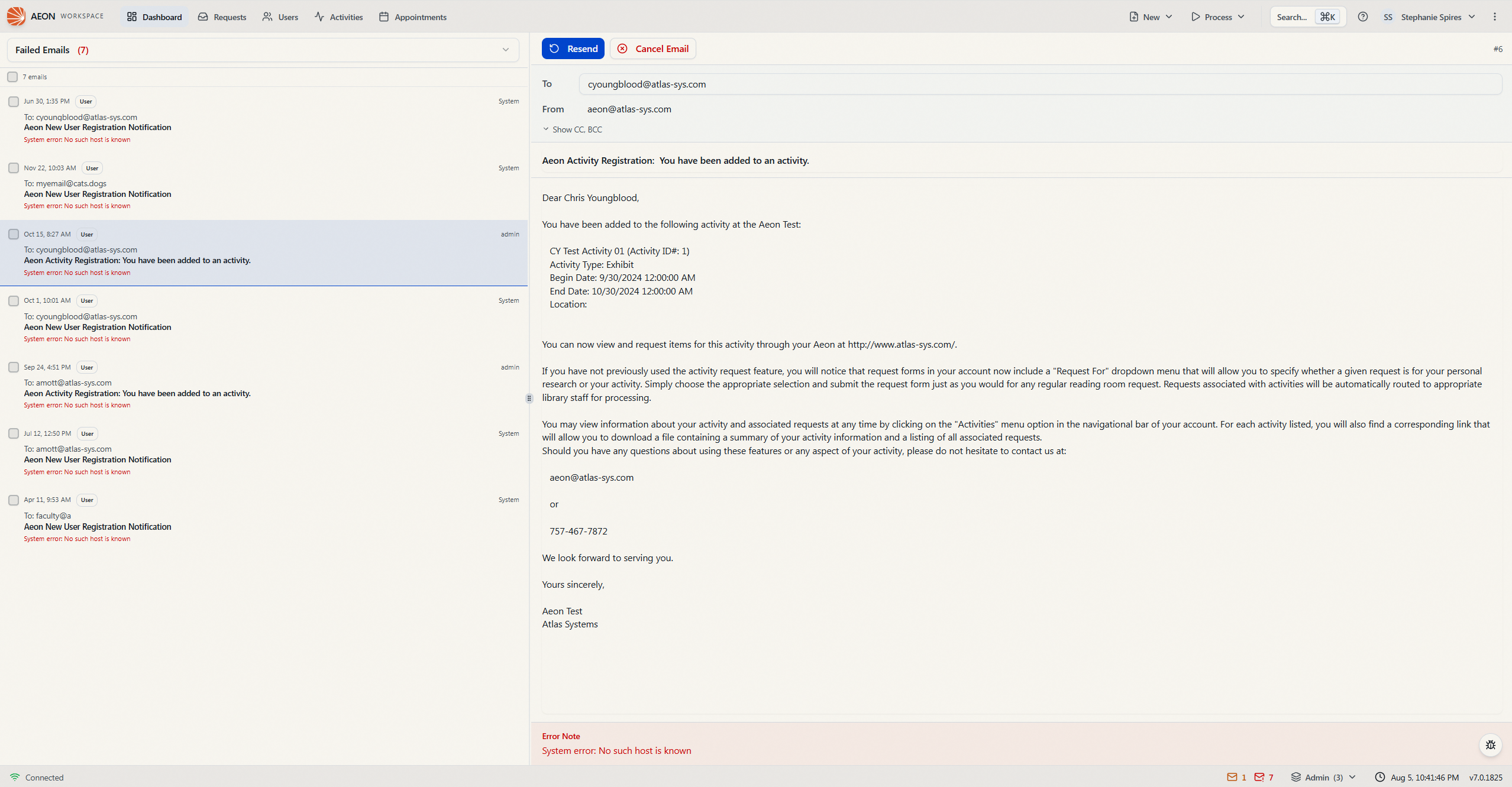
Once you're in either view, a dropdown at the top of the email list lets you switch between Pending Emails and Failed Emails without leaving the page. Each option shows its current count beside it.
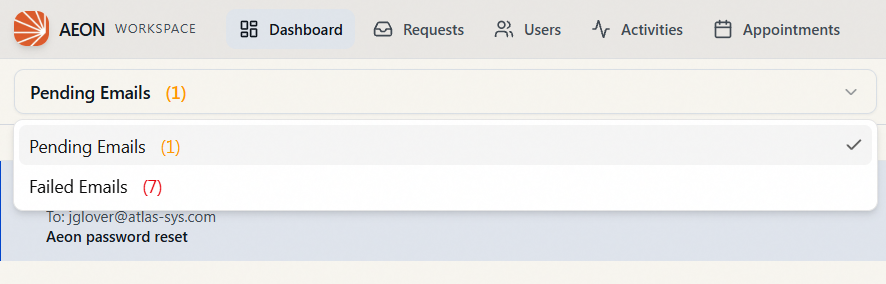
Pending = not sent yet (still on its way out). Failed = tried and couldn't (needs your attention). Pending emails are view-only; failed emails can be edited and resent. That difference drives everything on this page.
Reading the queue
The queue uses a two-panel layout. The list of emails is on the left; selecting one shows its full detail on the right.
The email list
Each email in the list shows:
- The date and time it was queued
- A type badge — for example Transaction, User, or Appointment — indicating what the email is about
- The staff member associated with it, when there is one
- To: the recipient address
- The subject
- For failed emails, the error note in red — a short reason the send didn't work (for example, a rejected address)
A header above the list shows the total count, for example 24 emails. If a view is empty, you'll see No pending emails or No failed emails — for the Failed view, that's exactly what you want to see.
Click any email to open it on the right. Until you do, the detail panel reads Select an email to view details.
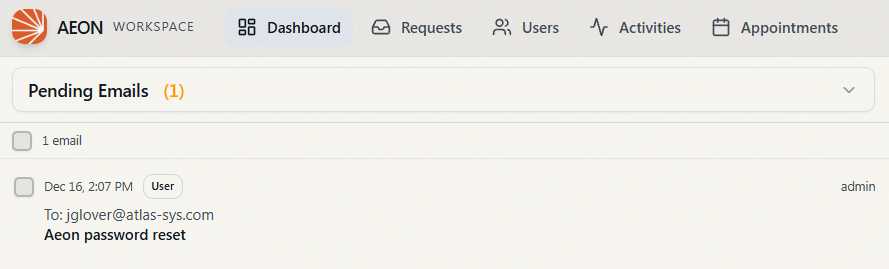
The detail panel
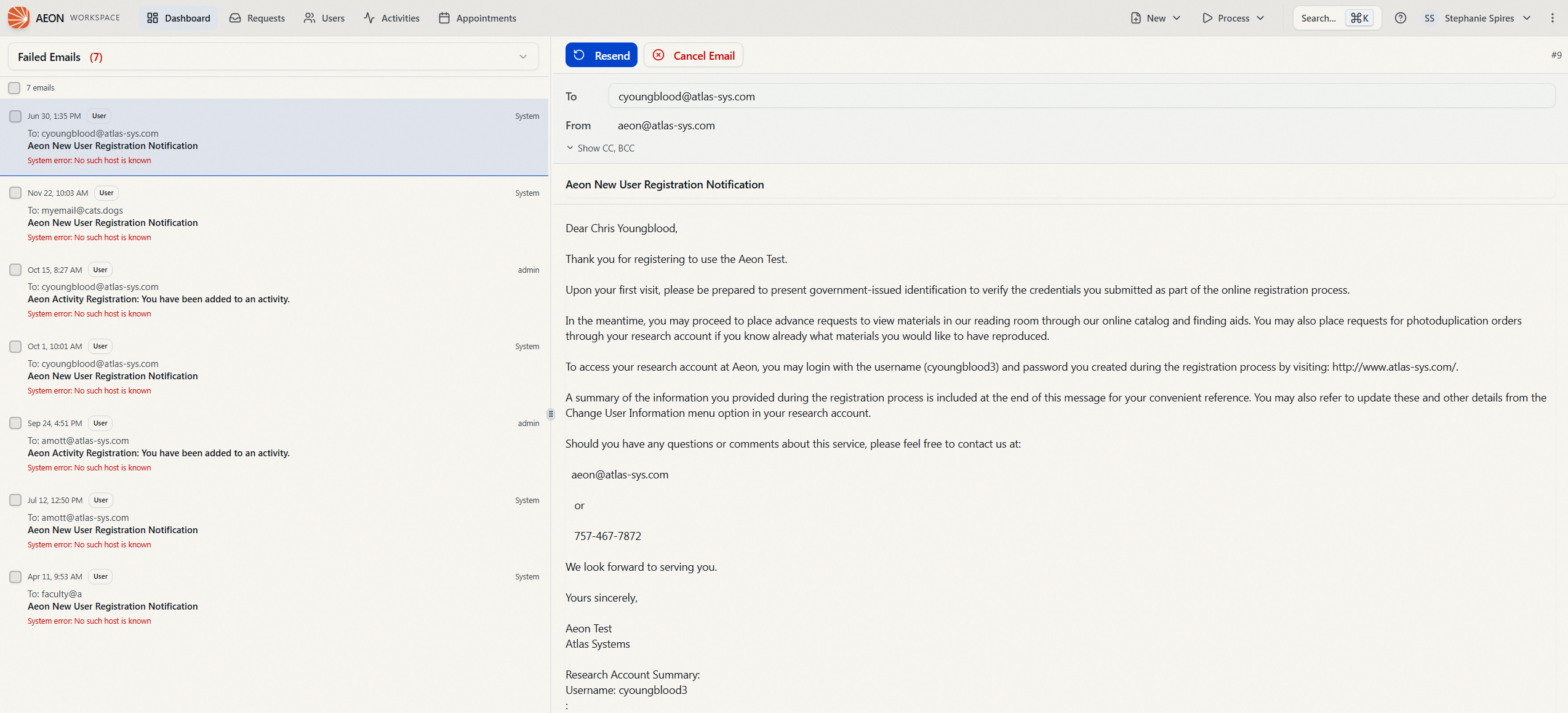
The detail panel shows the full email: To, From, Subject, and the complete message body. CC and BCC are hidden by default to keep things tidy — click Show CC, BCC to reveal them (they're shown automatically if the email already has CC or BCC addresses).
For a failed email, an Error Note appears at the bottom of the panel with the full failure reason, so you can see what to fix.
How much you can do here depends on which view you're in:
- In Pending, the detail panel is read-only. You can read the email but not change it — the only action is to cancel it.
- In Failed, the fields are editable so you can correct the problem before resending.
Working with pending emails
Pending emails are on their way out, so there's deliberately little to do with them. You can read one to confirm what's queued, and you can cancel it if it shouldn't go.
To cancel a pending email:
- Open the Pending view and select the email.
- In the detail panel, click Cancel Email.
- Aeon confirms with Email cancelled. The email moves to a cancelled state and drops off the pending list — the mail process will never send it.
Cancelling marks the email as cancelled; it won't be sent and you can't un-cancel it from this screen. If the message still needs to go out, you'll have to compose it again from the relevant request or user. Cancel only when you're sure the email shouldn't be delivered.
Working with failed emails
This is the heart of the queue. A failed email tried to send and couldn't, and it won't try again until you act. You have two choices: fix and resend it, or cancel it.
Fix and resend
- Open the Failed view and select the email. Read the Error Note at the bottom to understand why it failed — most often it's a bad or missing To address.
- Correct whatever's wrong directly in the panel. You can edit To, CC, BCC, Subject, and the body. (The From address is fixed and can't be changed here.)
- As soon as you change anything, a Discard Changes button appears next to the action buttons. Click it any time to revert your edits back to the email's saved content.
- Click Resend.
- Aeon confirms with Email queued for resend. The email's status flips back to Pending, its old error note is cleared, and the mail process will attempt delivery again with your corrections.
You don't have to change anything to resend — if the failure was a temporary glitch (for example, the mail server was briefly down), just select the email and click Resend as-is.
You can't resend an email with an empty To field. If you clear it, Aeon refuses with Recipient address is required. Fill in a valid recipient before resending.
Cancel a failed email
If a failed email shouldn't be sent at all — it's obsolete, or it was a mistake — click Cancel Email instead of resending. As with pending emails, this marks it cancelled and removes it from the queue. Cancelling is available on both pending and failed emails.
Handling several at once
After a mail outage you may have dozens of failed emails to clear. You don't have to open them one by one.
- In the list, check the checkbox on each email you want to act on. To grab the whole list, use the select-all checkbox in the header above the emails.
- A selection bar slides up from the bottom showing how many you've picked, for example 12 selected.
- Choose an action:
- Cancel — cancels every selected email (works in both views).
- Resend — resends every selected email. This appears in the Failed view only.
- Aeon reports the outcome, for example Resent 11 emails, 1 failed, so you can see how many went through.
To back out without acting on anything, click the X at the left of the selection bar — it clears your selection and the bar disappears.
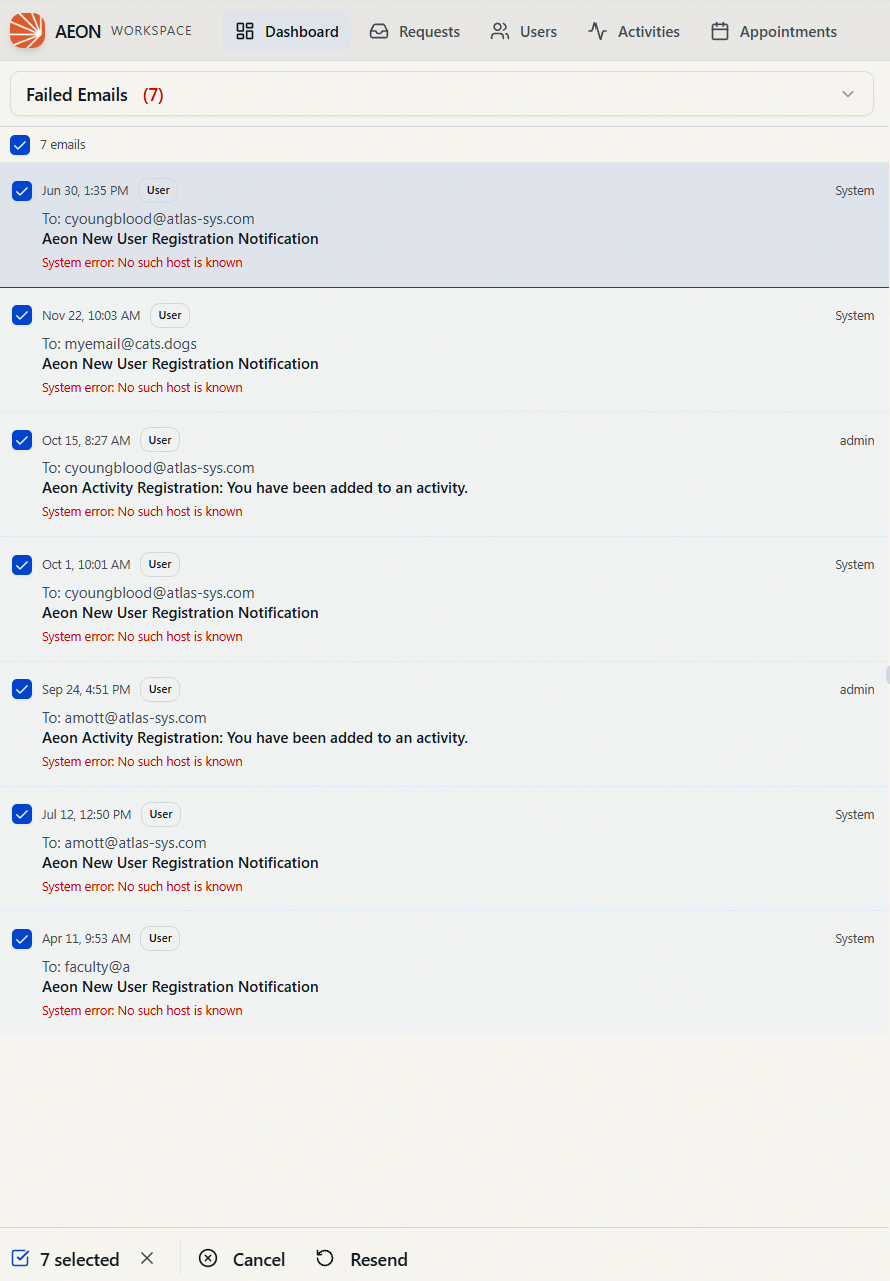
The selection bar resends each email as-is — it's for clearing a backlog quickly, not for correcting addresses. If an email failed because of something in the email (a bad recipient, a wording problem), open it individually, fix it, and resend it from the detail panel. Bulk resend is best when the cause was external, like a server that's now back up.
When you bulk-act, Aeon only changes emails that are eligible: a bulk cancel only touches emails that are still Pending or Failed, and a bulk resend only touches Failed ones. Anything that no longer qualifies is simply skipped and counted under the "failed" portion of the result message.
What the statuses mean
| Status | Meaning | What you can do |
|---|---|---|
| Pending | Queued and waiting for the mail process to send it. | View, Cancel |
| Failed | The mail process tried and couldn't deliver it. Will not retry on its own. | View, edit, Resend, Cancel |
| Cancelled | Marked so it will never be sent. Leaves both queue views. | — |
- Seeing the outgoing emails queue (both views) requires the View level of the Email permission. If your role can't view email, the status-bar counters won't appear and the queue pages aren't available to you.
- Cancelling and resending — individually or in bulk — require the Edit level of the Email permission. With only View access you can read the queue but not act on it.