Email History for a Request
Every time Aeon sends an email about a request — a routing notification, a "your item is ready" message, a cancellation notice, or anything you compose by hand from the request — it keeps a copy. That copy lives with the request, so you can always answer the question "did the researcher actually get told about this, and what did we say?"
You'll reach for this most often when a researcher calls asking why they haven't heard anything, or when you're picking up a request mid-workflow and want to see what's already been communicated before you send something new. Email history is read-only: it's the receipt log, not the place you compose a new message (for that, see Composing and Sending Email from a Request).
- A researcher says they never received a confirmation — check the history to see whether it was sent, and to which address.
- You're about to email someone about request #12345 and want to avoid repeating a message that already went out.
- You're auditing what happened on a request: who was emailed, when, and whether anything Failed.
Where email history lives
Email history is a section on the request's History tab — it is not a separate top-level tab.
- Open request #12345 (click it in a queue, from a search result, or anywhere its transaction number appears).
- In the request's detail view, select the History tab.
- You'll see several collapsible sections: Tracking, History, Emails, and Links. Click the Emails heading to expand it.
Each section header shows a running count — for example, 3 of 3 — so you can tell at a glance how many emails Aeon has on file for this request before you even open the section.
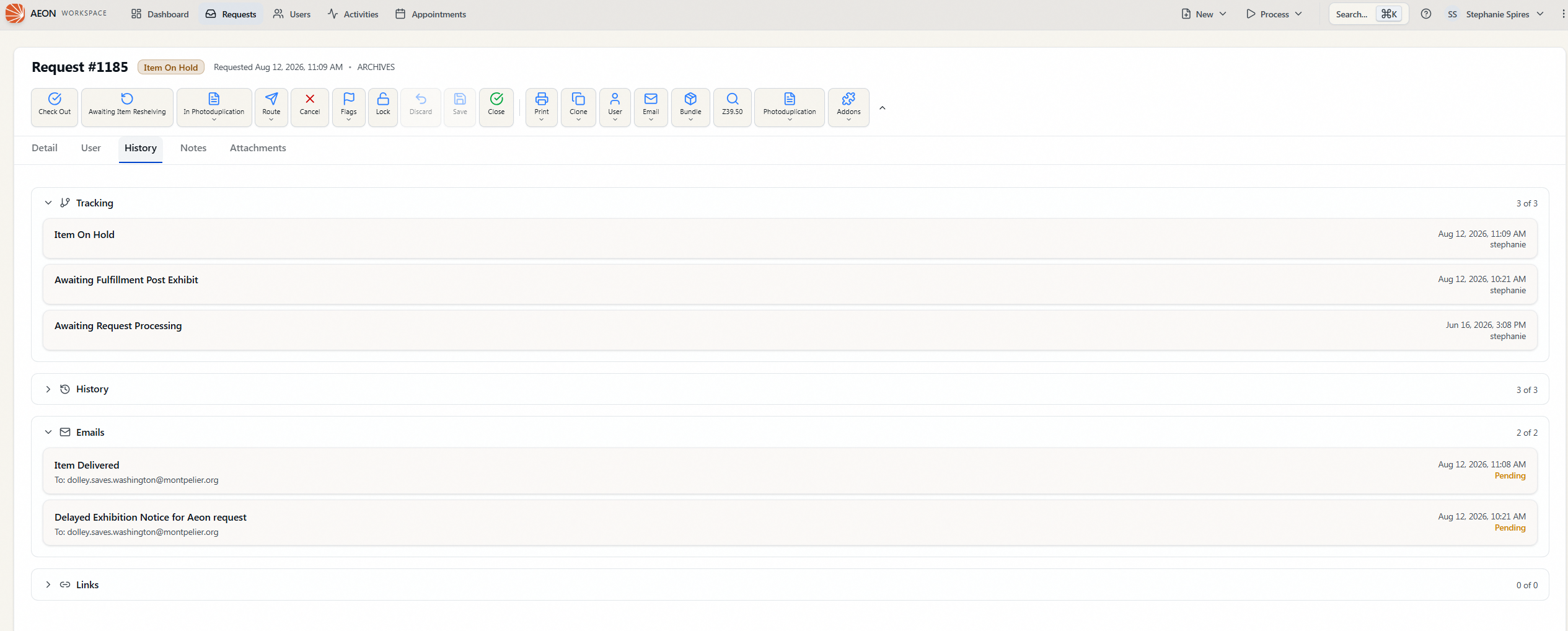
Emails is one of four sections there. For what the Tracking, History, and Links sections hold — queue changes, the action log, and cloned or merged requests — see Request History. This page covers the Emails section in depth.
This section lists only emails tied to this request — internally, messages whose type is Transaction and whose reference is this request's transaction number. Emails sent to the researcher that aren't about a specific request (for example, account or appointment notices) show up under the user record instead. See Email History for a User for the full picture of everything a researcher has been sent.
Reading the list
Emails are listed newest first. Each row is a compact summary:
| Shown on the row | Example |
|---|---|
| Subject | Your request is ready for pickup (rows with no subject read (No subject)) |
| Recipient | To: jdoe@university.edu |
| Date and time | the moment the email was generated |
| Status | a colored label — Sent (green), Failed (red), or Pending (yellow). A Cancelled email also appears here, shown in plain text rather than a color. |
The status label is the quick answer to "did it go out?" A green Sent means Aeon handed the message off successfully. Pending means it's still queued to go. Failed means it didn't send — that's your cue to investigate and, if appropriate, resend it from the outgoing-email queue (see The Outgoing Emails Queue: Pending and Failed). You may also see Cancelled, meaning a staff member stopped the message from the queue before it went out; cancelled emails stay in this history rather than disappearing.
Reading a single email in full
Click any email row to expand it in place. The expanded view adds the details the summary leaves out:
- From — the sending address.
- To — the recipient (repeated in full, in case it was truncated in the summary).
- CC — shown only if the email had a CC.
- Staff — the staff member who sent it, when Aeon recorded one (system-generated notifications may not name a person).
- The full message body, exactly as it was sent, in a scrollable panel.
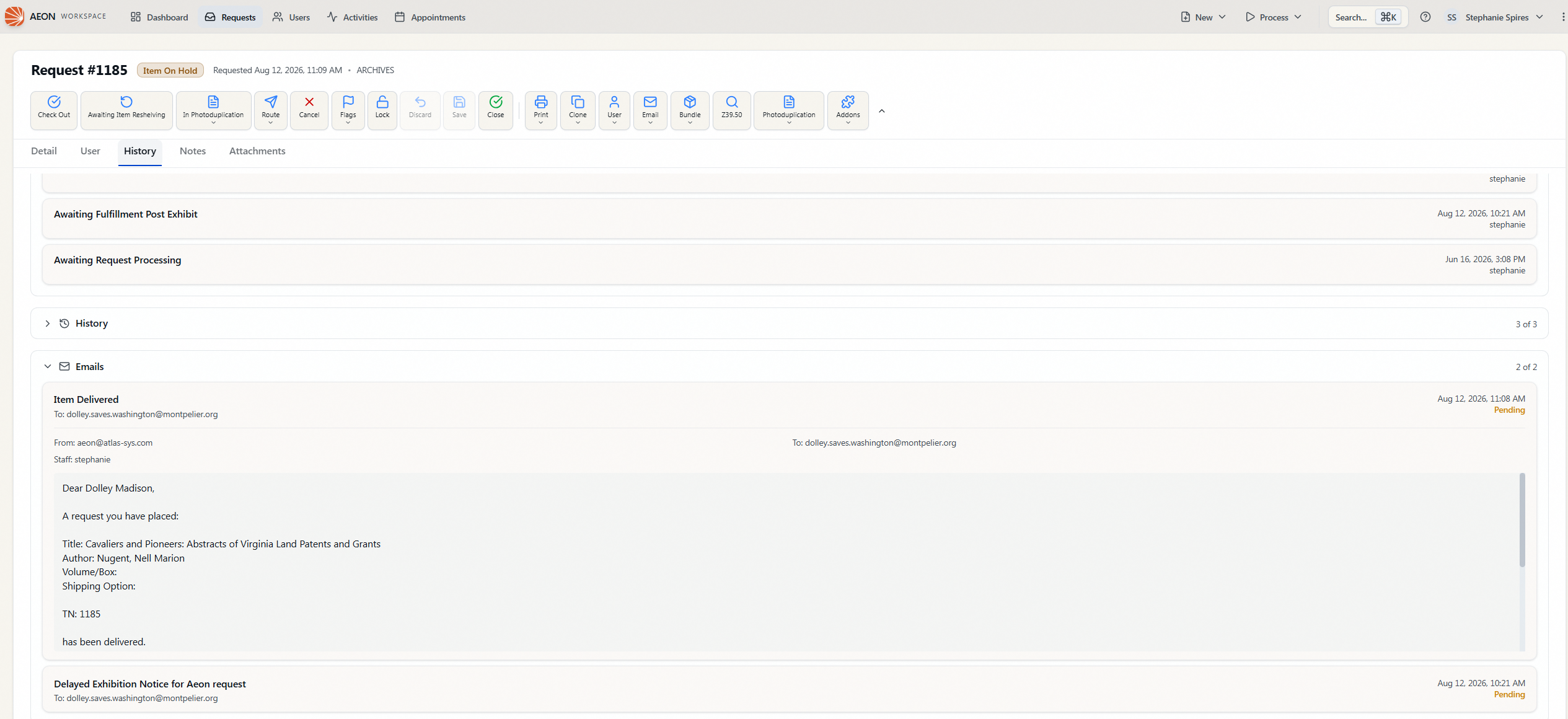
Click the row again to collapse it. Only one email expands at a time, so opening a second message closes the first.
The expanded panel is drawn only when Aeon has a stored message body for that email. If the body is empty — which happens with some system-generated notifications — clicking the row appears to do nothing at all: you get no From/To/CC/Staff detail either, because the whole panel is tied to the body. The row itself still tells you the subject, recipient, date, and status, which is usually the part you needed. (The Emails tab on a user record behaves differently: it shows the header details with an italic (No body) placeholder instead.)
Loading older emails
The list loads ten emails at a time. If a request has a longer email history, a Load more button appears at the bottom of the section — click it to pull in the next batch. The count in the section header (10 of 24, then 20 of 24, and so on) tells you how many remain.
If there's nothing to show
A request that has never had an email sent about it shows No emails found when you expand the section. That's expected for brand-new requests, or for any request whose communication has all happened by phone or in person.
Email history is part of viewing a request, so anyone who can open the request can read its email history — it requires the View level of the Requests permission, the same level needed to open the request in the first place. There is no separate permission for the email log, and no edit-level access is required to read it.
This section is a read-only record. Composing and sending a new email about the request — and the Edit-level permission that action requires — is covered in Composing and Sending Email from a Request. Nothing on the History tab sends, edits, or resends a message.