Photoduplication Initialization
Most requests are for access — a researcher wants to see an item in the reading room. A photoduplication request is different: the researcher wants a copy (a scan, a photocopy, a digital file). Those two things have to be tracked separately. The item still has to be pulled, delivered, and reshelved like any other request, but the copy order has its own life: it gets estimated, billed, approved, and fulfilled.
Aeon handles this with two parallel statuses on the same request: the normal transaction status (where the physical item is) and a separate photoduplication status (where the copy order is). Initializing photoduplication is the action that switches a request into this copy-tracking mode and starts that second workflow. Until you initialize it, a request has no photoduplication status at all.
- A request comes in (or is created) for a physical visit, but the researcher actually wants copies instead — initialize photoduplication to start the copy order.
- A request was placed through a photoduplication web form but the copy workflow wasn't started yet, and you want to begin billing/estimating.
- You initialized photoduplication on the wrong request, or the researcher changed their mind — cancel the copy order, or undo the initialization entirely.
There are two related-sounding things in Aeon. Initialize Photoduplication (this page) starts the copy-order workflow by giving the request a second, separate status. In Photoduplication is a routing action on the regular transaction workflow that moves the physical item into a photoduplication queue while it's being scanned. They're independent — a request can be routed "In Photoduplication" without having a photoduplication order, and vice versa.
Where the actions live
Open the request you want to work with (for example, request #12345) and look at the toolbar across the top of the request detail. The three actions sit in two places.
The Photoduplication button (document icon) opens a menu holding two of them:
| Menu item | What it does |
|---|---|
| Initialize | Starts the copy-order workflow. Available only when the request has no photoduplication status yet. |
| Undo Initialization | Removes the photoduplication status entirely, as if it was never started. Appears only after the workflow has been initialized. |
Cancel Photodup is a button of its own on the toolbar, not a menu item. It appears only once a request has been initialized, and its icon is red to mark it as a destructive action.
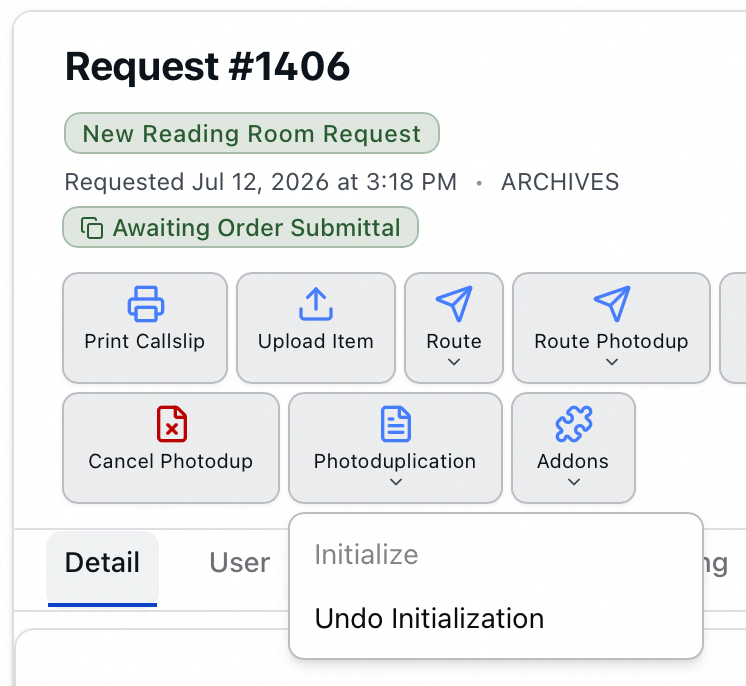
This is a request that has already been initialized, so Initialize is grayed out while Undo Initialization and Cancel Photodup are both available.
On a narrow screen both the Photoduplication button and Cancel Photodup collapse into the toolbar's More (…) overflow menu, where all three appear together as Initialize Photoduplication, Cancel Photoduplication, and Undo Initialization.
- Initialize Photoduplication requires the Edit level of the Billing permission, as does the Photoduplication button that holds it. If your role is view-only for billing, the button is disabled.
- Cancel Photodup and Undo Initialization both require Billing Full. If either is grayed out for you, that's the level you're missing — ask an administrator to run it or to raise your access.
- The request must be unlocked by anyone else and editable by you, the same as any other request action.
Initializing photoduplication
- Open request #12345 and make sure you have saved any pending edits first. If the request has unsaved changes, Aeon stops you with "Please save your changes before initializing photoduplication" — save, then try again.
- In the toolbar, click Photoduplication, then Initialize (it reads Initialize Photoduplication in the More overflow menu on narrow screens).
- Aeon confirms with "Photoduplication initialized" and the request now carries a second status. There is no confirmation dialog — initializing happens immediately.
What happens behind the scenes:
- The request's photoduplication status is set to Awaiting Order Submittal — the first step of the copy workflow.
- A second status badge appears in the request header showing the current photoduplication status — it reads Awaiting Order Submittal right after you initialize — so anyone opening the request can see at a glance that a copy order is in progress, separate from the regular transaction status. Its color follows the status: Aeon styles it from the queue's state, so a cancelled or finished order doesn't look the same as one still moving.
- The initialization is recorded in the request's history and tracking, so there's an audit trail of who started the copy order and when.
Once a request has a photoduplication status, the Initialize Photoduplication item is grayed out — you can't initialize a second time. To start over, use Undo Initialization first (see below), then initialize again.
Once a request is in photoduplication mode, the rest of the copy workflow becomes available: the toolbar exposes a second Route Photodup menu for moving the copy order through its own queues, photoduplication-specific actions like Print Digitization Request and Upload Item appear, and the request's billing (charges, estimates, invoice, payments) drives the order forward. Those are covered on the related billing pages.
What "Awaiting Order Submittal" means
Initializing puts the copy order at the very start of its own queue chain. From Awaiting Order Submittal, the order typically moves through estimate, approval, billing, and processing steps as you and the researcher work it. The key idea is that this status is independent of where the physical item is — the item can be checked out, on hold, or reshelved while the copy order sits in its own queue.
This is mostly relevant once billing is involved, but it's worth knowing: when a payment brings a copy order's balance to zero (and the order is in one of the qualifying photoduplication queues), Aeon can automatically route the order forward to Awaiting Item Delivery. You don't have to move it by hand. See the billing pages for the full picture.
Cancelling a copy order
Use this when the copy order should stop, but you want to keep a record that it existed (and leave the underlying request alone).
- Open the request and click Cancel Photodup in the toolbar (or Cancel Photoduplication from the More overflow menu on a narrow screen).
- Aeon asks you to confirm with a dialog titled Cancel Photoduplication: "This will cancel the photoduplication workflow for this request. The photoduplication status will be changed to 'Order Cancelled by Staff'. This action does not affect the underlying request status."
- Click Cancel Photoduplication to proceed, or Keep Photoduplication to back out.
- On success you'll see "Photoduplication cancelled", and the header badge updates to Order Cancelled by Staff.
Cancel Photoduplication only stops the copy order. The physical-item request keeps its normal transaction status and stays in whatever queue it was in. To cancel the request itself, use Cancel on the request (see Cancelling a Request).
Undoing initialization
Use this when the request should never have been put into photoduplication mode at all — you want it back to a plain access request with no copy-order history showing.
- Open the request and click Photoduplication, then Undo Initialization.
- Confirm in the dialog titled Undo Photoduplication Initialization: "This will remove the photoduplication status entirely from this request, as if it was never initialized. This action cannot be undone."
- Click Remove Status to proceed, or Keep Status to back out.
- On success you'll see "Photoduplication status removed", and the photoduplication badge disappears from the header. The request is back to having no photoduplication status, and Initialize Photoduplication becomes available again.
- Cancel Photoduplication keeps the order on the record, just marked Order Cancelled by Staff. Choose this when a copy order genuinely happened and was then called off.
- Undo Initialization wipes the photoduplication status completely. Choose this when initialization was a mistake. The dialog warns that this action cannot be undone — once removed, the copy-order status (and its position in the copy workflow) is gone.