Payments and Refunds
Once a request has charges, the Billing tab is where you record what the researcher has actually paid. A payment is money received against the request's balance — a check, a cash payment, a card transaction taken at the desk. Each payment you add reduces the Balance Due, and the running totals at the top of the tab update immediately.
A refund is the same workflow in reverse: when you give money back to a researcher (for example, they cancelled a photoduplication request after paying), you record it as a payment with a negative amount. That raises the balance back up by the amount returned, so the request's books stay accurate.
You don't have to wait for a particular status to take a payment. A payment can be applied at any time to any non-cancelled request that has an outstanding balance — you don't need the request to be at Awaiting Order Approval or Awaiting Order Billing first.
- A researcher pays for a request — record the payment so the Balance Due reflects it.
- You took a card payment online and need to confirm it landed on the request — it appears here automatically as a Credit Card payment.
- You refunded a researcher (cancelled order, overcharge) — record the refund as a negative-amount payment.
- A payment was entered with the wrong amount, method, or date — edit or delete it.
Where payments live
Open request #12345 and select the Billing tab. Payments are managed in the Payments card, below the Charges card. At the top of the tab, a summary strip shows three running totals:
| Summary tile | What it shows |
|---|---|
| Invoice Total / Estimate Total | Sum of all charges (labeled Invoice Total once an invoice has been generated, Estimate Total before that). |
| Payments | Sum of all payments recorded on the request. |
| Balance Due | Charges minus payments. Shows Outstanding (red) when money is owed, Paid in full (green) at zero, or Overpaid (amber) when payments exceed charges. |
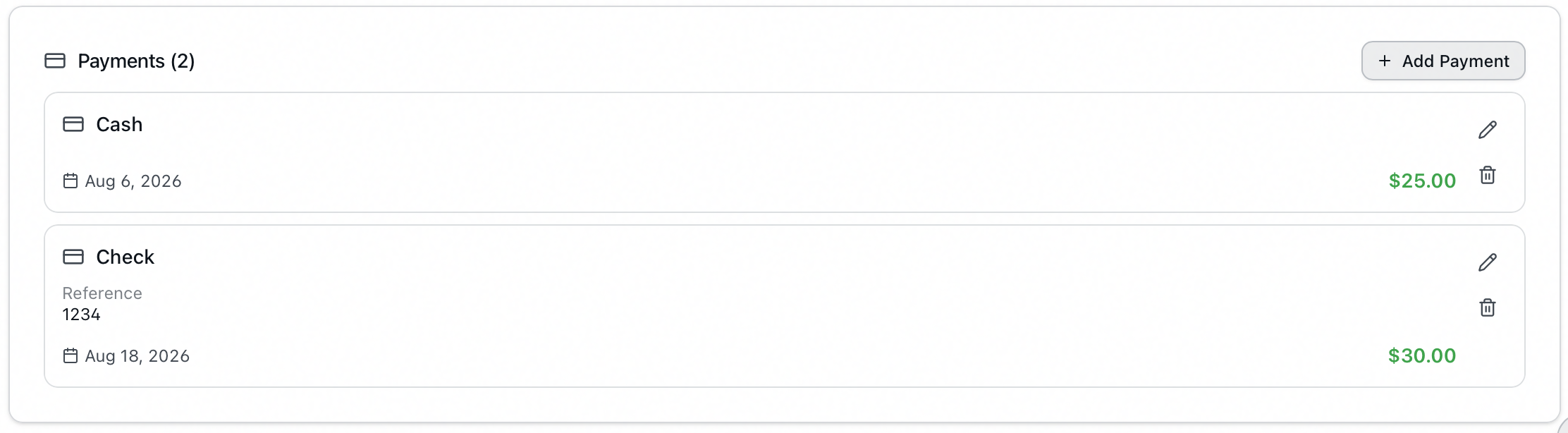
The Payments card header shows a count — for example, Payments (2) — and lists each payment on its own line showing the method, reference, date, and amount.
Recording a payment
- Open request #12345 and go to the Billing tab.
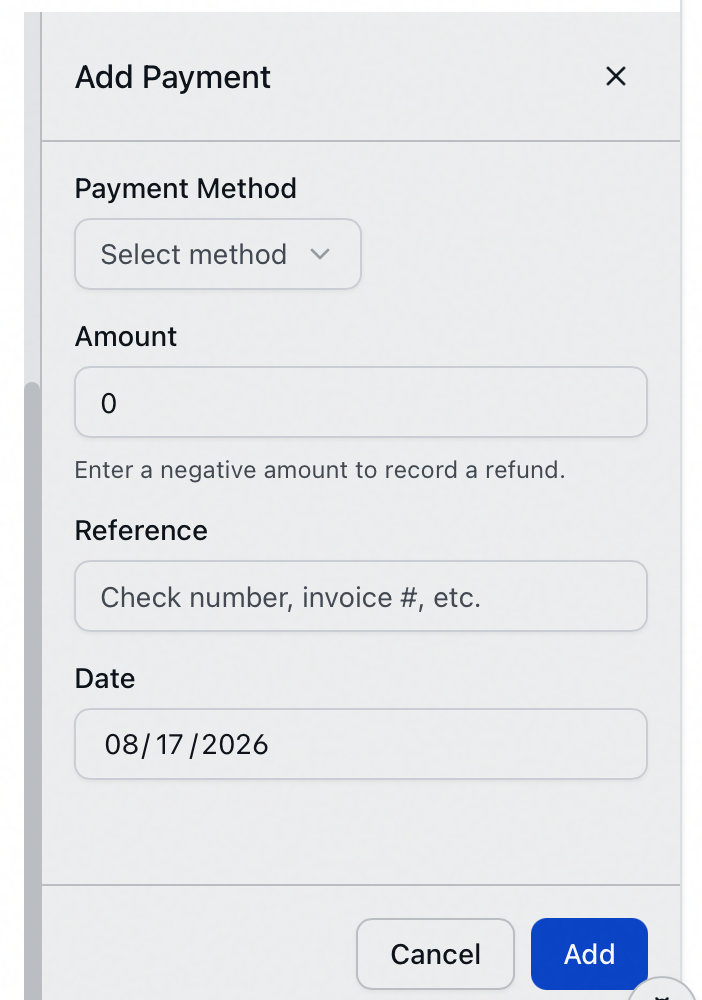
- In the Payments card, click Add Payment. A panel opens on the right titled Add Payment.
- Fill in the fields:
- Payment Method — choose from the dropdown (for example, Check, Cash, Credit Card). The options come from the PaymentMethod custom dropdown, configured in the Customization Manager. This field is required.
- Amount — the amount received, for example
25.00. - Reference — optional free text such as a check number or invoice number. The placeholder reads Check number, invoice #, etc.
- Date — defaults to today; change it if the payment was received on a different day.
- Click Add.
The payment appears in the Payments list, the Payments total goes up, and Balance Due drops by the same amount.
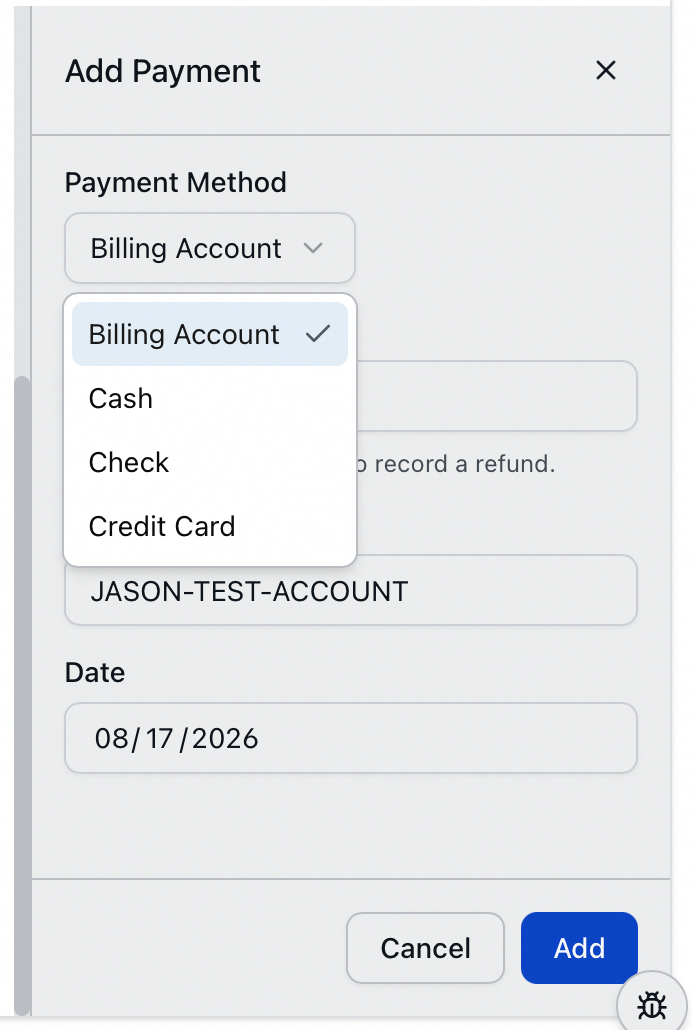
If the request has a billing account linked to it, Billing Account appears at the top of the Payment Method list, above the methods from your custom dropdown. Choosing it fills the Reference with the account ID, so the payment records against that account without any typing. That fill happens only when you're entering a new payment — reopening an existing one never overwrites a reference you typed by hand.
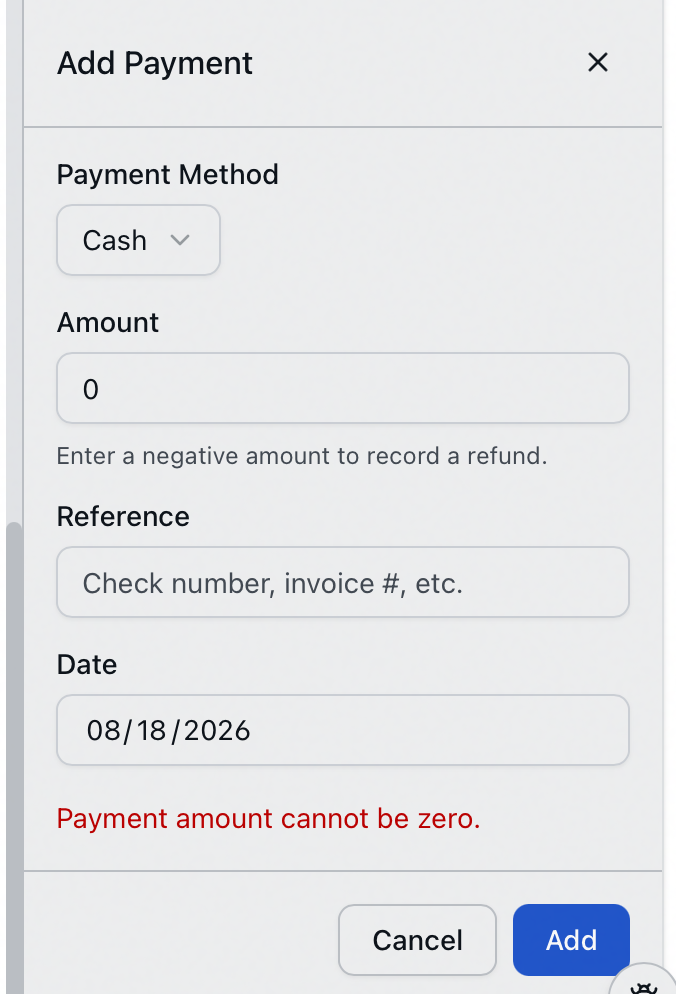
Two checks run on the amount before it saves. Zero is refused outright, with the reason shown in the panel:
And an amount larger than what's owed asks you to confirm first, because clearing the balance can move the request along on its own:
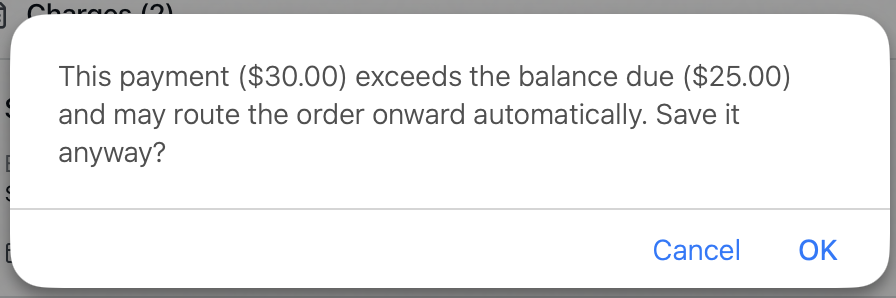
Refunds skip that prompt, since a negative amount can't clear a balance.
Unlike the legacy desktop client, where you could type a new method directly into the field, the web client only lets you pick a Payment Method from the dropdown. To make a new method available (for example, Money Order), add it to the PaymentMethod custom dropdown in the Customization Manager first.
When a payment pays the balance in full
If a payment brings the Balance Due to zero (or below) and the request is in one of the photoduplication order-billing stages — Awaiting Order Approval, Awaiting Order Billing, or Awaiting Order Processing — Aeon routes it forward for you. No extra step is needed; the request moves itself along once it's paid.
It normally lands in Awaiting Item Delivery, and you'll see a confirmation naming where it went: "Request routed to Awaiting Item Delivery (balance paid in full)." Your site's routing rules get their say on that transition, though, so a rule that matches the request can send it somewhere else instead. The message always names the queue it actually reached, so read it rather than assuming.
Editing a payment
- In the Payments card, find the payment and click its pencil (edit) icon. That payment is highlighted in the list while the panel is open, so it's clear which one you're changing.
- The panel reopens titled Edit Payment with the current values filled in.
- Change the Payment Method, Amount, Reference, or Date as needed.
- Click Update.
The totals recalculate as soon as the change is saved, and the edit is recorded on the request's History tab.
Deleting a payment
- In the Payments card, click the trash (delete) icon on the payment.
- A confirmation dialog asks Delete Payment? and warns that "This action cannot be undone."
- Click Delete.
The payment is removed, the Payments total and Balance Due adjust automatically, and the deletion is recorded on the request's History tab — so a payment that's no longer in the list can still be accounted for.
These lists also stay current while you work. If a colleague records or changes a payment on the same request, your view updates without a refresh.
Recording a refund
There is no separate "refund" button. A refund is recorded as a payment with a negative amount, which increases the balance back by the amount returned. The panel says so itself, in a note under the Amount field: "Enter a negative amount to record a refund."
- Open the request and go to the Billing tab.
- In the Payments card, click Add Payment.
- In the panel:
- Payment Method — the method you used to return the money (for example, Cash or Check).
- Amount — enter the refunded amount as a negative number, for example
-25.00. - Reference — it's good practice to type
Refundhere so the entry is easy to identify later. - Date — the date the refund was issued.
- Click Add.
The Payments total decreases by the refunded amount and the Balance Due rises accordingly. If the refund leaves the request overpaid or with money owed back, the Balance Due tile reflects that (Overpaid in amber, or Outstanding in red).
Nothing requires it, but putting Refund in the Reference field is a useful convention — together with the negative Amount, it keeps refunds easy to pick out of the Payments list and on any printed invoice or statement. Sites that refund often may prefer to standardize on it.
Credit card payments are protected
Two different things can look like a card payment, and only one of them is protected.
A payment you record by hand, choosing Credit Card from the Payment Method list, is an ordinary payment. You can edit it and delete it like any other, and it carries no badge. Aeon has no way to know it corresponds to a real card transaction — as far as the record is concerned, you typed in a method and an amount.
A payment that arrives from your payment processor, when a researcher pays online, is different. It carries an authorization code from the processor, shows a Credit Card badge in the Payments list, and is deliberately locked so the request stays in sync with what was actually charged.
The badge is the thing to look for. If a payment doesn't show it, none of the restrictions below apply to it, whatever its method says.
- It cannot be deleted. The delete icon is disabled, and hovering it shows "Credit card payments cannot be deleted." The API refuses in the same terms if something tries anyway.
- Opening it to edit leaves only the Reference field editable — Payment Method, Amount, and Date are locked. The panel notes: "Only the reference can be edited for credit card payments." An attempt to change a locked field is refused with "Credit card payments can only have their reference updated."
To refund one, process the refund through your payment processor, then record it here as a separate negative-amount payment (see above). Don't try to remove the original — you can't, and the record should keep showing what the processor charged.
The Billing tab is governed by the Billing operational capability:
- View — see charges, payments, and balances, but no editing.
- Edit — add and edit charges and payments (the Add Payment button and the edit pencil require this level).
- Full — additionally delete payments and charges, generate or delete invoices.
If your role is view-only for Billing, the Add Payment and edit/delete controls are hidden or disabled.