Managing Billing Accounts
A billing account is an optional, reusable payment reference — typically a grant, department fund, or institutional account that covers a patron's charges. Each account has an Account ID (a short code, up to 50 characters) and an optional Description. Once an account exists, staff can link it to patrons and attach it to individual requests, so charges flow to the right place without re-typing the account every time.
This page covers the account itself — creating it, renaming its description, and removing it. Linking accounts to users and selecting them on requests are separate workflows (see Associating Users with Billing Accounts and Billing Account Selection on Requests).
- A department or grant starts covering patron charges, and you need a new account for staff to assign — create it here.
- You need to correct or clarify an account's description.
- An account is retired and you want to remove it, after checking who still uses it.
Nothing in Aeon requires a billing account. They exist purely to make repeat payment processing simpler. A site that doesn't track charges against shared accounts can ignore this feature entirely.
Opening the Billing Accounts manager
Billing Accounts isn't on the main toolbar. Open the More menu (the ⋮ button at the far right of the workspace header) and choose Billing Accounts under Manage. It appears there for anyone with Billing View.
The page opens as a split view:
- The left panel lists every billing account, sorted by Account ID, with each account's ID on top and its description beneath.
- The right panel shows the details of whichever account you select, including its linked users and requests. Until you pick one it reads Select an Account.
A search box at the top of the list (Search accounts...) filters the list as you type, matching against both the Account ID and the description. This is the fastest way to find one account among many. If nothing matches you'll see "No accounts match your search"; on a site with no accounts at all, the list reads "No billing accounts yet. Create one to get started."
Click any account in the list to load it into the detail panel on the right.
Selecting an account puts its ID in the address bar, so the view is bookmarkable and shareable — send a colleague /billing-accounts?account=LIGHTHOUSE-26 and it opens with that account already selected.
The two panels stack instead of sitting side by side: you get the account list, and selecting an account replaces it with the detail view. Use the Accounts back control to return to the list.
- Viewing the Billing Accounts manager — the list and account details — requires the View level of the Billing permission.
- Creating and editing accounts requires the Edit level. Without it, the New and Save buttons don't appear and the description field is read-only.
- Deleting requires the Full level. The Delete button doesn't appear at all below that, so an Edit-level user won't be offered a deletion they can't complete. (See the warning under Deleting a billing account.)
Creating a billing account
- In the list panel, click New (top-right of the Billing Accounts header).
- The New Billing Account dialog opens, headed "Create a new billing account. The Account ID cannot be changed after creation."
- Enter an Account ID (required) — for example,
LIGHTHOUSE-26. This is the permanent identifier; it can be up to 50 characters and cannot be changed after the account is created. - Optionally enter a Description — for example,
Lighthouse Logbooks Access Fund. This is the human-friendly label staff see alongside the ID, up to 255 characters. - Click Create Account, or Cancel to abandon the new account.
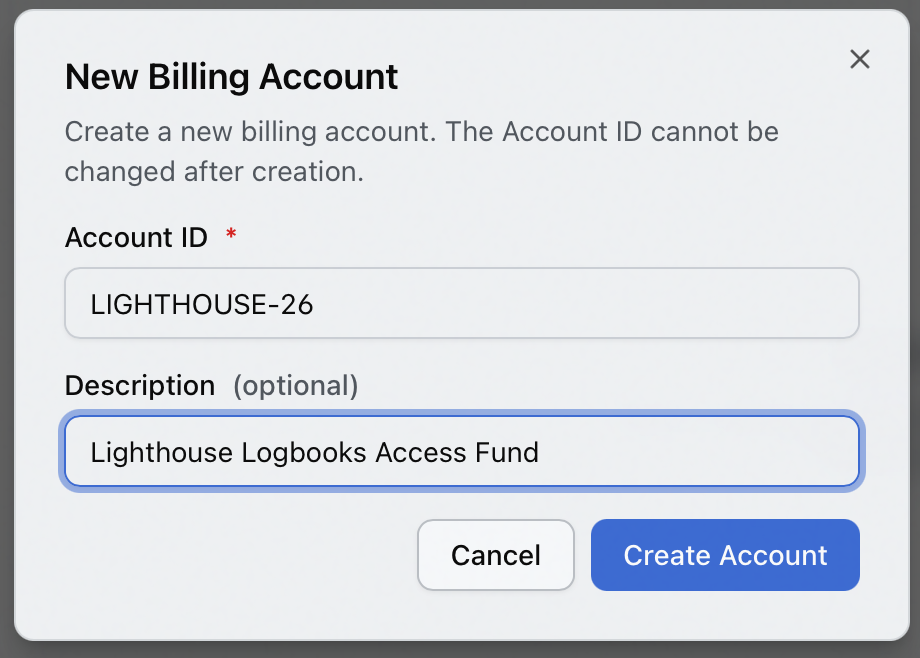
The new account appears in the list and is selected automatically, and you'll see a confirmation: "Account 'LIGHTHOUSE-26' created successfully".
Aeon checks the ID against existing accounts (case-insensitively). If you enter one that already exists, the dialog shows "An account with this ID already exists" and the Create Account button stays disabled. Leaving the field empty gives "Account ID is required". Both messages appear when you leave the field or try to submit, not while you're still typing.
Because the ID can never be edited afterward, choose a stable, meaningful code up front — only the description can be changed later. Leading and trailing spaces are trimmed from both fields as the account saves.
Editing a billing account
You can change an account's description at any time. The Account ID is fixed once created.
- Select the account in the list.
- In the detail panel, the Account ID field is shown but grayed out (it can't be edited). Edit the Description field.
- Click Save. A Cancel button appears next to Save while you have unsaved edits — clicking it reverts the description to its last saved value.
On success you'll see "Account updated successfully".
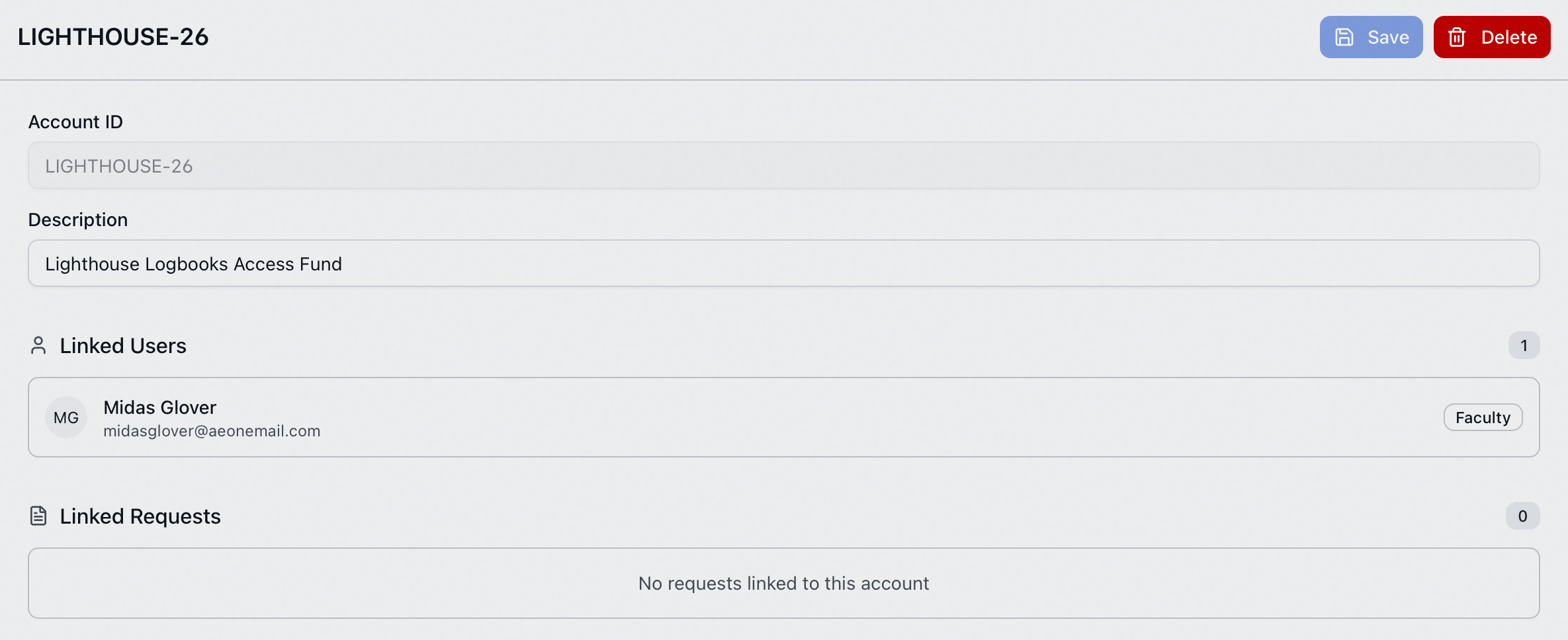
Save stays disabled until you actually change something, so there's no way to save a no-op edit.
If you've edited the description but not saved, and you click a different account (or New), Aeon stops you with an Unsaved Changes dialog asking whether to discard them. Choose Cancel to stay and save first, or Discard to abandon the edit and move on.
Reviewing linked users and requests
The detail panel shows two lists below the account fields, each with a count, so you can see an account's reach before changing or removing it:
- Linked Users — every patron associated with this account. Each entry shows the patron's name, email (or username), and status, and links straight to that user's record. With none, the section reads "No users linked to this account".
- Linked Requests — every request this account is attached to. Each entry shows the request's transaction number (for example, #12345), its current status, the item title, and the requesting patron with their document type. Click an entry to open that request. With none, it reads "No requests linked to this account".
If your role can't see patron names, Linked Requests shows the patron's username in place of their name. The rest of the entry is unaffected.
If a patron is later unlinked from an account, requests that already carried that account keep it. The historical association on those requests is preserved, so the Linked Requests list can include requests for patrons no longer in Linked Users.
Deleting a billing account
- Select the account in the list.
- In the detail panel header, click Delete.
- The Delete Billing Account confirmation dialog opens. It checks the account's usage first, showing "Checking account usage..." for a moment, then tells you one of two things:
- Nothing is using the account — it simply asks "Are you sure you want to delete account 'LIGHTHOUSE-26'?"
- The account is in use — it spells out the impact first, in bold, and then asks the same question: "This account is linked to 1 user(s) and 0 request(s). Deleting it will remove these associations." followed by "Are you sure you want to delete account 'LIGHTHOUSE-26'?" The confirm button turns red as well, so a deletion that costs you something looks different from one that doesn't.
- Click Delete to confirm, or Cancel to back out. The button reads "Deleting..." while it works.
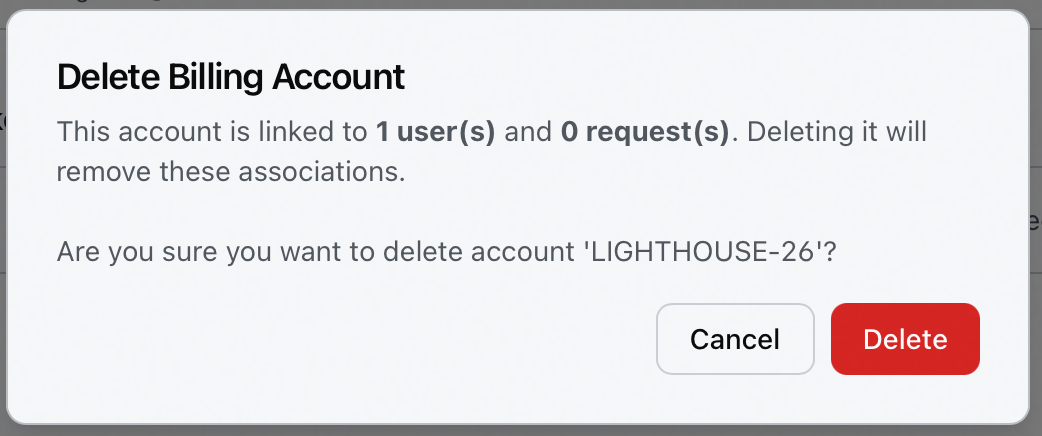
On success you'll see "Account 'LIGHTHOUSE-26' deleted" and the detail panel clears.
Deleting a billing account also removes its links to users and requests. The patron and request records themselves are untouched, but they will no longer reference this account. Review the Linked Users and Linked Requests counts in the confirmation dialog before you delete — and note that deletion requires the Full level of the Billing permission, a higher bar than creating or editing.