Billing Charges and Estimates
Charges are the line items that make up what a researcher owes on a request — a copy fee, a per-page scan rate, a shipping charge, and so on. They live on the Billing tab of a request's detail view, in the Charges section.
Most of the time you don't build charges from scratch. Aeon already knows your fee schedule (your billing defaults), so when a photoduplication request has a Format, Service Level, or Shipping Option set, the Billing tab shows the matching charges automatically as an estimate. The estimate is Aeon's best guess at the cost based on those fields; it isn't saved to the request yet and updates as the request changes. You add a charge by hand only when the standard fee schedule doesn't cover something — a manual adjustment, a one-off item, a correction.
- A researcher asks "how much will this cost?" — read the estimate on the Billing tab; you don't have to do anything to produce it.
- The fee schedule doesn't cover a particular charge — click Add Charge to enter it yourself.
- A charge is wrong (wrong quantity, wrong rate, wrong page count) — edit or delete it before the invoice is generated.
Generating the invoice, taking payments, and refunds each have their own pages. This page covers only the Charges section: the estimate, and adding / editing / removing individual charge lines. See Request Billing Tab for the whole tab, Payments and Refunds, and Invoices and Outstanding Balances.
Where charges come from
Open request #12345 and select the Billing tab. The top of the tab shows a three-box summary, and below it the Charges section lists every line:
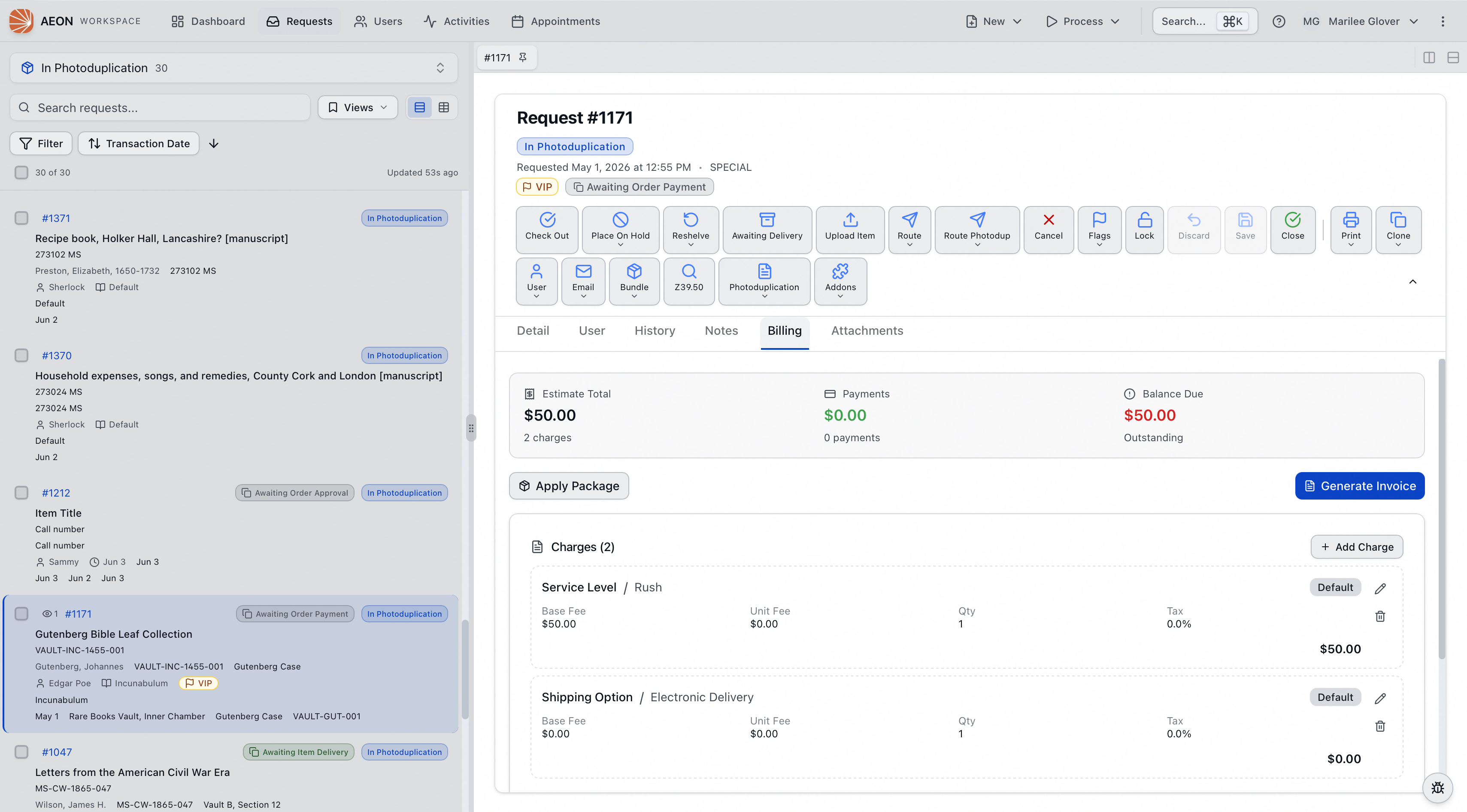
| Summary box | What it shows |
|---|---|
| Estimate Total / Invoice Total | The sum of all charges. Reads Estimate Total until you generate the invoice, then Invoice Total. |
| Payments | Total paid so far. |
| Balance Due | Charges minus payments — labeled Outstanding, Paid in full, or Overpaid. |
The count under each box includes the automatic estimates, not just the saved charges. These figures also stay current while you work: if a colleague changes a charge on the same request, your list updates without a refresh.
Each charge line shows its Billing Context and Billing Type (for example, Format / PDF), a breakdown of Base Fee, Unit Fee, Qty, and Tax, and the line subtotal. The tax rate reads exactly as it was entered, so a rate of 7.25% shows as 7.25%. A badge on each line tells you what kind of charge it is:
| Badge | Meaning |
|---|---|
| Estimate | A saved charge that hasn't been invoiced yet — one you added by hand, or one a service package added. |
| Default | An automatic estimate Aeon computed from your billing defaults. Not yet saved to the request. |
| Invoiced | The charge carries a billing date, shown on the card. |
The automatic estimate (Default charges)
When a request has a Format, Service Level, or Shipping Option filled in, Aeon looks up the matching entry in your billing defaults and shows it as a Default charge — even though nothing has been saved yet. This is how the Billing tab can quote a price the moment a request comes in.
Which prices it uses depends on the billing category, and Aeon works that out in order: the category on the request's activity, if it belongs to one; failing that, the researcher's category on a proxy request, or the requesting user's on an ordinary one; and failing that, the Default category.
A few things worth knowing about these automatic estimates:
- They recalculate on their own. Change the request's Format or page count and the estimate updates to match. You never edit the defaults from here.
- If a default uses a per-page rate, its quantity comes from the request's page count, so the estimate reflects the actual size of the job. On a request whose page count is still zero, the estimate is just the base fee — Aeon doesn't guess at a single page.
- If you've already added a real charge for the same context (say you entered your own Format charge), Aeon won't also show the automatic one — your charge wins.
A Default charge is a preview, not a stored record. It becomes a real, saved charge in one of two ways: you generate the invoice (Aeon writes the estimate in as part of that), or you click its edit button and save it. If you want to remove a single automatic estimate from the quote without touching the others, click the trash icon on its card — it disappears from the view but, because it was never saved, nothing is deleted from the request, and there's no confirmation prompt. The dismissal holds for as long as the request stays open, so moving to another tab and back won't undo it; close the request and reopen it and the suggestion returns, recalculated from your billing defaults.
Adding a charge by hand
Use this when the fee schedule doesn't already cover what you need to bill.
- On the Billing tab of request #12345, in the Charges section, click Add Charge.
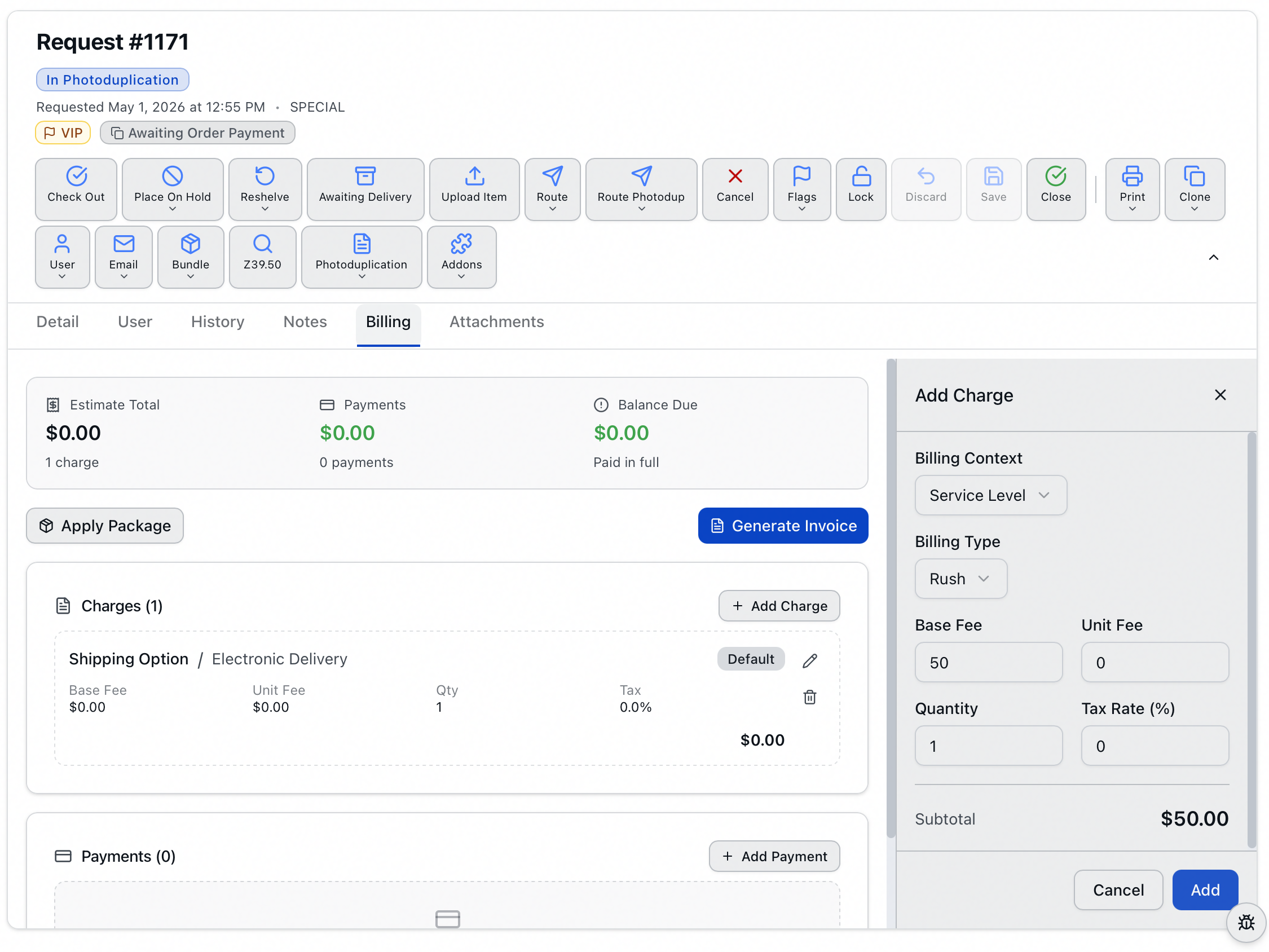
- An edit panel opens on the right titled Add Charge. Fill in:
- Billing Context — choose from the contexts defined in your billing defaults (for example, Format, Service Level, Shipping Option).
- Billing Type — the options narrow to the types valid for the context you picked (for example, PDF under Format).
- Base Fee, Unit Fee, Tax Rate (%) — these fill in automatically from the matching billing default once you've chosen a context and type. Adjust any of them if this charge differs from the standard.
- Quantity — starts at
1, and fills in from the request's page count only when the matching default is a per-page rate. Otherwise you set it yourself.
- The Subtotal at the bottom of the panel updates live as you type, so you can see the line total before saving. It's calculated exactly the way the saved charge will be, so the preview and the saved line always agree.
- Click Add. The charge appears in the Charges list with an Estimate badge, and the Estimate Total and Balance Due boxes update.
If the request has already been invoiced, a charge you add is stamped with today's billing date as it saves, so it joins the list badged Invoiced rather than Estimate.
A line total is (Base Fee + Unit Fee × Quantity), plus tax. So a $5.00 base fee with a $0.25 unit fee at quantity 10 and a 7% tax rate comes to (5.00 + 0.25 × 10) × 1.07 = $8.03. The Unit Fee × Quantity part is what makes per-page pricing work: set the unit fee to your per-page rate and the quantity to the page count.
Editing a charge
- In the Charges list, click the pencil icon on the charge you want to change. That line is highlighted while the panel is open, so it's clear which charge you're working on — worth having when a request carries two lines of the same context and type.
- The edit panel opens titled Edit Charge with the current values loaded.
- Change whatever's wrong — context, type, fees, quantity, or tax rate. The Subtotal updates as you edit. On a charge that's already invoiced, Billing Context is grayed out: "The billing context can't be changed on an invoiced charge." Everything else still edits.
- Click Update.
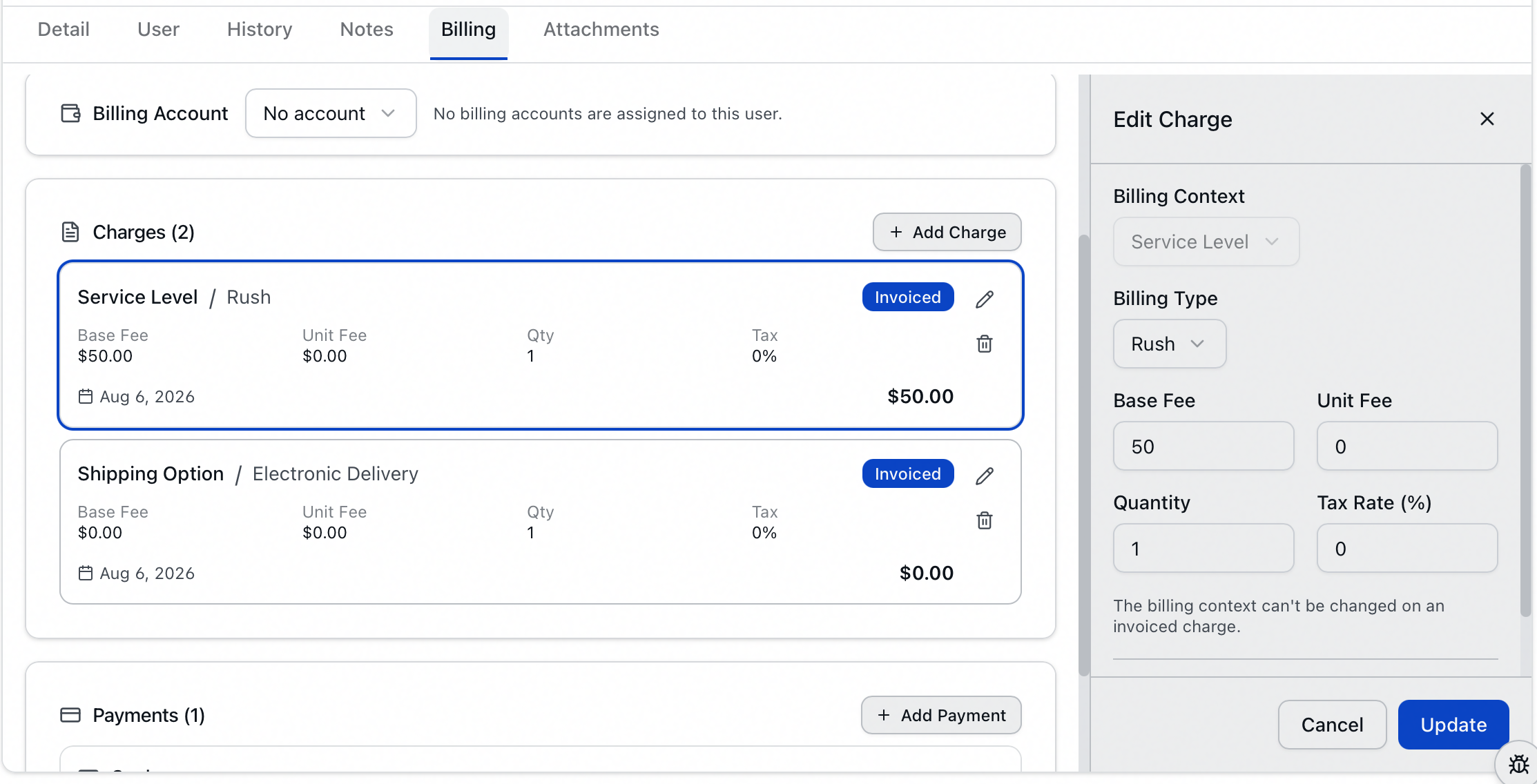
Editing an automatic Default estimate works much the same way, with one difference worth expecting: because you're creating a charge rather than changing one, the button reads Add, even though the panel is titled Edit Charge. Saving turns the preview into a real, stored charge.
Every add, edit, and delete is recorded in the request's History tab, with the amounts involved — so a change to a charge is traceable after the fact.
Deleting a charge
- In the Charges list, click the trash icon on the charge.
- Confirm in the Delete Charge? dialog — it warns that "This action cannot be undone."
- The charge is removed and the totals recalculate.
Removing an automatic Default estimate doesn't show a confirmation dialog and doesn't delete anything stored — it just drops that line from the current quote (see the note above).
Charges and the invoice
Generating the invoice stamps every charge with a billing date and flips the badges to Invoiced. Two things change at that point:
- The automatic estimates stop. Aeon no longer computes Default charges for the request, so the list shows only real, saved charges. Any estimate still on screen when you generate the invoice is written in as a real charge first.
- The charges stop tracking the request's fields. Before the invoice, a per-page charge follows the page count. Afterward it keeps the quantity it was stamped with, whatever you do to the request.
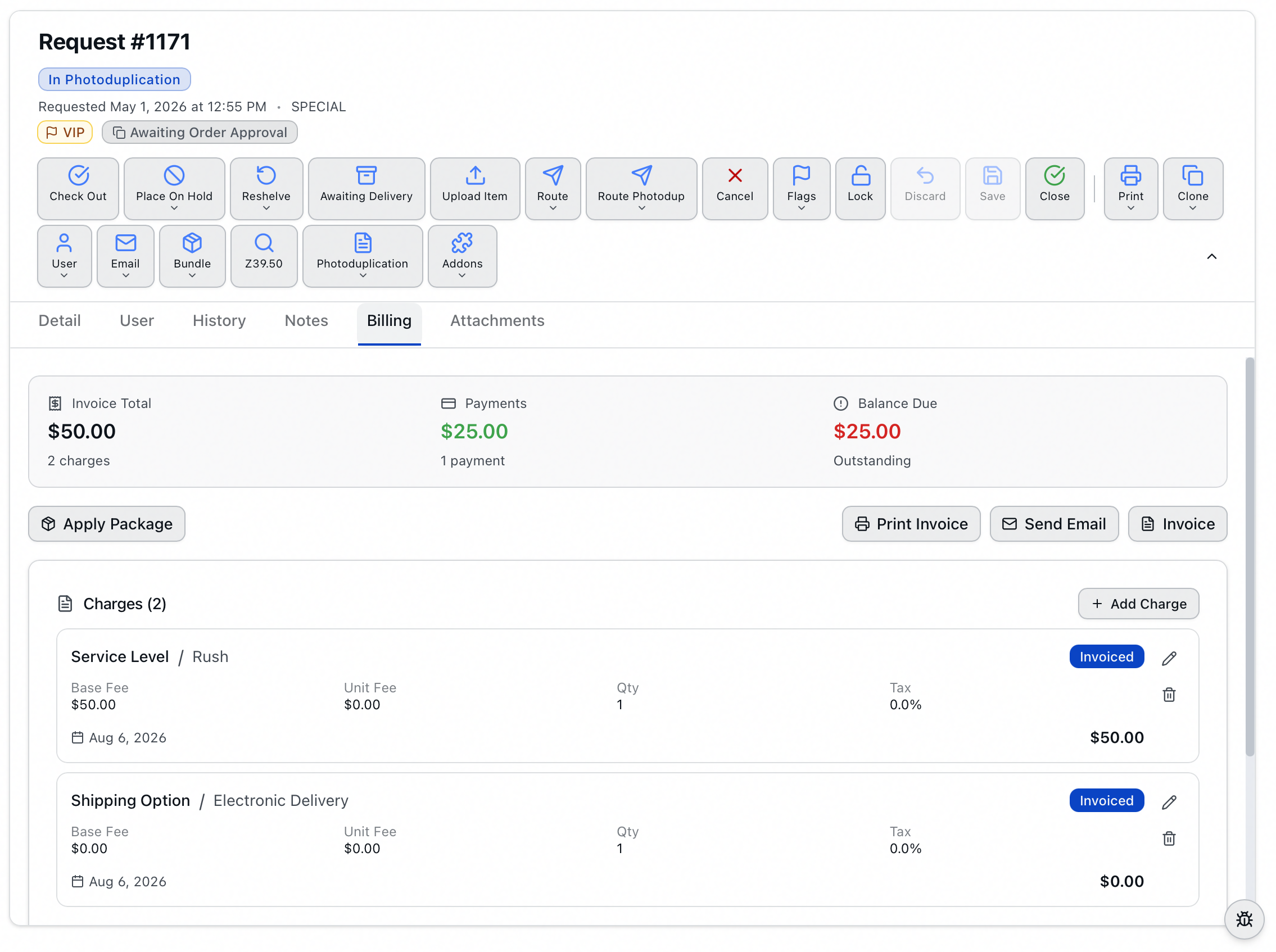
Invoicing doesn't freeze the numbers, though. You can still correct an invoiced charge's fees, quantity, or tax rate, and still delete it, if your role allows — only the Billing Context is locked. Starting the charges over from scratch means deleting the invoice, which clears every charge and every payment, and which Aeon refuses outright once a credit card payment has been recorded. Both are covered in Invoices and Outstanding Balances.
For per-page charges, the quantity is driven by the request's page count. Confirm the page count is accurate before you generate the invoice — once charges are invoiced, changing the page count no longer adjusts them, and you'd have to edit the invoiced quantity directly or redo the invoice.
Working with charges is governed by the Billing capability on your role:
- View lets you open the Billing tab and read charges, the estimate, and totals. With only View, the Add Charge button and the per-line edit and delete controls don't appear — on the automatic estimates as well as the saved charges.
- Edit is required to add a charge, to edit an existing one, and to dismiss an automatic estimate.
- Full is required to delete a saved charge.
Dismissing an estimate sits at Edit rather than Full because nothing is being deleted — the line was never stored.
If your role is Billing View, you can see the numbers but can't change them.