Billing Account Selection on Requests
A billing account is an optional shortcut for the times when a request's costs are covered by a specific account — a grant, a department, a sponsoring institution. Assigning an account to a request records who is paying, makes the account available when you record a payment, and exposes the account's ID and description to print and email templates.
You set it on the request's Billing tab. Assignment is per request: a request carries at most one billing account, and an account is never required — most requests have none. The accounts you can choose are the ones already linked to the request's researcher, so a request can't be charged to an unrelated account.
- A researcher's photoduplication costs are being charged to a grant or department account, and you want that account recorded on the request so it flows onto the invoice.
- You're tidying up a request before invoicing and need to set, change, or clear which account it's billed to.
- You're recording a payment and want the account ID to travel with it.
Creating the accounts themselves is covered in Managing Billing Accounts. Linking an account to a researcher happens on the user record — see Associating Users with Billing Accounts. This page is about which single account an individual request is billed to. Both of the other two have to be done before an account can be chosen here.
Setting the account
-
Open the request and select the Billing tab.
-
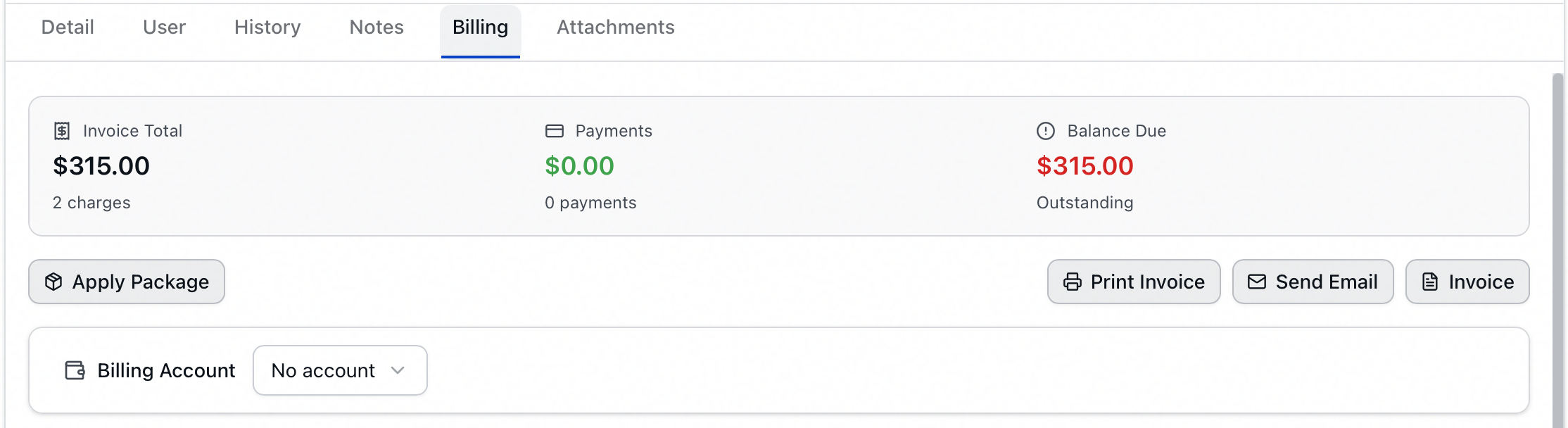
Find the Billing Account card, below the balance summary and the Apply Package row, above Charges.
-
Open the dropdown. It reads No account until an account is assigned.
-
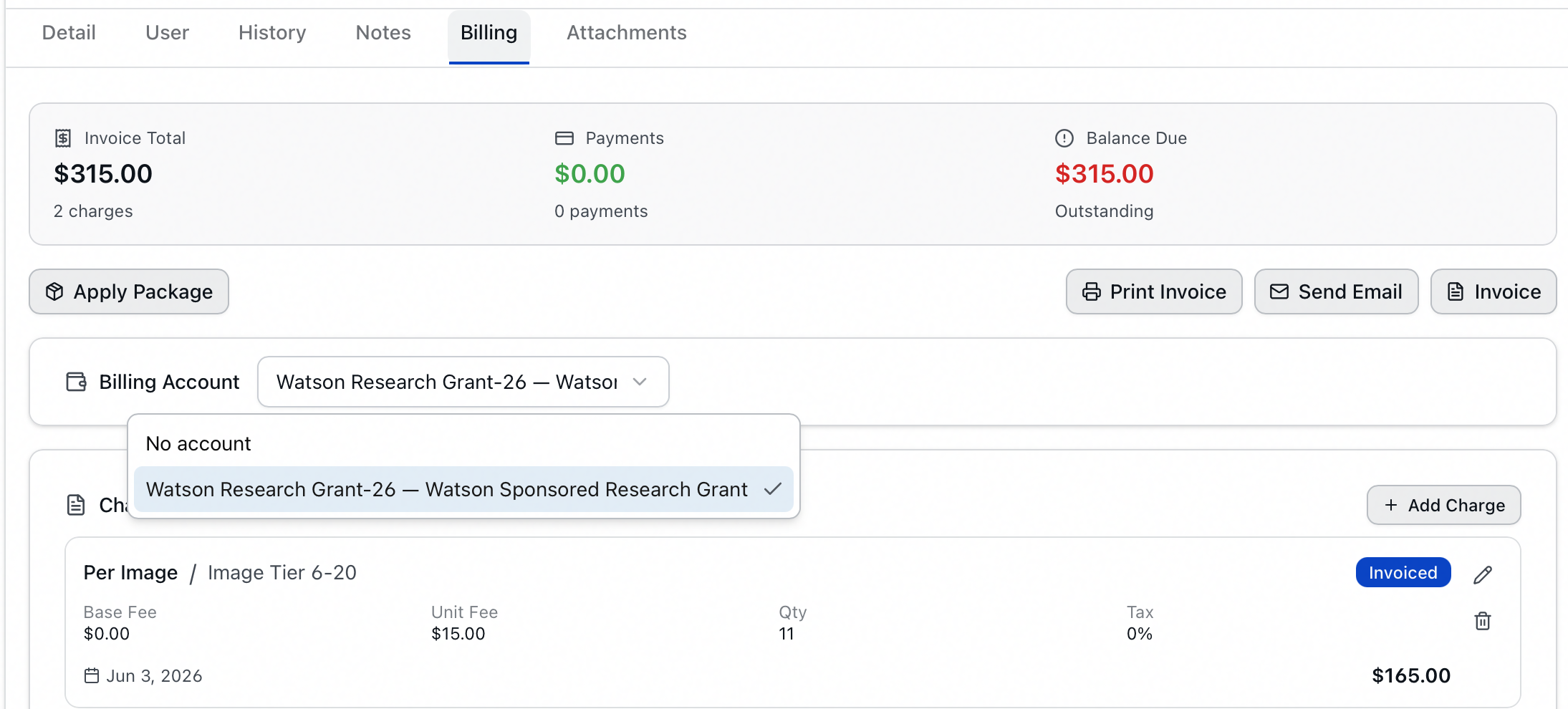
Choose the account you want. Each entry shows the account ID and its description — for example, Watson Research Grant-26 — Watson Sponsored Research Grant. An account with no description shows just its ID.
-
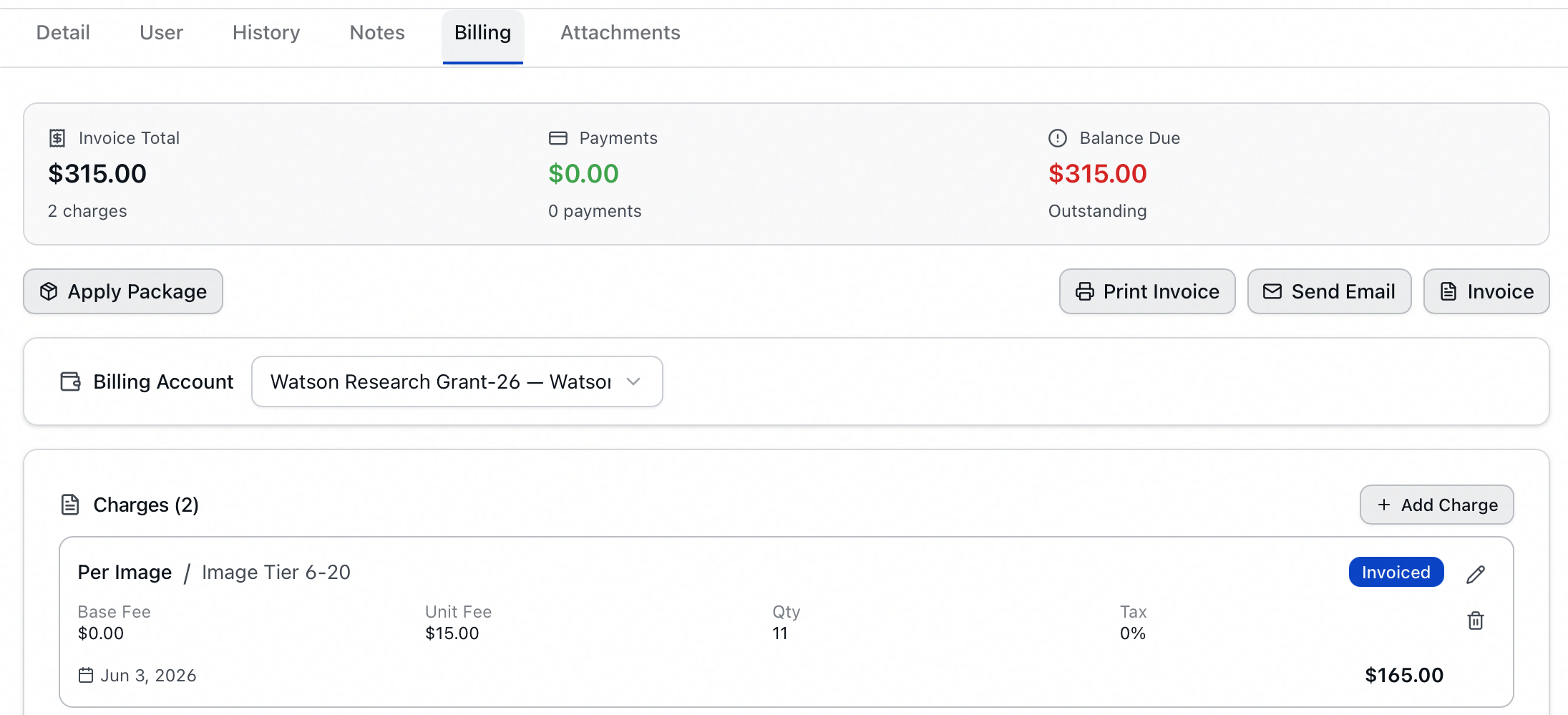
The change saves immediately. A brief spinner appears beside the dropdown, and Aeon confirms with "Billing account set".
The dropdown itself shows each account's full ID — description, but the card's control is narrow, so once an account is assigned a long name is cut off — "Watson Research Grant-26 — Watso…" in the picture above. Open the dropdown to read the whole thing.
There's no separate Save step for the account, and no charge or invoice is created by assigning one. If the save fails you'll see "Failed to update billing account" with the reason, and the dropdown returns to its previous value.
What appears in the dropdown
The list is built from the accounts linked to the request's user. On a proxy request the researcher's accounts are offered as well, since the researcher is typically the one being billed — the user's accounts come first, then any of the researcher's that aren't already listed.
If neither has any accounts, the card shows "No billing accounts are assigned to this user." beside the dropdown. Link an account on the user record first, then return to the request.
If a request carries an account that is no longer linked to its user or researcher, that account still appears in the dropdown and can be left in place. You can keep it or clear it, but you can't switch to a different unlinked account — the server accepts only accounts assigned to the request's user or researcher, plus whichever account the request already has.
Changing or clearing the account
- To change it, pick a different account. The new one replaces the old; a request never holds two.
- To clear it, choose No account. Aeon confirms with "Billing account cleared".
Clearing the account removes only the assignment. The request's charges, payments, and any invoice are untouched — it just no longer records which account is being billed.
Recording a payment against the account
When a request has a billing account, Billing Account appears at the top of the Payment Method dropdown on a new payment, and choosing it fills the payment reference with the account ID for you. That autofill applies only while entering a new payment, so editing an existing payment never overwrites a reference you typed by hand.
For everything else on the tab — charges, estimates, payments, and invoicing — see Request Billing Tab.
What the account affects elsewhere
- Print and email templates can show the account. The Billing Account ID and Billing Account Description tags resolve from the request's assigned account, so an invoice or notice can name what's being billed. A request with no account leaves those tags blank.
- Charges and payments are unaffected by the assignment itself. The account records who pays; the amounts are managed separately on the Billing tab.
Cloning and changing the researcher
- Cloning a request copies the billing account to the clone when that account is valid for the clone's user and researcher. When it isn't, the clone is created without one and the confirmation says so: "Request cloned successfully", with "Note: Billing account was not copied." in the detail.
- Changing a request's researcher leaves the assigned account exactly as it is. Aeon doesn't clear it and doesn't warn you, so a request can keep an account that's no longer linked to the person on it. If that matters for how you invoice, check the Billing Account card after changing a researcher and clear it yourself if it no longer applies.
- Seeing a request's billing account needs the View level of the Requests permission — the same level that opens the request.
- Setting, changing, or clearing it needs the Edit level of the Requests permission. Below that the dropdown is visible but disabled, and hovering it explains why: "You don't have permission to change the billing account".
This is the Requests permission, not Billing — assigning an account counts as editing the request. Charges and payments on the same tab are gated by the Billing permission instead.