Associating Users with Billing Accounts
A billing account is an optional shortcut for the times when a researcher's costs are covered by a specific account — a grant, a department, a sponsoring institution. Once a user is linked to an account, that account becomes selectable on their requests, which makes recording payments against it straightforward.
Linking happens on the user record, not the request. You associate a researcher with the accounts they're entitled to use, and from then on those accounts show up as options when you process their requests. A user can be linked to as many accounts as you need, and any account can be linked to many users.
- A researcher arrives whose work is funded by a department or grant account, and you want that account available on their requests.
- You're setting up a new patron who should be able to charge to an existing institutional account.
- A researcher's funding changes and you need to add or remove an account on their record.
Creating the billing accounts you link to here is a separate task — see Managing Billing Accounts. This page assumes the accounts already exist and covers connecting them to a user.
Where to find it
Billing account associations live on a dedicated tab in the user record:
- Open the researcher's user record (search for them, or open them from a request).
- Select the Billing Accounts tab.
- The tab lists every account currently linked to this user, in a table with Account ID and Description columns. An account with no description shows a dash. The tab header shows the count, for example Billing Accounts (2).
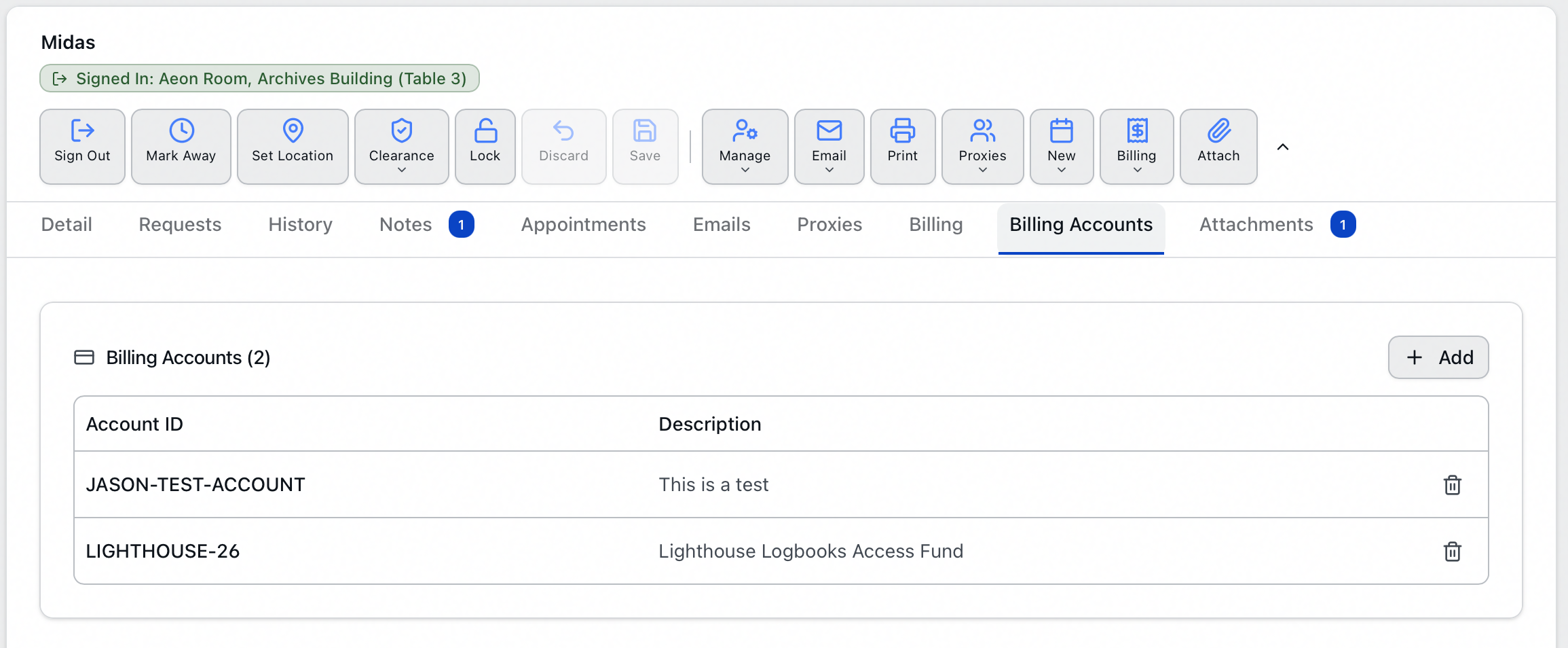
If the researcher has no linked accounts yet, the tab shows No billing accounts instead of a table. If the accounts can't be loaded at all, it shows "Failed to load billing accounts" — reopen the tab to retry.
The Billing Accounts tab isn't available while you're creating a new user — it only appears once the record exists. Save the new researcher's record, then reopen it to link their accounts.
The user record's tabs come from your site's user form layout, so Billing Accounts is the default name rather than a fixed one. If an administrator has renamed or reordered the tabs, look for the equivalent tab on your own system.
Adding an account to a user
-
On the Billing Accounts tab, click Add.
-
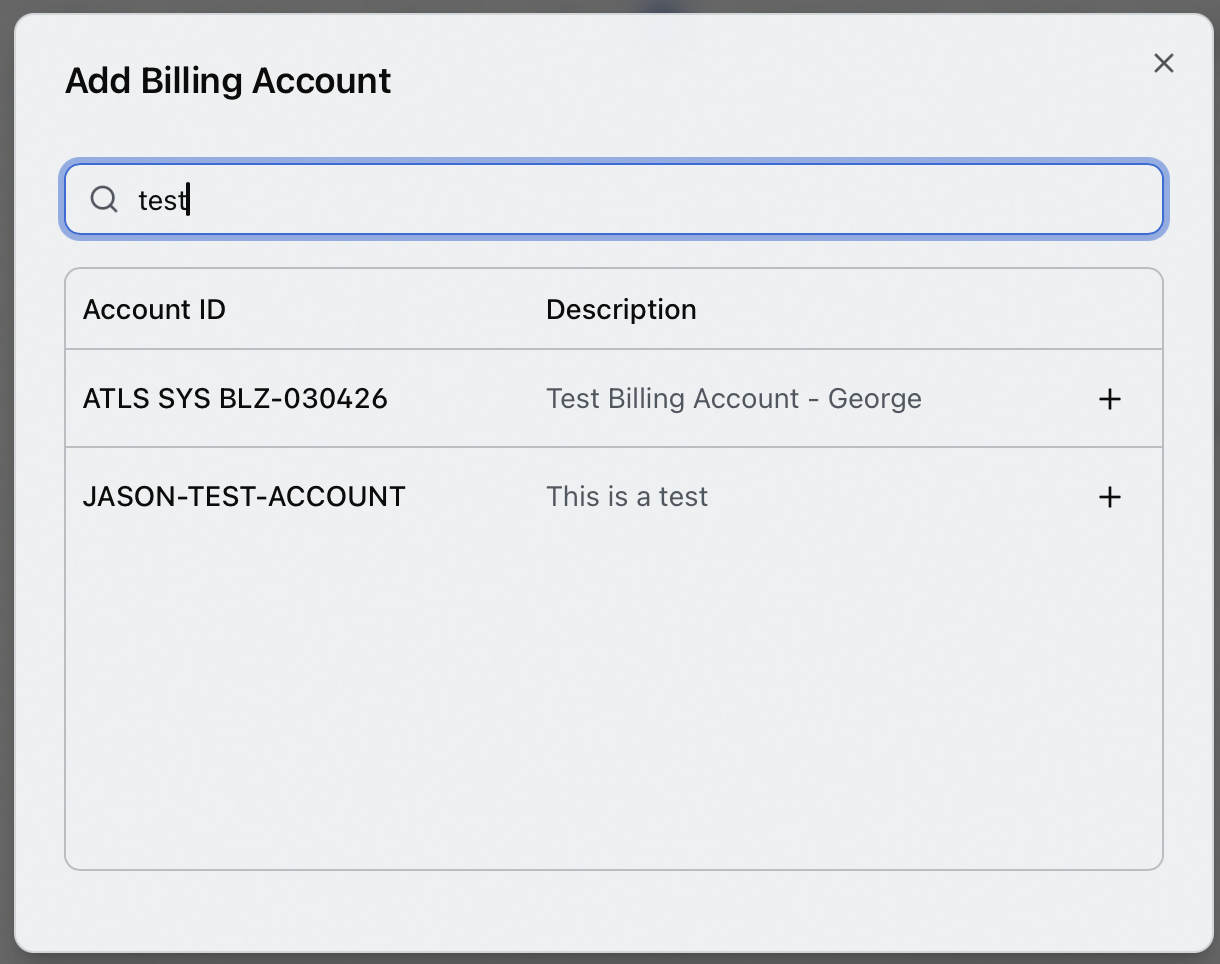
The Add Billing Account dialog opens with a search box reading "Search by account ID or description..."
-
Start typing the account's ID or part of its description. Search begins once you've entered at least 2 characters — until then the dialog prompts "Start typing to search" / "Enter at least 2 characters". Results lag your typing by a moment, because Aeon waits for you to stop before searching.
-
Matching accounts appear in a table with Account ID and Description columns. Accounts already linked to this user are filtered out, so you only ever see accounts you can still add.
-
Click the + button on the row for the account you want.
-
Aeon confirms with an "Account added" message, the dialog closes, and the new account appears in the tab's table.
While you search you may also see "Searching accounts...", "No accounts found" with the hint "Try a different search term", or "Failed to search accounts" if the search itself couldn't run.
Every word you type has to match something — but not necessarily the same thing. Searching lighthouse fund finds an account whose ID contains "lighthouse" and whose description contains "fund", as well as one where both words are in the description. Extra words narrow the results rather than widening them, so start with one word and add another only if you get too many hits.
A researcher's copies are covered by the Lighthouse Logbooks fund. Open their user record, go to Billing Accounts, click Add, type lighthouse, and click + on the LIGHTHOUSE-26 row. The account is now linked, and when you open one of their requests its Billing tab offers that account for selection.
There's no limit on how many accounts you link to a single user, and the same account can be shared across many users. You can't link the same account twice: any account already on this user is filtered out of the Add Billing Account search, so it never appears as something to add. If you somehow add it anyway — two browser tabs open on the same researcher, say — Aeon refuses with "Account 'LIGHTHOUSE-26' is already assigned to user 'jdoe'."
Removing an account from a user
- On the Billing Accounts tab, find the account's row.
- Click the trash-can button at the end of the row.
- A Remove Billing Account confirmation appears, marked with a warning icon: "Remove account "LIGHTHOUSE-26" from jdoe? This won't delete the account, just the association." It names both the account and the researcher, so you can check you're on the right record before confirming.
- Click Remove to confirm, or Cancel to keep it. The button reads "Removing..." while it works.
- Aeon confirms with an "Account removed" message and the row disappears from the table.
Removing an account from a user only breaks the link between that user and that account going forward. It does not delete the account, and it does not strip the account from requests it was already assigned to. A researcher's earlier requests keep their billing account so historical and in-progress billing is never disturbed — you're only changing which accounts are available on new requests for this user.
When two user records are merged, the billing-account associations from the user being merged away are copied to the surviving record (any account the surviving user already has is skipped, so no duplicates are created). A merge never silently drops a researcher's funding links.
- Viewing the Billing Accounts tab is available to anyone who can open the user record.
- Adding or removing an account association requires the Edit level of the Users permission. If your role is view-only for users, the Add button and the per-row remove buttons don't appear.