Web Validation
Aeon's patron web forms can require certain fields and check the format of what's entered — the red asterisk on a Registration or Request form, the "Title is a required field." error a patron sees if they leave a box blank. Web Validation is where you define those rules. Each rule names a field, the pattern its value must match, and the error message to show when it doesn't.
Rules are organized into named rule sets (for example, AllRequests). A rule set is just a bundle of rules — it does nothing on its own until a form is told to use it. Wiring a rule set to a form happens in the separate Validation Links editor. So the two work as a pair: you define the rules here, and link them to forms there.
- You want to make a form field required (or stop requiring it) — add or change a rule.
- A field should only accept a certain format — a date, a ZIP code, an email — add a rule with the matching pattern.
- You want to reword the error message a patron sees when a field fails validation.
- You're building a new rule set to apply to a form (pair this with a link in Validation Links).
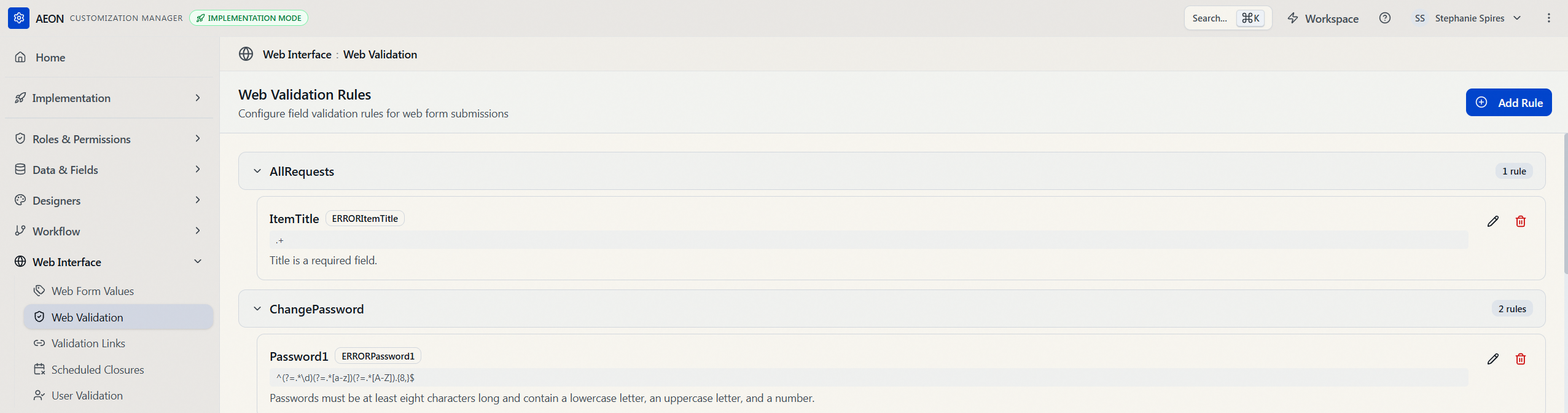
In the Customization Manager, go to Web Interface → Web Validation. The page is headed Web Validation Rules with the subtitle "Configure field validation rules for web form submissions." Rules are listed grouped under their rule set; the toolbar has an Add Rule button.
How rules, rule sets, and forms fit together
Validation spans two editors, and it helps to keep them straight:
| Editor | What it holds | Example |
|---|---|---|
| Web Validation (this page) | The individual rules, grouped into named rule sets. Each rule = a field, a validation pattern, and an error message. | Rule set AllRequests → field ItemTitle, pattern .+, error "Title is a required field." |
| Validation Links | The mapping of which rule set(s) apply to which form. | Form DefaultRequest → rule set AllRequests |
When a patron submits a form, Aeon finds the rule sets linked to that form (from Validation Links), gathers their rules from Web Validation, and checks the submission against each one. Because rule sets are reusable, you can define a rule set once here and apply it to many forms — change the rule in one place and every linked form picks it up.
A rule you add here only takes effect on a form once that form is linked to its rule set in Validation Links. A rule set with no links is defined but idle.
What's on the page
Rules are grouped by rule set. Each rule set is a collapsible section showing its name and a badge with the number of rules it contains; the sections are expanded by default. Expand one and each rule appears as a card showing:
- the field name the rule checks,
- its Error Tag as a small badge (when one is set),
- the validation pattern (shown in a monospace code style), and
- the error message shown when the field fails.
Each rule card has a pencil (edit) and trash (delete) icon. If no rules exist yet, the page shows "No validation rules configured."
The fields on a rule
When you add or edit a rule, these are the fields you'll set:
| Field | What it holds |
|---|---|
| Rule Set | The named group this rule belongs to. Rules that share a rule set are applied together, and a form gets them by linking to that rule set in Validation Links. Required; up to 100 characters. As you type, the editor suggests rule sets that already exist so you can reuse one. |
| Field Name | The web-form field the rule checks — for example, ItemTitle or Site. It must match the field's name on the form. Required; up to 100 characters. |
| Validation Pattern | The rule the field's value must satisfy, written as a regular expression (see Common patterns below). For example, .+ requires that something be entered. Up to 255 characters. |
| Error Message | The message the patron sees when the field fails validation — for example, "Title is a required field." Up to 255 characters. |
| Error Tag | An optional token that ties this rule to the field's spot on the web page. When the field fails validation, the tag is what lets Aeon flag it — the field's on-page label turns red — while the Error message shows in a status line at the top of the form. The same tag has to appear in the field's web-page markup to have any effect, so this is mainly used by whoever maintains your web pages. Example: ERRORItemTitle. Up to 60 characters. |
You can save a rule with just a Rule Set and Field Name, but a rule with no Validation Pattern doesn't actually check anything. In practice you'll almost always set a pattern and an error message too.
When a field fails these server-side rules, the patron is returned to the top of the form: the rule's Error Message shows in a status line at the top, and the field flagged by its Error Tag has its label turned red. The message text and the field-flagging are two different fields on the rule — Error is what it says, Error Tag is which field to highlight.
Common patterns
The Validation Pattern is a regular expression the field's value is tested against. If the value doesn't match, the patron sees the rule's Error Message and the form comes back for correction. A few patterns cover most needs:
| Pattern | What it does |
|---|---|
.+ | Requires the field — any characters are allowed, but at least one must be entered. |
.* | Optional — any characters, including none. Use this (or delete the rule) to stop requiring a field. |
^\d\d/\d\d/\d\d\d\d$ | A date in MM/DD/YYYY format. |
^\d{9}$ | A nine-digit number. |
^\d{5}(-\d{4})?$ | A U.S. ZIP code — five digits, or five-plus-four. |
\w+@\w+ | A basic email address (something before and after an @). |
Adding a .+ rule makes a field required, but it doesn't add the red asterisk a patron sees next to the field — that marker lives in the web page's own markup. If you make a field required (or not) here, update the field's asterisk on the web page to match, so the form's appearance agrees with what it enforces.
Adding a rule
Say you want to require that patrons enter a title on the default request form. You'd add a rule to the AllRequests rule set:
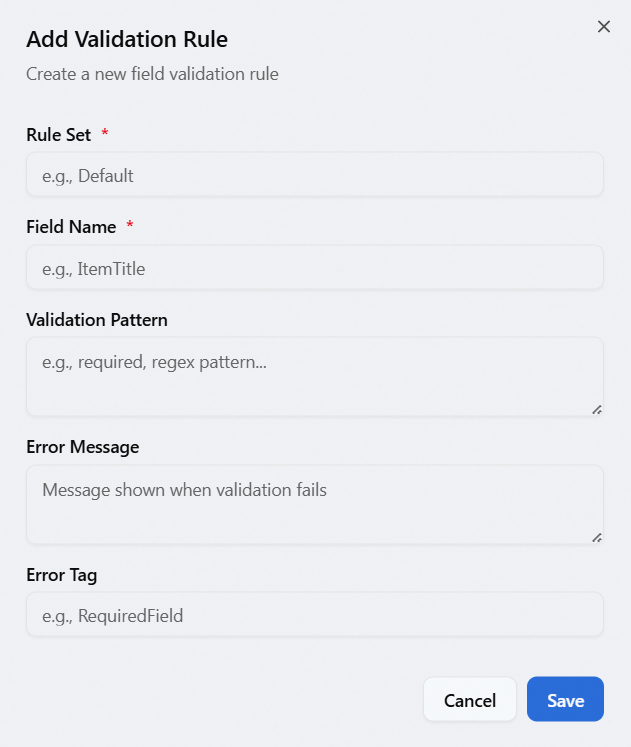
- Click Add Rule (top right). The Add Validation Rule dialog opens ("Create a new field validation rule.").
- Fill in the fields:
- Rule Set —
AllRequests(start typing to pick an existing set from the suggestions, or enter a new name). - Field Name —
ItemTitle. - Validation Pattern —
.+. - Error Message —
Title is a required field. - Error Tag — optional, e.g.
ERRORItemTitle.
- Rule Set —
- Click Save. A "Validation rule added" confirmation appears and the rule shows up under its rule set.
The rule takes effect on any form linked to AllRequests in Validation Links.
Editing a rule
- Expand the rule set and find the rule.
- Click the pencil icon on the rule card. The Edit Validation Rule dialog opens ("Update the validation rule.") with the current values.
- Change what you need and click Save. You'll see "Validation rule updated."
Deleting a rule
- Click the trash icon on the rule card.
- A confirmation asks "Delete Validation Rule?" and names the field and rule set — "This will permanently delete the validation rule for field "…" in rule set "…". This action cannot be undone."
- Click Delete. A "Validation rule deleted" message confirms it.
There's no undo. Deleting a rule removes that check from every form linked to its rule set. To stop requiring a field without removing the check entirely, you can instead change its pattern to .*.
Permissions
Web Validation lives under the Web Interface group, and the whole section — viewing as well as editing — is gated by the Web Interface configuration capability. Without it, Web Validation doesn't appear in the Customization Manager, and opening it directly shows "You don't have permission to access this customization section." The API enforces the same capability on both sides: the rules won't load, and the add, edit, and delete actions are all refused.
See Editing a Role: Configuration Capabilities for how this is granted.