Resetting a Staff Member's Password
Most of the time staff manage their own passwords — they sign in and, if they need to, change their password from the user menu. You reset a password for someone else only when they can't do it themselves: a new hire who needs a starting password, a colleague who's forgotten theirs, or an account that has locked itself after too many failed sign-in attempts.
This is an administrator task. You do it from the Staff tab of the Customization Manager, where every staff account is listed. There's no email round-trip and no separate desktop tool — you set the new password directly and hand it to the person, optionally requiring them to choose their own the next time they log in.
- A new staff member needs an initial password before their first sign-in.
- Someone forgot their password and needs a new one to get back in.
- An account is locked after repeated failed sign-in attempts and you need to clear the lock (resetting the password also unlocks it — see Unlocking a locked-out account).
This page is about the password staff use to sign in to the Aeon staff client. Resetting a researcher's password is a separate task — see User Password Management under Daily Work.
An account showing the Atlas Support badge signs in through Atlas Systems' own service and never holds a password here. Reset Password is refused on these accounts. To stop one of them signing in, turn the grant off on the Support Access page, or lock, deactivate, or delete the account.
Before you start
Resetting a staff password is gated by two configuration capabilities. To even open the Staff tab, your role needs the Roles & Permissions configuration capability — that's what controls access to the whole Roles & Permissions area of the Customization Manager. The reset itself is then governed by the Staff configuration capability ("Staff user management"). In practice the seeded Administrator role has both, so an admin can reset passwords out of the box. See Editing a Role: Configuration Capabilities for how those capabilities are granted.
Resetting the password
- Open the Customization Manager and go to Roles & Permissions → Staff.
- In the staff list, click the account you want to reset — for example, jdoe. Their details open in the panel on the right, with the heading showing the username and "Staff account details".
- In the top-right of that panel, click Reset Password.
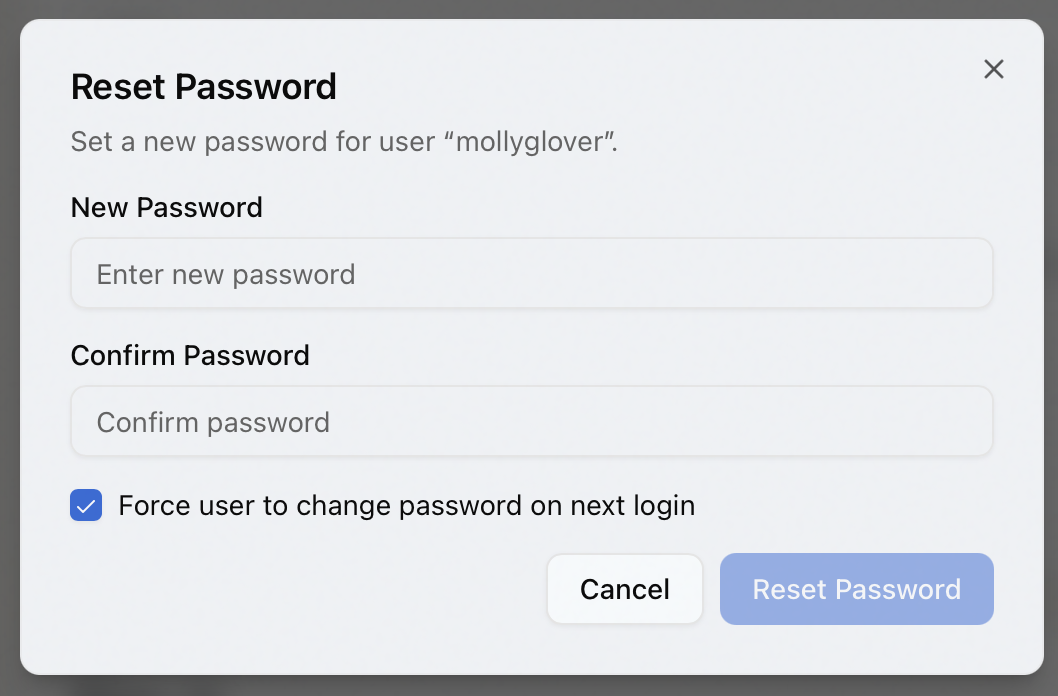
- The Reset Password dialog opens. It reads "Set a new password for user "jdoe.""
- Type the new password in New Password, then type it again in Confirm Password. As you type the confirmation, Aeon tells you in real time whether the two match — "Passwords match" in green, or "Passwords do not match" in red.
- Decide about Force user to change password on next login. It's checked by default, so jdoe will be prompted to pick their own password the first time they sign in — the recommended choice when you're setting a password on someone's behalf. Uncheck it only if you want the password you typed to stay as their working password. See Forcing a change at next login below.
- Click Reset Password. The button stays disabled until the two passwords match and the New Password field isn't empty.
On success the dialog closes and Aeon confirms with a message — either "Password reset for "jdoe" successfully." or, if you checked the force-change box, "Password reset for "jdoe". They will be required to change it on next login."
There's no temporary-link or self-service reset email in this flow — you choose the password and the reset takes effect immediately. Communicate the new password to the person securely. Force user to change password on next login is checked by default, so they'll replace it with one only they know — leave it on unless you have a specific reason not to.
Forcing a change at next login
The Force user to change password on next login checkbox controls what happens after you hand over the password:
- Unchecked — the password you typed becomes the account's working password. The staff member signs in with it and can keep using it.
- Checked — the password you typed works once, to get them in, but Aeon immediately prompts them to set a new password of their own before they can continue.
Aeon checks this box by default when you're resetting on someone's behalf, because the safer pattern is that the password you set is never the one they keep using. Leave it checked unless you specifically want the password you typed to stick.
Unlocking a locked-out account
Aeon locks a staff account after a configured number of failed sign-in attempts. A locked account can't sign in — the login screen shows "Account is locked."
Resetting the password also clears the lock: the same action that sets the new password resets the failed-attempt counter and re-enables the account. So if a colleague has both forgotten their password and locked themselves out, a single reset fixes both at once.
If they only need to be unlocked — they remember their password and just mistyped it too many times — you don't have to reset it. You can clear the lock on its own, without changing their password, by unchecking Account is Locked in the Account Status card of the account's detail panel and saving. See Deactivating and Re-activating Staff Accounts.
Resetting someone's credentials is effectively a takeover: whoever runs the reset chooses the new password, and the account's next sign-in enrolls a fresh authenticator. So Aeon refuses a reset that would hand you access you don't already have.
Two checks apply, and both compare the target's access with yours:
- Configuration access. If the account holds a configuration group you don't, the reset is refused: "Resetting this account's credentials would let you sign in with configuration access you do not have yourself… Ask someone who holds that access to run the reset." So an editor holding only Staff can't reset a colleague who also holds Integrations — that group governs the single sign-on trust configuration.
- Site reach. If the account can reach sites you can't, it's refused the same way: "Resetting this account's credentials would let you sign in to site(s) you do not have yourself…"
This stays quiet in normal use, because it turns on access rather than seniority. Administrators hold every configuration group, so nothing changes for them, and the staff a help desk resets for usually hold none at all. Resetting a peer whose access you already have is still fine.
Reaching the Staff tab requires the Roles & Permissions configuration capability, and the reset action is additionally gated by the Staff configuration capability. The seeded Administrator role has both; a role missing either one can't reset passwords here.