Moving Staff Accounts to Single Sign-On
Turning single sign-on on doesn't move anybody. Every staff account is either Local (password plus authenticator) or SSO (signs in at your identity provider), and each one changes over individually. This page covers the three ways to do that, how Aeon matches an identity to an account, and what is different afterwards. Configuring single sign-on itself lives under Integrations & Messaging; start with Single Sign-On: Overview and Prerequisites if it isn't set up yet.
Before you convert anyone
Keep at least two Local administrators, and don't convert them. They are your way back in if the identity provider breaks. Aeon refuses to convert, lock, deactivate, or delete the last one — "At least one unlocked Local administrator must remain for emergency access. Convert or unlock another administrator first." — and warns whenever fewer than two remain. With authenticator codes mandatory, a single emergency administrator means one lost phone is a lockout.
An account that is unlocked (the Account is Locked box on the staff record is clear), not inactive, not a template, not in SSO mode, and whose role has the Roles & Permissions configuration capability. The message says only "unlocked," but an inactive administrator doesn't count either, so if Aeon refuses when a qualifying account seems to exist, check whether it's inactive.
An account showing the Atlas Support badge signs in only through Atlas Systems' own service. Changing its sign-in method, setting an SSO identifier, and sending it an SSO invitation are all refused. These accounts also carry no email address and cannot be given one, so no invitation could reach them. A roster-wide conversion or a bulk invitation skips them and reports each one as skipped rather than failing the batch. See Support Access.
Changing an account's authentication method, setting its SSO identifier, or sending an invitation requires the Roles & Permissions capability. With only the Staff capability, the Sign-in card states the method as plain text: "Authentication method: Local (password + authenticator). Changing it — or sending an SSO invitation — requires Roles & Permissions access."
Path 1 — Send an emailed invitation (recommended)
An invitation binds the account to the identity your identity provider actually asserts, so nobody has to know how the IdP spells the identifier and a typo is impossible.
Do not switch the account to Single sign-on before sending the invitation. Completing the invitation is what converts the account: the staff member's first SSO sign-in fills in the SSO identifier and flips the method to SSO in one step. An account you have already switched by hand can't be invited; Aeon refuses with "This account already uses single sign-on. Change its SSO identifier in the staff editor instead of sending an invitation." If that happens, either type the identifier yourself (Path 3) or set the method back to Local, save, and then send the invitation.
- Open the account in Customization Manager → Roles & Permissions → Staff. Leave Authentication method set to Local (password + authenticator).
- In the Sign-in card, make sure the account has an email address and save the account; the send button stays unavailable while the address is blank or unsaved.
- Click Send SSO invitation. The status line shows who sent it, when, and when it expires, with Re-send invitation and Revoke alongside.
The staff member receives a one-time link, valid for 7 days, that lands on a page with a Continue to your institution button (a deliberate click, so an email security scanner following links can't consume the invitation). They sign in at the identity provider; Aeon records the asserted identity as the account's SSO identifier, flips the account to SSO mode, and signs them in. Their old password stops working, and Aeon won't set a new one while the account is in SSO mode.
Completing an invitation ends the account's existing sessions, so tell the person to expect it. Sending a new invitation revokes any previous one, and Revoke kills a pending link immediately.
- "Set the account's email address before sending an SSO invitation."
- "This account already uses single sign-on. Change its SSO identifier in the staff editor instead of sending an invitation."
- "Templates cannot be invited to single sign-on."
- "Turn single sign-on on before sending invitations — until then the emailed link can't be completed."
Inviting many people at once
On the Staff screen, select the accounts and click Send SSO invitations above the list (shown only when you hold Roles & Permissions and single sign-on is on). Aeon builds a preview before anything is sent, headed Send SSO invitations: how many will be sent, how many are skipped and why, and the address each invitation goes to. Nothing goes out until you click Send.
| Skipped because | What it says |
|---|---|
| No email address | "No email address on the account — set one in the staff editor first." |
| Already converted | "Already uses single sign-on." |
| A pending invitation | Names who it went to and when it expires. Check Also re-send to accounts with a pending invitation to revoke and replace it. |
| The account is locked | "Locked accounts are refused at SSO sign-in; the invitation could not be completed." |
| The account is inactive | "Inactive accounts cannot sign in; the invitation could not be completed." |
| It's your last emergency administrator | "Converting the last unlocked Local administrator would remove emergency (break-glass) access." |
| It's a template | "Templates cannot be invited to single sign-on." |
The preview is a snapshot. If the staff list changes while you're reading it, the outcome report says so and names any account invited that the preview didn't list, so read the result before closing the dialog.
Path 2 — Let staff link their own accounts (off by default)
With Allow staff to link their own accounts on (Single Sign-On page, Sign-in options tab), someone who signs in at the identity provider as an identity Aeon doesn't recognize is offered a linking page instead of a refusal. They prove they own an existing Aeon account with its password (and authenticator code, if enrolled), and the two are connected, with no administrator involved. For a large rollout, switch it on for a window and tell staff to sign in with the SSO button once.
The guardrails: the identity is taken from a server-held, single-use ticket created when the assertion arrived, never from the request; locked, inactive, and template accounts can't be linked; linking is never offered after an IdP-initiated sign-in; and attempts are rate-limited. Successful links and denied attempts are both recorded in the auth audit log (a database table; see Testing and Troubleshooting Single Sign-On for how to read it).
Path 3 — Convert by hand in the staff editor
In the account's Sign-in card, set Authentication method from Local (password + authenticator) to Single sign-on.
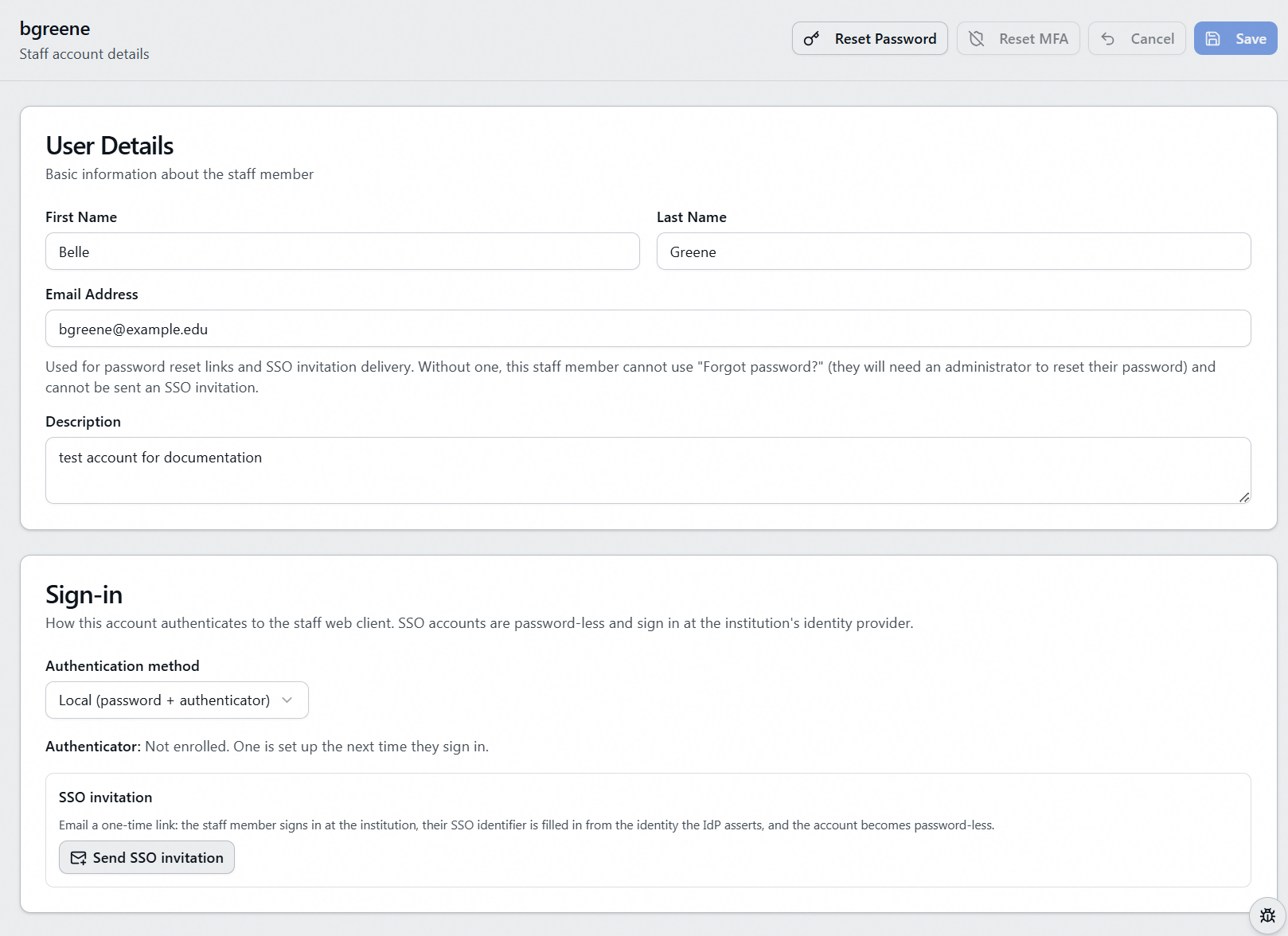
An SSO identifier field appears: "The identity the IdP asserts for this person. Leave blank to match on the username — or skip hand-typing entirely and send an invitation below, which fills this in from the actual asserted identity." Reset Password leaves the header, because Aeon won't set a password on an account in SSO mode.
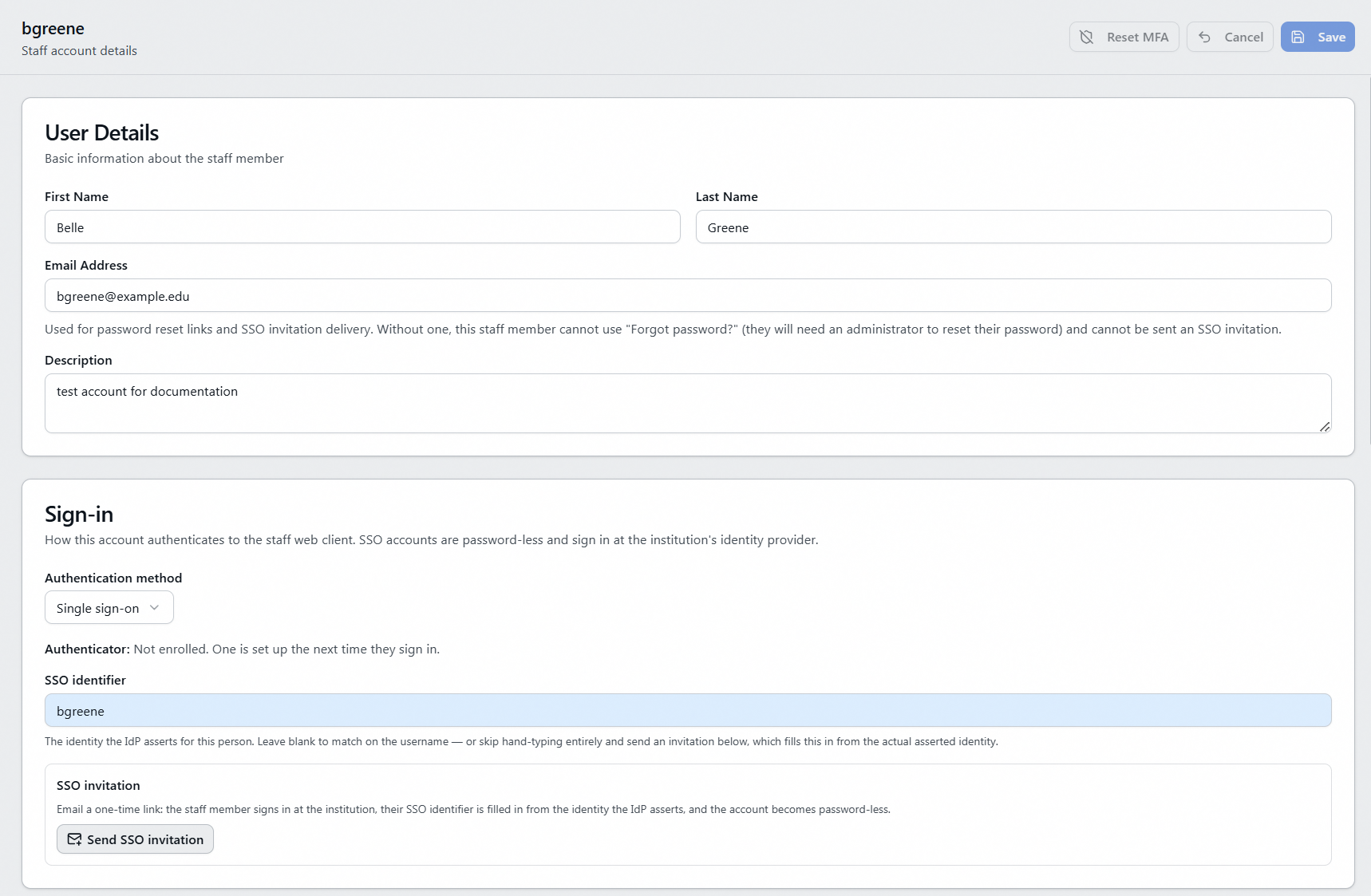
Leaving the identifier blank means the account matches when the asserted identity equals its username, convenient when your usernames already are the identifiers your IdP asserts. Duplicate identifiers are rejected, and any method change ends the account's sessions.
Nothing else is required on this path. The account needs no email address, and no invitation is sent: once you save, the staff member simply clicks the SSO button on the sign-in page and authenticates at the identity provider. Their password stops working the moment you save, so make sure the identifier is right before you do. Aeon has no way to tell you the identifier is misspelled; a mismatch just shows the person "Your institutional account isn't authorized for Aeon" until you correct it or convert them back to Local.
In the current release, the Send SSO invitation button and the identifier field's "send an invitation below" hint remain visible after you switch an account to Single sign-on. Clicking it is refused with "This account already uses single sign-on…". That message is about the account's authentication method, not its email address. An invitation only ever converts a Local account (Path 1); for an account already in SSO mode, edit the identifier directly.
There is no just-in-time provisioning. Create the account (username, role, sites, email), then send the invitation. An assertion for an identity no account claims is denied with "Your institutional account isn't authorized for Aeon. Contact your administrator," and recorded with the asserted identity.
How Aeon matches an assertion to an account
On every SSO sign-in, Aeon takes the configured identity attribute's value from the assertion and looks for an account, exactly and case-insensitively, first against accounts' SSO identifiers and then against usernames. Only accounts already in SSO mode can match: a Local account whose username equals the asserted identity is never signed in through SSO, and Aeon never converts an account as a side effect of a sign-in. The same gates as password sign-in then apply: locked, inactive, template, and, on a multi-site system, no effective site assignment.
What changes for a converted account
| Local (password + authenticator) | Single sign-on | |
|---|---|---|
| Password sign-in | Yes | No — redirected into SSO |
| Administrator Reset Password | Available | Not available |
| Self-service password change / forgot password | Available | Not available; emailed resets suppressed |
| Aeon authenticator (TOTP) | Required | Still enrolled and required while Require MFA for SSO sign-ins is on |
| Resetting their own authenticator | With their current password | Not self-service; an administrator resets it |
| Counts as an emergency administrator | Yes, if an unlocked admin | No |
Converting back to Local
There is no "unlink" button. In the Sign-in card, set Authentication method back to Local (password + authenticator), clearing the SSO identifier while the field is still visible, then reset the account's password.
Conversion to SSO never deleted the old password; Aeon simply stopped consulting it. Switching back to Local makes that password live again, however old it is and whoever else may have known it, so reset it rather than rely on it. A reset isn't technically required if the person still remembers the old password, which can matter under pressure during an outage, but treat that as the exception. If the old password expired under your expiry policy, they land on the Password Expired screen, which asks for the current password and so doesn't rescue anyone who has forgotten it.