Editing a Role: Operational Capabilities
A role's operational capabilities decide what the people in that role can do in the everyday workspace — open and edit requests, work with users, send email, run batch processes, touch billing, and so on. This is the most common thing you'll adjust on a role: it's how you make a "Front Desk" role that can sign users in but can't edit billing, or a "Student Worker" role that can read requests but not route them.
Each of the ten operational areas gets one of four access levels. Most roles never need every area turned all the way up — you grant each area only as far as that role's work requires, and leave the rest at None. The two built-in roles already sit at the extremes: Administrator and Staff both come with all ten areas set to Full; the difference between them is configuration access, not operational access. You'd create a custom role precisely to land somewhere in between.
The same tab also grants access to Atlas BI, which sits in its own section below the grid and uses its own levels. Neither built-in role has it — see Atlas BI access below.
- You're building a custom role (front desk, reading-room attendant, student worker) and need to dial in exactly which workspace actions it allows.
- A role can see more — or less — than it should, and you want to raise or lower one area without touching the rest.
- You cloned a role as a starting point and now need to trim its access down to fit a narrower job.
Where this lives
Operational capabilities are edited on the Operational tab of the role editor, inside the Roles & Permissions section of the Customization Manager.
- Open the Customization Manager and go to Roles & Permissions → Roles.
- In the left-hand list, click a role — for example, Front Desk — to open it.
- In the role editor, select the Operational tab.
You'll see a table with one row per operational area and four columns of radio buttons: None, View, Edit, Full. Below that table is a separate Atlas BI section, covered further down this page.
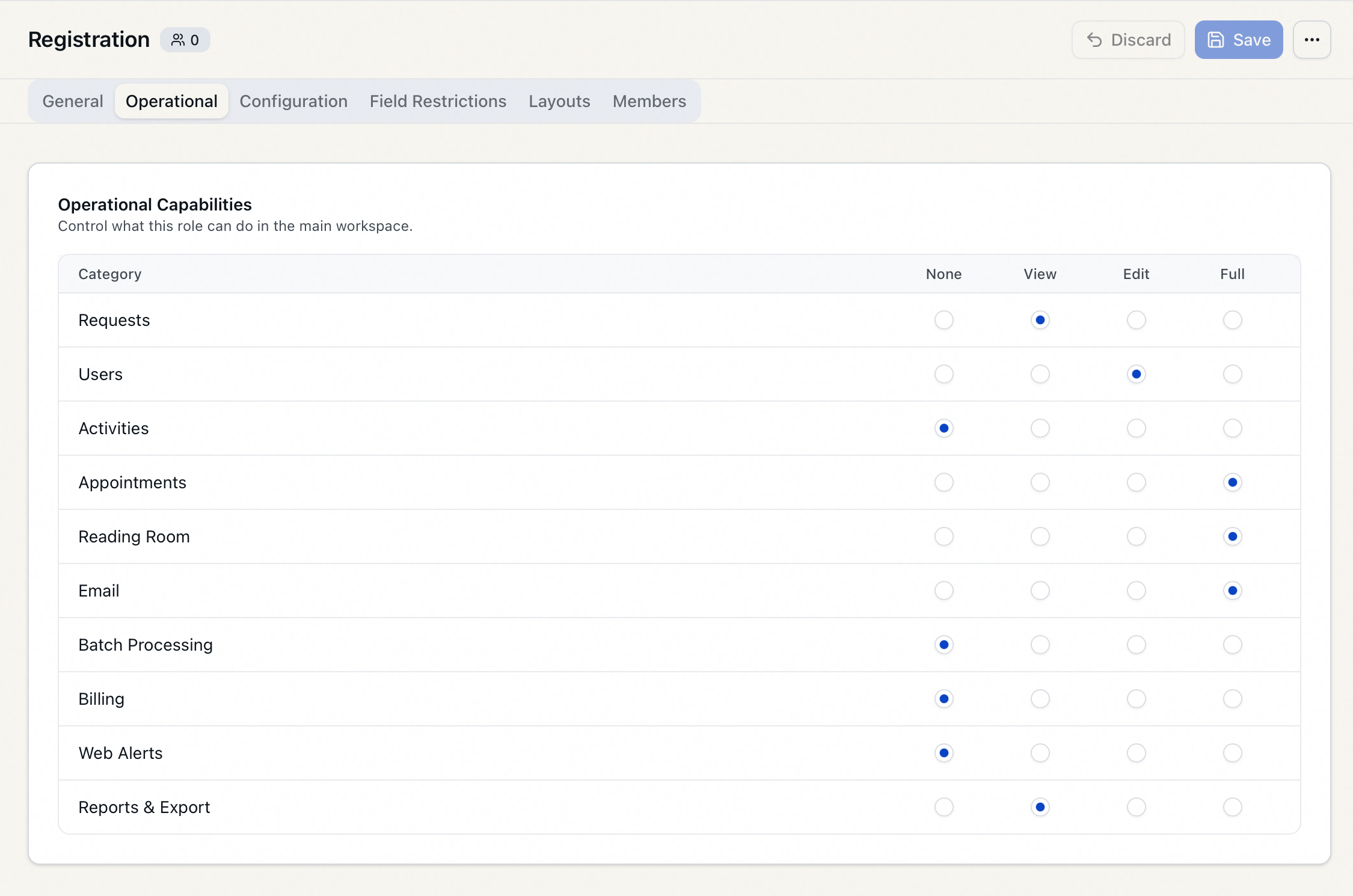
The same role editor also has tabs for General (name and description), Configuration (what the role can configure in the Customization Manager), Field Restrictions, Layouts, and Members. This page covers only the Operational tab. The Save and Discard buttons at the top of the editor apply to the whole role, so a change you make here is saved alongside any pending changes on the other tabs.
The four access levels
Every operational area is set to exactly one level. The levels are cumulative — each one includes everything below it:
| Level | What it grants |
|---|---|
| None | No access to this area at all. The role can't see or use it. |
| View | Read-only. The role can open and look at records in this area but can't change them. |
| Edit | Create and change records — the normal "do the work" level. Includes everything View allows. |
| Full | Edit plus the higher-privilege and destructive actions in that area (for example, cancelling or deleting). Includes everything Edit allows. |
Each level maps to what the underlying actions require. For requests, for instance, viewing a request needs View; editing it and running the everyday workflow actions (Check Out, Place On Hold, and the like) need Edit — this is also where the record lock turns on; and the higher-impact actions — using the Route menu, cancelling, merging — need Full. The pattern is the same across areas: read at View, do the work at Edit, and the irreversible or sensitive operations at Full. When in doubt, Edit is the level that lets a role actually process work; reserve Full for staff you trust with deletions and cancellations.
The ten operational areas
These are the rows you'll set, with the exact labels as they appear in the table:
| Area | Covers |
|---|---|
| Requests | Opening, editing, routing, cloning, cancelling, and otherwise processing requests. |
| Users | Viewing and editing user records, clearance, notes, and related actions. |
| Activities | Activities and their members, attendance, and requests. |
| Appointments | Appointment calendars, scheduling, confirming, and cancelling. |
| Reading Room | Reading-room sign-in/out, seating, and away status. |
| Composing and sending email, and the outgoing-email queue. | |
| Batch Processing | Running standard and custom batch processes on selected requests. |
| Billing | Charges, payments, invoices, and billing accounts on requests and users. |
| Web Alerts | Web-interface alerts shown to patrons. |
| Reports & Export | Running reports and exporting data. |
Setting a level
- Open the role and go to the Operational tab — for example, the Front Desk role.
- Find the area you want to change, such as Reading Room.
- Click the radio button in the column for the level you want — say, Edit — so the reading-room attendant can sign users in and out but not delete records.
- Repeat for any other areas. A typical front-desk role might be Users: Edit, Reading Room: Edit, Appointments: Edit, and everything else left at None or View.
- At the top of the editor, click Save.
When the save succeeds you'll see a confirmation — Role "Front Desk" saved. If you change your mind before saving, click Discard to revert every pending change on the role back to its last-saved state.
The Save and Discard buttons stay disabled until you've actually changed something, and they act on all tabs at once. You can adjust operational levels, switch to the Configuration tab, make a change there too, and then save both with a single click.
Atlas BI access
Atlas BI is a separate reporting system, so a role's access to it is granted on its own rather than as a row in the capability grid. Scroll past the grid on the Operational tab to the Atlas BI section.
It uses three levels of its own, not the four above:
| Level | What it grants |
|---|---|
| No access | "Cannot open Atlas BI. This is the default for every role." |
| Viewer | "Can open Atlas BI and view dashboards and reports, but cannot change anything." |
| Contributor | "Can view, create, and modify dashboards and reports in Atlas BI." |
There is no Full level for Atlas BI. Contributor is the ceiling, and Aeon rejects anything above it.
To grant access, click the level you want and then Save at the top of the editor — it saves with the rest of the role, the same as a change to the grid.
A staff member sees Open Atlas BI, under Reporting in the ⋯ menu, only when their role grants Viewer or Contributor and an administrator has set a usable address in the AtlasBIURL customization key. With the capability but no address, the entry stays hidden. There's no separate Atlas BI password — Aeon signs the staff member in.
Aeon's side of this connection is complete. Atlas BI instances are being updated to accept it, so the sign-in becomes available as that rollout reaches yours.
What happens to staff already in the role
Changing a role's operational levels takes effect for everyone assigned to that role — not just the next person to sign in.
When you save changes to a role, Aeon ends the sessions of every other staff member currently assigned to it, so a capability you remove stops working right away and one you add is there when they sign back in. Your own session survives, so editing a role you belong to doesn't sign you out — your new access levels apply on your next action. Keep this in mind before lowering a level mid-shift: anyone in that role loses the removed access as soon as you save.
Built-in roles and a few cautions
The two system default roles, Administrator and Staff, are marked with a lock icon in the role list, but their operational levels can still be edited. They both come with all ten grid areas at Full, and both at No access for Atlas BI — that one is never granted by an upgrade, so you set it yourself on whichever roles need it. Lowering an operational level on Staff affects everyone using that default role, so prefer creating a custom role for narrower access rather than weakening Staff.
Note that the operational tab does not govern who can manage roles. The ability to open this editor at all is a configuration capability — Roles & Permissions — set on the Configuration tab. That's also where Aeon's lockout protections live (it won't let you remove your own admin access, or strip the last admin role). Setting operational levels here can't lock you out of the admin UI.
If a new role is close to an existing one, clone the existing role first (right-click it in the list, or use Clone Role from the editor menu) and then trim the operational levels down. It's faster and less error-prone than starting every area at None and building up.