Deactivating and Re-activating Staff Accounts
When a staff member stops needing access — a student worker finishes the semester, someone goes on leave, an account needs to be parked while you sort out a problem — you usually don't want to delete them. Deleting throws away the account, its role, and its site assignments, and the only way back is to recreate everything from scratch.
Deactivating is the gentler option. It blocks the person from logging in but leaves the account fully intact: name, role, site assignments, desktop-client settings, and all the tracking history tied to their work stay exactly as they were. When they come back, you flip one checkbox and they're in again.
Aeon 7 has two ways to deactivate an account, both in the Account Status card of a staff member's detail pane on the Staff tab inside the Customization Manager. Account is Locked is the quick pause — it blocks sign-in and leaves the account in the staff list. Account is Inactive is for someone who has left: it blocks sign-in the same way and also hides the account from the default staff list, so departed colleagues stop cluttering it. Either one preserves the role, the site assignments, and the history, and either one can be reversed. This page covers both — locking first, then marking an account inactive.
- A staff member leaves temporarily (sabbatical, summer break, parental leave) — deactivate now, reactivate later, no rework.
- You need to suspend someone's access immediately while you investigate something, without losing their setup.
- An account locked itself after too many failed login attempts and you need to clear it.
- Someone is leaving for good — that's a delete, not a deactivate. See Managing Staff Accounts.
The Staff tab is part of the Customization Manager's roles-and-permissions area. Working with staff accounts — including deactivating them — requires the Staff configuration capability on your role. If your role doesn't grant it, the Staff tab isn't available to you.
Deactivating an account
-
Open the Customization Manager and go to the Staff tab.
-
In the staff list on the left, click the person you want to deactivate — for example, jdoe. Their account opens in the detail pane.
-
In the Account Status card near the top of the pane (just below User Details), check the Account is Locked checkbox.
-
Click Save at the top right of the pane (or press Ctrl/Cmd + S).
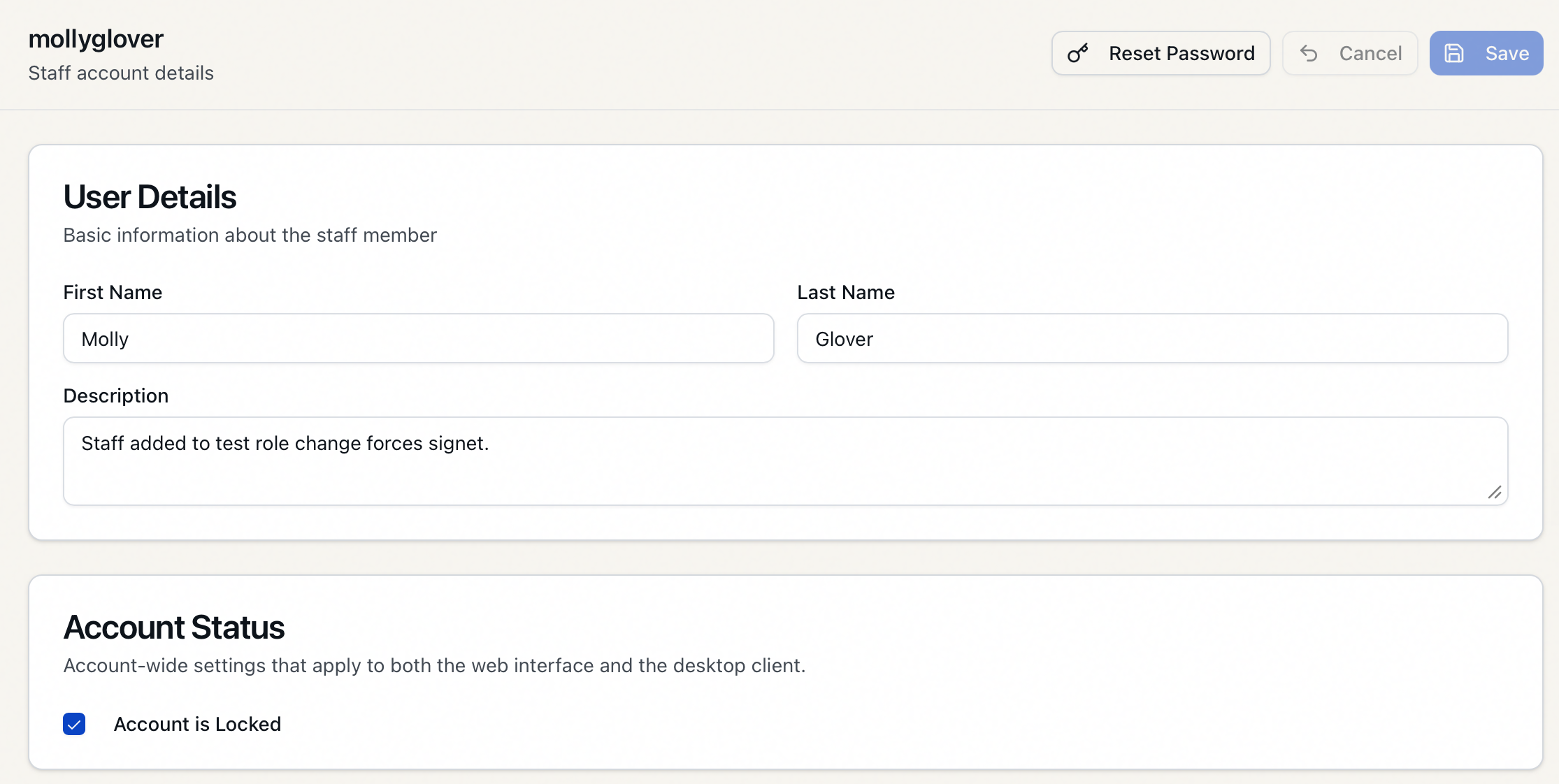
That's it. The account is now deactivated.
You can tell at a glance from the staff list: a deactivated account shows a small padlock icon next to its username on its card. The person's role badge and everything else stay visible — only the lock icon is added.
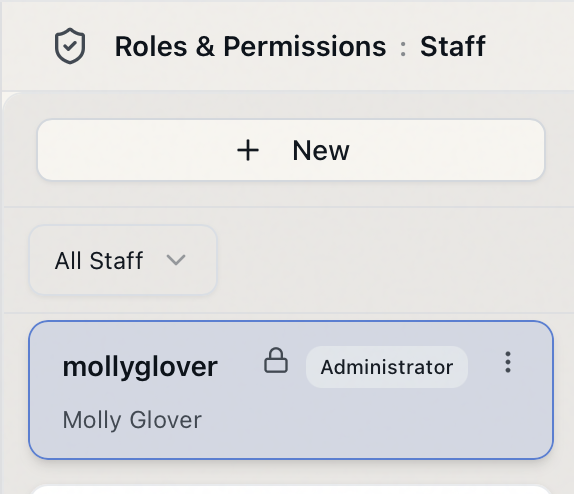
The Account Status card describes itself as "Account-wide settings that apply to both the web interface and the desktop client" — so locking the account blocks the person from signing in to Aeon 7, not just the old desktop client.
What a deactivated person experiences
A deactivated staff member who tries to sign in is turned away at the login screen. Aeon refuses the login and shows:
Account is locked.
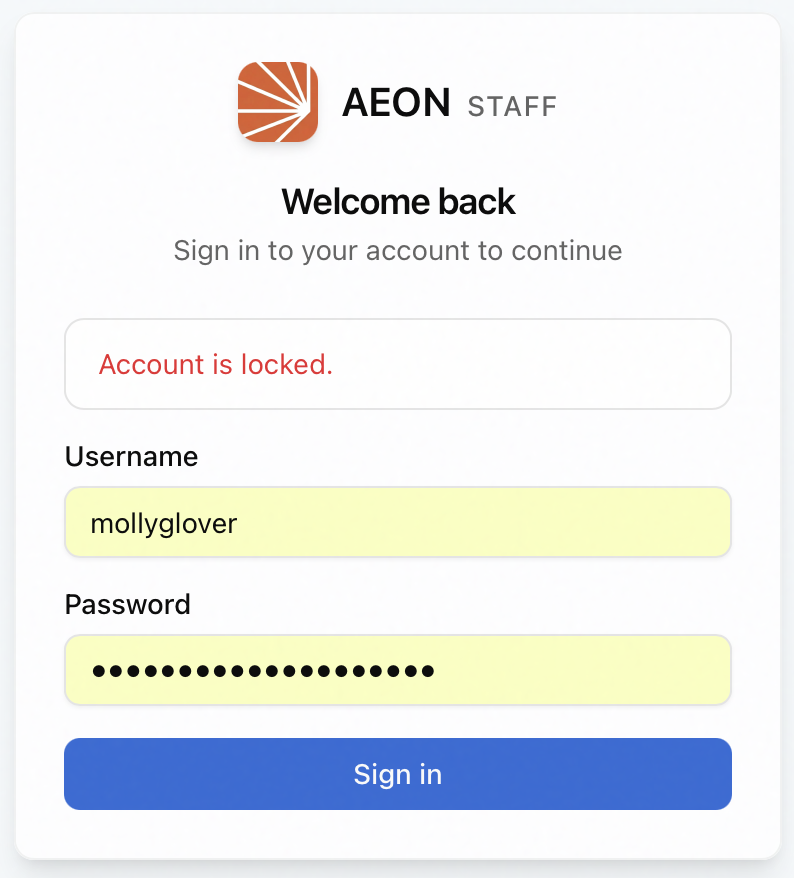
They can't get a new session, reset their password, or change their password while the account is locked — each of those paths is refused for the same reason. There's nothing they can do on their own; an administrator has to reactivate them.
Locking an account ends its active sessions right away — the person doesn't finish what they're on and doesn't wait for a token to expire. If you need to cut someone off right now, this is the control that does it. Account is Inactive and deleting an account behave the same way.
Reactivating an account
Bringing someone back is the reverse, and just as quick:
- On the Staff tab, select the deactivated staff member (their card shows the padlock icon).
- In the Account Status card, clear the Account is Locked checkbox.
- Click Save.
The padlock icon disappears from their card, and the person can sign in again immediately. Their role, site assignments, and history are exactly as they left them — there's nothing to rebuild.
When you uncheck Account is Locked and save, Aeon clears the account's record of failed login attempts back to zero. So whether the account was locked by you deliberately or locked itself after repeated bad passwords, unchecking the box and saving handles both — the person gets a clean slate.
When an account locks itself
You won't always be the one who locked an account. Aeon automatically locks a staff account after too many consecutive failed login attempts, as a brute-force protection. The number of allowed attempts is controlled by the StaffLoginAttemptsBeforeLock customization key.
An account that locked itself looks identical to one you deactivated by hand — same padlock icon, same "Account is locked" message at login — and you clear it the same way:
- Uncheck Account is Locked and save, which unlocks the account and resets the failed-attempt counter, or
- Reset the person's password. A password reset also unlocks the account and clears the counter as a side effect, so if someone is both locked out and has forgotten their password, the reset solves both at once. See Resetting a Staff Member's Password.
If a staff member simply fat-fingered their password a few times and tripped the lock, you don't need to reset anything — just clear the Account is Locked checkbox and save. Their existing password still works.
Marking an account inactive
Use Inactive when someone has left. It blocks sign-in the same way a lock does, but it also takes the account out of the staff list you look at every day — so a departed colleague stops appearing in it without anyone having to delete their record.
There are three ways in, and which one you pick depends on how many people you're doing at once.
From the account editor — the same place as the lock:
- On the Staff tab, select the staff member.
- In the Account Status card, check Account is Inactive.
- Click Save.
There's no confirmation step on this path — the change applies when you save, like any other edit. You can't set it on your own account; the checkbox is disabled there.
From the staff list — quicker for one person:
-
On the person's card, open the ⋮ menu.
-
Choose Inactivate.
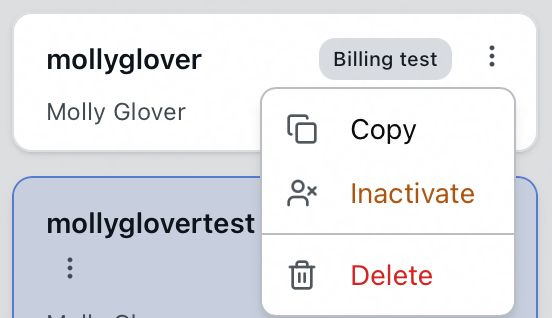
-
Aeon asks you to confirm.
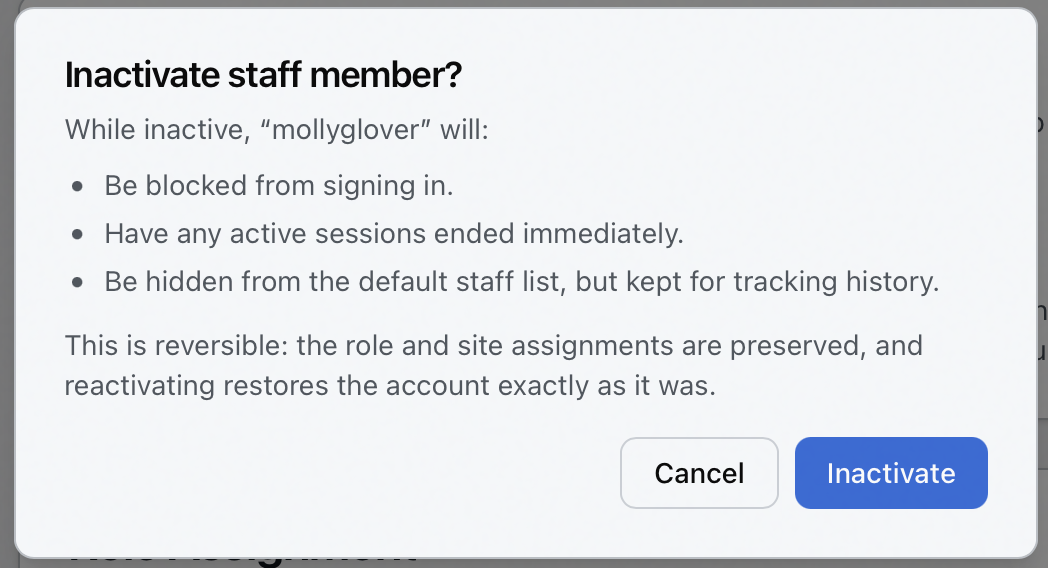
The dialog spells out what you're about to do — the person will "Be blocked from signing in," "Have any active sessions ended immediately," and "Be hidden from the default staff list, but kept for tracking history" — and confirms it's reversible. Choose Inactivate to go ahead.
The ⋮ menu doesn't offer Inactivate on your own card.
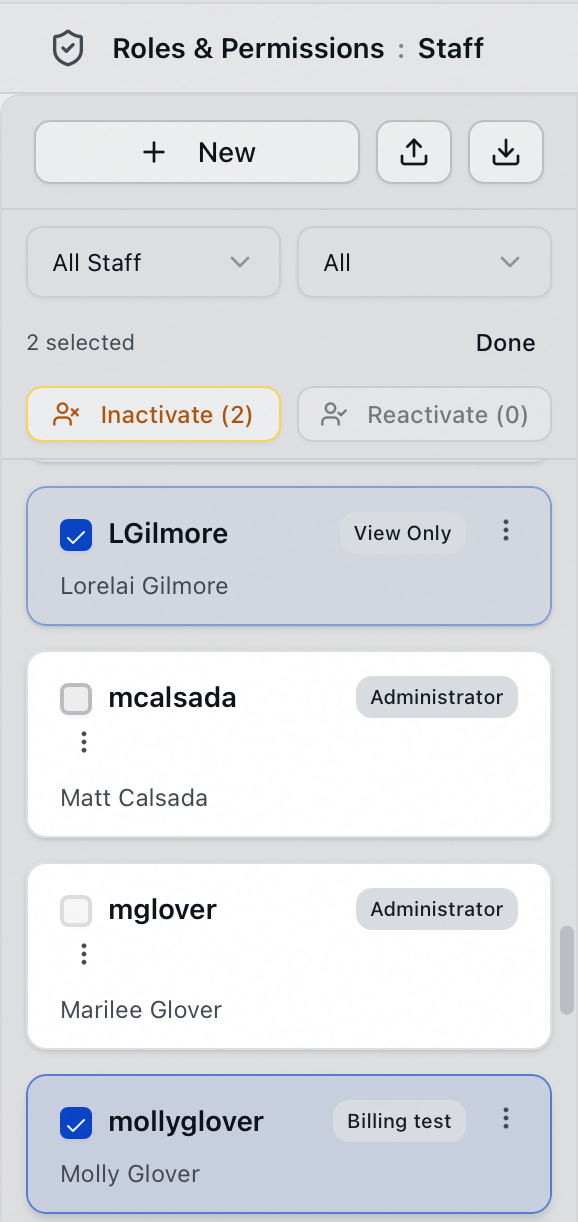
Several people at once:
-
Click Select above the staff list. Checkboxes appear on every card.
-
Check the people you want.
-
Click Inactivate (N) in the bar that appears.
-
Confirm in the same dialog, which names the count instead of one person.
Click Done to leave Select mode.
What changes once an account is inactive
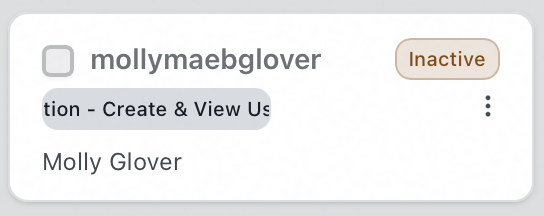
The account picks up an amber Inactive badge wherever it still appears:
And it drops out of the staff list, because the Status filter above the list defaults to Active:
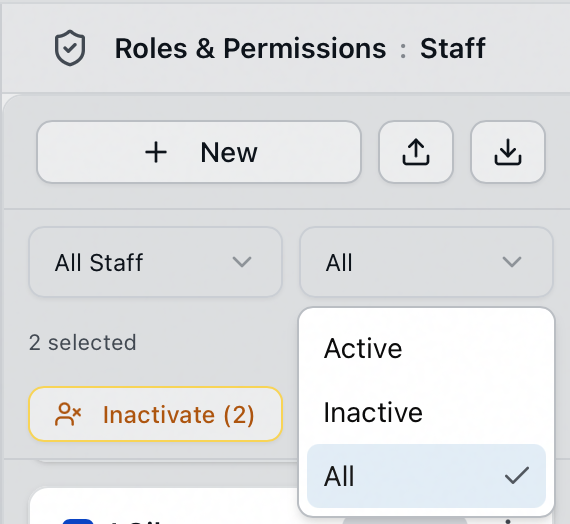
Switch it to Inactive to see just the departed accounts, or All to see everyone. This is the difference from a lock: a locked account stays in the default list with a padlock, while an inactive one is filtered out until you ask for it.
Someone whose account is inactive is turned away at sign-in with a different message from the locked one:
Account is inactive. Contact an administrator.
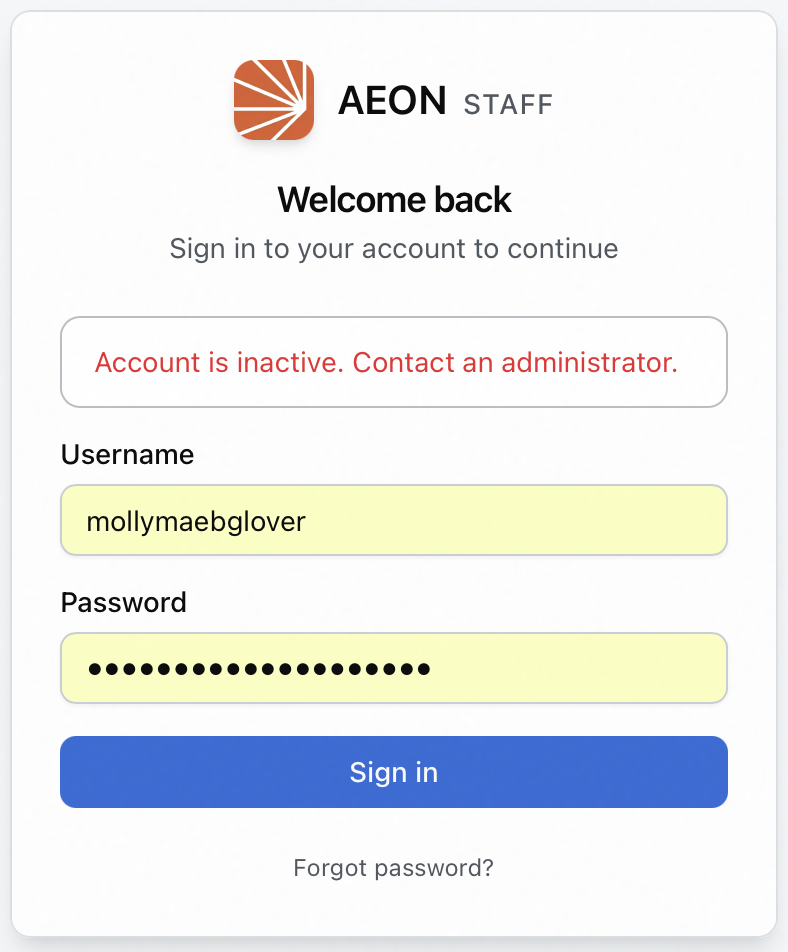
Account is Locked and Account is Inactive are independent. Setting either blocks sign-in, and an account can carry both at once — the padlock and the badge both show.
Reactivating an inactive account
Clear Account is Inactive and save, or choose Reactivate from the card's ⋮ menu — or select several and use Reactivate (N). There's no confirmation on the way back. The role and site assignments were never touched, so the person signs in again to exactly what they had.
Deactivate or delete?
| Account is Locked | Account is Inactive | Delete | |
|---|---|---|---|
| Blocks every sign-in method | Yes | Yes | Yes |
| Ends open sessions immediately | Yes | Yes | Yes |
| Keeps the account, role, and site assignments | Yes | Yes | No |
| Keeps the person's tracking history and notes | Yes | Yes | Yes |
| Stays in the default staff list | Yes, with a padlock | No — the Status filter hides it | No |
| Can be set for several people at once | No | Yes, in Select mode | No |
| Reversible | Yes — uncheck and save | Yes — reactivate | No — must recreate the account |
| Use it when | A pause, or clearing a self-lockout | Someone has left, and you want the record kept | You need the account gone entirely |
When in doubt, deactivate. It's reversible; deleting is not. For the delete workflow, see Managing Staff Accounts.
Locking or unlocking an account is a normal edit, so the Save button applies to it. If you check or uncheck Account is Locked and then try to switch to another staff member without saving, Aeon stops you with "Discard unsaved changes?" — choose Stay here to go back and save, or Discard changes to abandon the change.