The EAD Mapping Table
When a patron requests an item from an EAD finding aid, Aeon transforms the finding aid's XML into a request using an XSLT stylesheet. Out of the box, every EAD runs through the same default stylesheet (aeon.xslt), and for most sites that is all you ever need.
The EAD Mapping table is for the exceptions. If a handful of collections — say, a music library's finding aids — have markup that's different enough that the default stylesheet mangles them, you add a mapping rule that says "EADs matching this pattern should use this stylesheet instead." Each rule pairs a match condition (a URI pattern or an XPath expression) with the XSLT file to apply when that condition is met. Aeon checks your rules in order; the first one that matches wins, and anything that matches nothing falls back to aeon.xslt.
- A specific collection's finding aids don't process correctly with the default stylesheet and need their own XSLT.
- You've written a custom stylesheet (for example,
music.xslt) and need to tell Aeon which EADs should use it. - You're reviewing or reordering existing mapping rules — remember that lower sort order is evaluated first, so order matters.
If every EAD at your site processes fine today, you don't need any rows in this table at all.
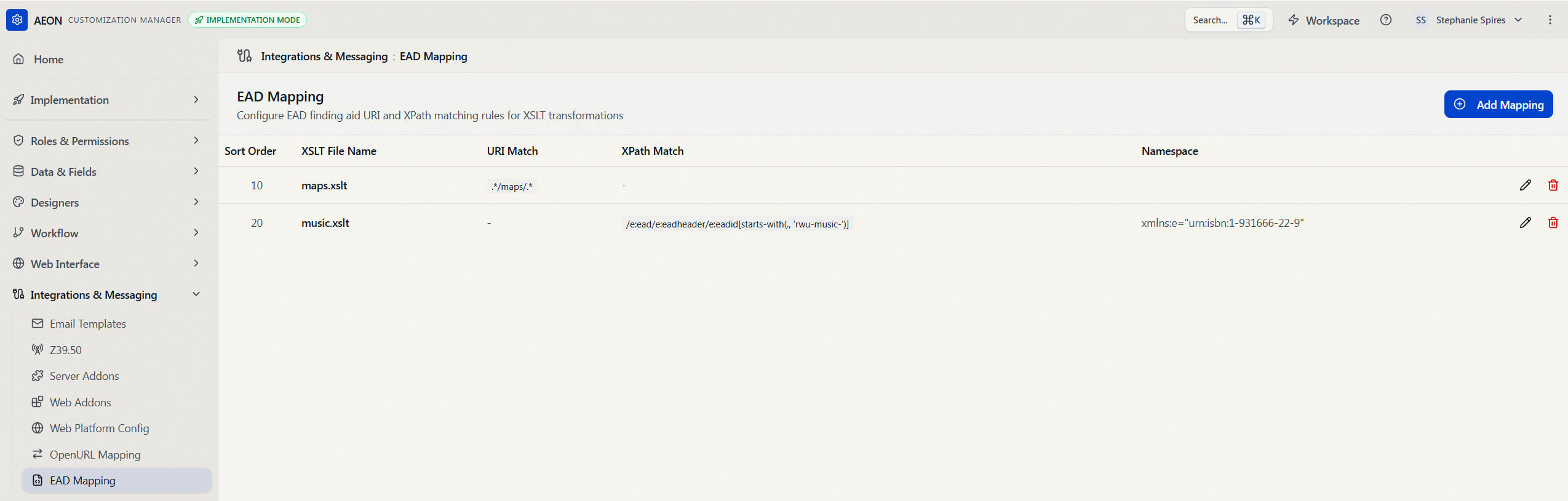
Open the Customization Manager, then go to Integrations & Messaging → EAD Mapping. The page header reads EAD Mapping with the subtitle "Configure EAD finding aid URI and XPath matching rules for XSLT transformations."
(In the older desktop client this table sat under Web Interface → EAD. In Aeon 7 it's grouped with the other integration and web-interface tables under Integrations & Messaging.)
What's on the page
The EAD Mapping page shows your existing rules in a table, sorted by Sort Order (lowest first — the same order Aeon evaluates them). Each row shows:
| Column | What it holds |
|---|---|
| Sort Order | The position of the rule in the evaluation sequence. Aeon checks rules from the lowest number up. |
| XSLT File Name | The stylesheet Aeon applies when this rule matches (for example, music.xslt). |
| URI Match | The pattern matched against the finding aid's URL. Shown as - when the rule matches on XPath instead. |
| XPath Match | The XPath expression matched against the finding aid's content. Shown as - when the rule matches on URI instead. |
| Namespace | Any XML namespaces the XPath expression depends on. Left blank when the rule needs none. |
If no rules exist yet, the page shows an empty state — "No EAD Mappings" — with an Add First Mapping button. The internal ID column from the database is not shown in the list; Aeon assigns it automatically.
Adding a mapping rule
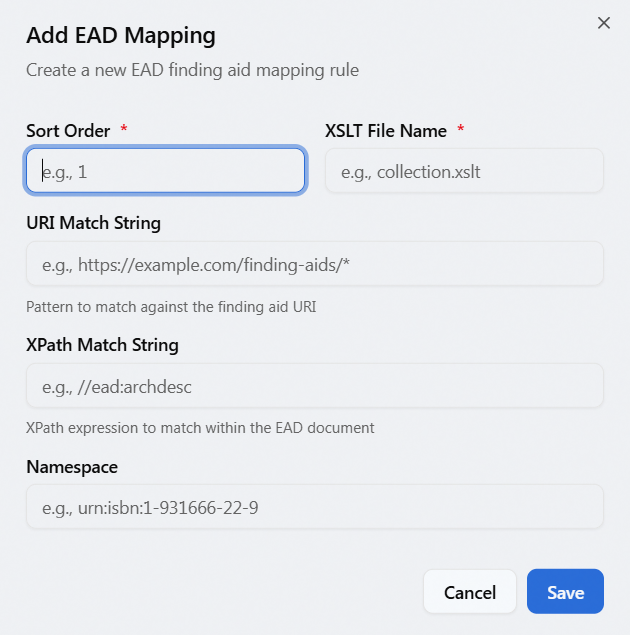
- On the EAD Mapping page, click Add Mapping (top right). A dialog titled Add EAD Mapping opens.
- Fill in the fields:
- Sort Order (required) — a whole number that sets where this rule falls in the evaluation order. Lower numbers are checked first.
- XSLT File Name (required) — the stylesheet to apply, e.g.
music.xslt(up to 100 characters). - URI Match String — a pattern matched against the finding aid's URL, up to 255 characters. Leave blank if you're matching on content instead.
- XPath Match String — an XPath expression matched against the EAD document, up to 255 characters. Leave blank if you're matching on the URL instead.
- Namespace — only needed when your XPath expression references namespaced elements (up to 100 characters; see Namespaces below).
- Click Save. A "EAD mapping added" confirmation appears and the new rule shows up in the table.
The editor doesn't warn you when an entry runs long, so keep within the limits above (255 characters for the match strings, 100 for the XSLT file name and namespace) — an over-length value is only rejected when you save.
A rule usually uses either a URI match or an XPath match: use the URI match when the finding aids you want to target all live under a recognizable URL path, and the XPath match when you need to look inside the EAD's content to identify them. You can set both on one rule — the URI match is checked first — but that's rarely needed. Only Sort Order and XSLT File Name are ever required.
Editing or deleting a rule
- Edit — click the pencil icon on a row. The Edit EAD Mapping dialog opens with the rule's current values; change what you need and click Save ("EAD mapping updated").
- Delete — click the trash icon on a row. A confirmation asks "Delete EAD Mapping?" and names the affected stylesheet — for example, "This will permanently delete the mapping for XSLT file 'music.xslt'. This action cannot be undone." Click Delete to confirm.
How Aeon applies your rules
When a request comes in from an EAD, Aeon evaluates your mapping rules to decide which stylesheet to run:
- Rules are read in ascending sort order — the lowest Sort Order first.
- For each rule:
- If it has a URI Match String, that pattern is tested against the finding aid's URL. On a match, the rule's XSLT File Name is used and evaluation stops.
- If it has an XPath Match String, that expression is tested against the EAD's content (using the rule's Namespace values if supplied). If it matches one or more nodes, the rule's XSLT File Name is used and evaluation stops.
- If neither condition matches, Aeon moves on to the next rule.
- If no rule matches at all, Aeon falls back to the default
aeon.xslt.
Because the first match wins, put more specific rules ahead of broader ones by giving them a lower Sort Order.
Example 1 — match by URL
At Redwood University, every finding aid processes fine with aeon.xslt except those from the Cartography & Maps Library, whose files all sit under one folder — https://findingaids.redwood.edu/maps/{filename}.xml. Because they share a URL path, one URI rule covers them:
- Sort Order:
10 - URI Match String:
.*/maps/.* - XSLT File Name:
maps.xslt
Example 2 — match by content (XPath)
Redwood's Music Library finding aids need music.xslt, but they aren't grouped under a common URL. Instead, each one's EAD ID begins with rwu-music-:
<eadid mainagencycode="RWU">rwu-music-0117</eadid>
An XPath rule identifies them by looking inside the document:
- Sort Order:
20 - XPath Match String:
/ead/eadheader/eadid[starts-with(., 'rwu-music-')] - XSLT File Name:
music.xslt
Example 3 — XPath with a namespace
In practice, the Music Library's EADs declare a default namespace on the top-level element — xmlns="urn:isbn:1-931666-22-9". To match a namespaced element you must supply that namespace and give it a name to use in your XPath (see Namespaces):
- Sort Order:
20 - XPath Match String:
/e:ead/e:eadheader/e:eadid[starts-with(., 'rwu-music-')] - Namespace:
xmlns:e="urn:isbn:1-931666-22-9" - XSLT File Name:
music.xslt
Namespaces (XPath only)
Some EAD files declare XML namespaces, and when they do, your XPath expression has to account for them or it won't match anything. A namespace declared on an element (most often the top-level ead element) applies to that element and all of its children.
Namespaces are declared in the XML with the xmlns attribute in two forms:
- Named namespace — has a name after
xmlns:, e.g.xmlns:xlink="http://www.w3.org/1999/xlink"(namedxlink). - Default namespace — has no name, e.g.
xmlns="urn:isbn:1-931666-22-9".
To match against a namespaced element, put the namespace declaration in the rule's Namespace field and reference its name in the XPath (as in Example 3).
If the EAD declares a default namespace (no name after xmlns), you still have to assign it a name in the Namespace field and use that name as a prefix in your XPath. XPath has no concept of a default namespace, so an unprefixed expression will silently match nothing.
To use multiple namespaces in one rule, separate them with a space in the Namespace field:
xmlns:e="urn:isbn:1-931666-22-9" xmlns:xlink="http://www.w3.org/1999/xlink"
EAD Mapping lives under the Integrations & Messaging group, and the whole section — viewing as well as editing — is gated by the Integrations configuration capability. Without it, EAD Mapping doesn't appear in the Customization Manager, and opening it directly shows "You don't have permission to access this customization section." The API enforces the same capability on both sides: the rules won't load, and the add, edit, and delete actions are all refused.
Note that changes affect how future requests from EADs are processed; they don't retroactively reprocess requests that already exist.
See Editing a Role: Configuration Capabilities for how this is granted.