Setting Up SAML Single Sign-On
The whole job, start to finish, for a SAML 2.0 identity provider: Shibboleth, an InCommon member IdP, or any SAML IdP your institution runs. Work through the steps in order. The certificate has to exist before Aeon can publish metadata, and enabling is when Aeon validates the whole configuration, so do that before you ask your identity-provider team to register anything.
Read Single Sign-On: Overview and Prerequisites first, and confirm the public base URLs before you begin. Everything you hand your identity provider is built from them, and correcting them later means redoing the registration step.
Customization Manager → Integrations & Messaging → Single Sign-On, which requires the Integrations configuration capability. The header carries an Enabled / Disabled badge, Test sign-in, Discard, and Save; the settings sit on four tabs: Identity Provider, Service provider, Sign-in options, and Advanced (JSON).
Step 1 — Confirm the addresses Aeon publishes
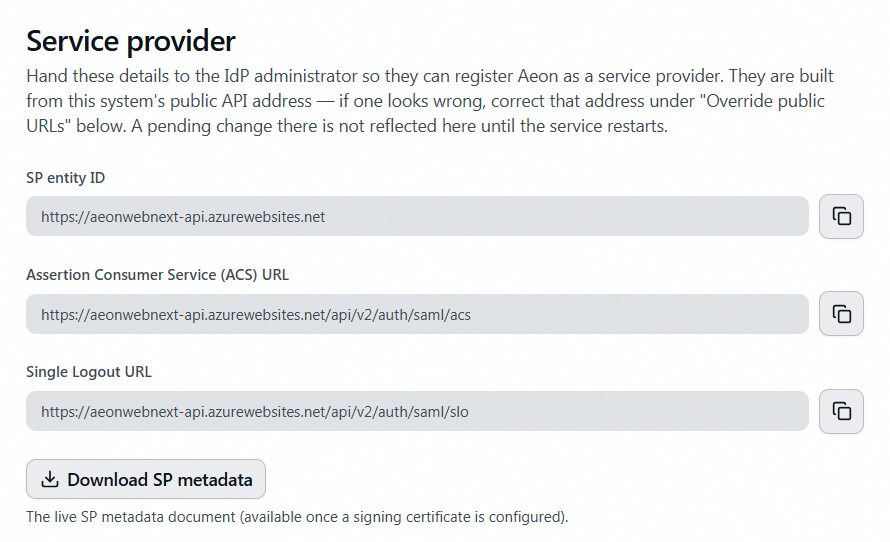
On the Service provider tab, read SP entity ID, Assertion Consumer Service (ACS) URL, and Single Logout URL. All three derive from the staff API's public base URL, which on a standard install is your site's HTTPS address followed by /StaffAPI. If any of them shows localhost, stop and fix the public URLs first (see the overview's prerequisites). A localhost ACS URL handed to an identity provider produces a registration that can never work.
Step 2 — Create the service provider signing certificate
SAML can't be enabled without one: it signs the sign-in requests Aeon sends and decrypts assertions that come back encrypted. On the Service provider tab, click Generate certificate for a self-signed certificate (normal and correct here; SAML trust comes from the metadata exchange with the IdP, not from a certificate authority) or Upload .pfx to import an existing PKCS#12 file with its private key.
Either way the certificate is appended to a list rather than replacing what's there, which is what makes later rotation safe. Private keys are write-only: a stored key can be added and deleted, never viewed or downloaded. See Managing Service Provider Certificates.
Step 3 — Describe your identity provider
On the Identity Provider tab, set the protocol to SAML 2.0, then choose one of two sources. Only the selected one is saved.
-
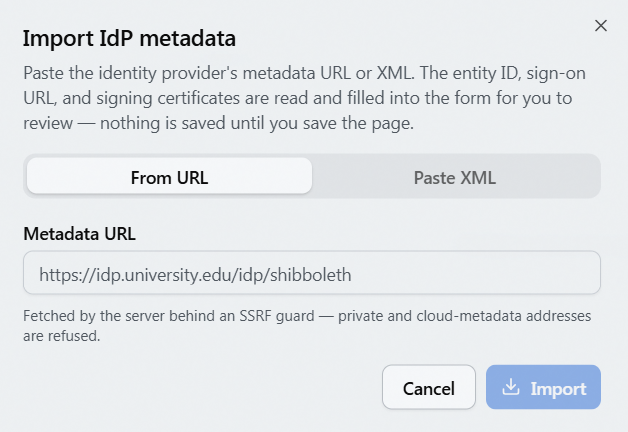
Direct configuration — the IdP's entity ID, single sign-on service URL, optional single logout URL, and signing certificates. Rather than typing them, click Import from metadata and give it the IdP's metadata URL or paste the XML: it prefills all four for review and saves nothing until you click Save. URL fetches run on the server, are HTTPS-only, and don't follow redirects, so supply the final URL rather than a shortener or a redirecting vanity address.
-
InCommon federation — prefer this if your IdP is in InCommon. Enter the IdP's entity ID; Aeon resolves the endpoints and certificates from InCommon's MDQ service on demand and refreshes them on a schedule, so IdP key rollovers and endpoint moves are picked up without your editing anything. Under direct configuration that maintenance is yours: paste the incoming key into Signing certificates (one certificate per line) ahead of the rollover.
Import from SP config reads an existing SAML.config (Atlas SAML module) or shibboleth2.xml (Shibboleth SP), detects the format, and prefills entity IDs, endpoints, and policy flags; anything that couldn't be carried across comes back as a warning. Private keys never come across, so still create the certificate in step 2. A Shibboleth config carries only the IdP metadata URL, so run Import from metadata afterwards; pasting attribute-map.xml alongside it resolves your REMOTE_USER attribute to its proper name.
Step 4 — Review the sign-in options
The defaults on the Sign-in options tab — signed requests, signed assertions, and MFA required all on — are the starting point. Two settings to check now:
- Login page — leave it on Password and single sign-on for the rollout. Switch to Single sign-on only once conversion is complete.
- Identity attribute — what Aeon matches against a staff account. Blank means
eduPersonPrincipalName, accepted by friendly name or in its OID form. Confirm it matches what your IdP actually releases.
Every field on this tab is in Single Sign-On Settings Reference.
Step 5 — Enable, prove emergency access, and save
Switch Enable single sign-on on and click Save. Two things happen on this save that don't happen on earlier ones:
-
Full validation runs. Aeon refuses to enable SAML without a signing certificate, and refuses a configuration where assertions are neither signed nor encrypted.
-
The Confirm emergency access dialog opens. Enter a Local administrator's username, password, and authenticator code. The account must be an unlocked Local account holding the Roles & Permissions capability; your own works. Aeon checks the password and the live code, then issues a short-lived, single-use token that completes the save, so finish promptly.
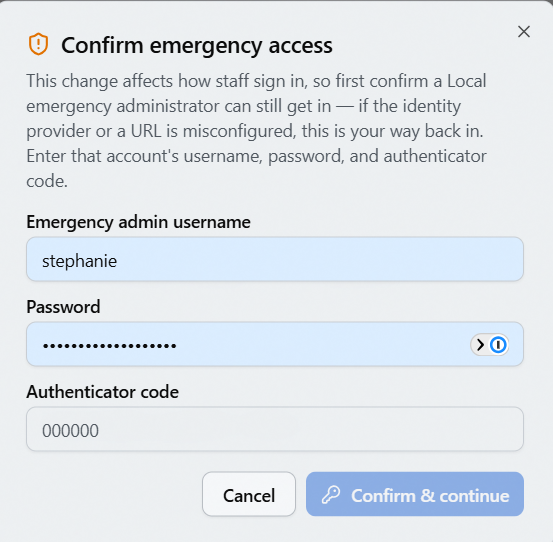
The point is to prove your emergency way in works before a misconfigured identity provider makes you need it. Keep two or more unlocked Local administrators permanently and don't convert them: Aeon warns below two and refuses to remove the last one with "At least one unlocked Local administrator must remain for emergency access. Convert or unlock another administrator first."
Enabling doesn't need the identity provider to know about Aeon yet, and it has to come first: enabling is what brings the metadata endpoint to life.
Step 6 — Register Aeon at your identity provider
Give your IdP administrator the SP metadata URL: your staff API's public base URL followed by /api/v2/auth/saml/metadata. The staff API is published at /StaffAPI on every Aeon 7 install, so for a site at https://aeon.example.edu that is https://aeon.example.edu/StaffAPI/api/v2/auth/saml/metadata. Read the exact address off the Service provider tab rather than typing it: the Download SP metadata button opens it, and the address bar shows the URL to hand over. Ask the IdP administrator to release the identity attribute (eduPersonPrincipalName by default). The metadata is generated live from the saved configuration and includes every valid certificate, so a later certificate rotation reaches the IdP on its own, which hand-typed values don't. If they need the individual values, the Service provider tab has them as copy fields.
/StaffAPI belongs to the Aeon 7 staff web client. The Aeon web interface's older API at /AeonAPI does not serve SAML metadata, and a URL built on it returns an empty response. Also note the /api segment: the path is /StaffAPI/api/v2/…, not /StaffAPI/v2/….
Requested before step 5, it answers {"error":{"code":"SSO_NOT_CONFIGURED","message":"SAML SSO is not configured."}} — even with a valid signing certificate in place, whatever the Download SP metadata help text ("available once a signing certificate is configured") implies. Don't send the URL until step 5 is done, or your IdP administrator will conclude Aeon is broken.
Step 7 — Run Test sign-in
Click Test sign-in in the page header. It runs the complete round trip against the saved configuration and reports which attribute and identity arrived and which staff account matched, without creating a session, so run it as often as you like while your IdP team adjusts attribute release. What each result means is in Testing and Troubleshooting Single Sign-On.
Step 8 — Move staff onto single sign-on
Enabling converted nobody. Each account moves by emailed invitation (recommended), by self-service linking, or by hand in the staff editor: see Moving Staff Accounts to Single Sign-On. Keep at least two Local administrators unconverted.
Before you call it done
| Check | How you know |
|---|---|
| The staff web client is served over HTTPS | Sign-in completes rather than failing at the last step |
No localhost anywhere in the SP metadata | Fetch the metadata URL from outside the server |
| A signing certificate exists | The Service provider tab shows it as configured |
| Two or more unlocked Local administrators, authenticators enrolled, staying Local | No warning banner on the Single Sign-On page |
| SSO enabled and saved | The header badge reads Enabled, and the metadata URL serves |
| Aeon registered at the IdP, identity attribute released | Your IdP administrator confirms |
| Test sign-in succeeds and matches a real staff account | "Test sign-in succeeded" |
| A pilot invitation sent, completed, and signed in end to end | The pilot account shows its invitation completed |
| Sign-out behaves as expected | You land on the expected page, signed out |