Managing Service Provider Certificates
Under SAML, Aeon holds its own signing certificate: the credential that signs the sign-in requests it sends your identity provider and decrypts assertions that come back encrypted. This page covers the list on the Service provider tab, replacing a certificate without breaking sign-in, and the expiry warnings. None of it applies to OpenID Connect, which uses a client secret instead.
A list, not a slot
Aeon keeps a list of certificates rather than one current certificate, up to 10 entries:
- Aeon signs with the oldest certificate that is currently valid.
- Every valid certificate is published in the SP metadata, so your identity provider can trust several at once.
That is what makes replacement safe: add the replacement alongside the certificate in use, have the identity provider re-import the metadata so it trusts both, and when the old one expires Aeon moves to the new one on its own. Nothing has to be timed.
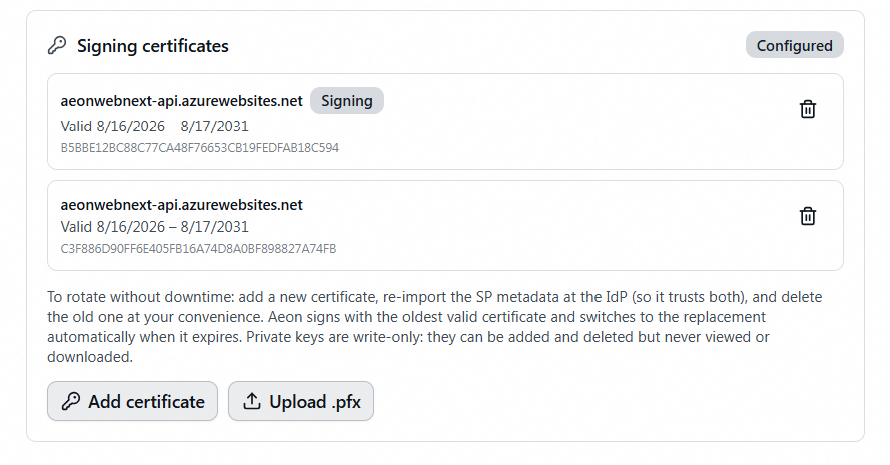
On the Service provider tab, the Signing certificates panel shows a Configured / Not configured badge, then one row per certificate with its name (the subject's common name, or the thumbprint), validity dates, thumbprint, and Signing, Expired, or Not yet valid badges.
Adding a certificate
Both routes append to the list.
- Generate certificate (reads Add certificate once one exists) creates a self-signed certificate valid for five years. Self-signed is normal and correct: SAML trust comes from the metadata exchange with your identity provider, not from a certificate authority.
- Upload .pfx imports a PKCS#12 file (
.pfxor.p12) containing its private key. You're prompted for the PFX password (if any); Aeon re-exports the key without a password, encrypts it at rest, and doesn't keep the password. Use this when your institution issues certificates centrally.
A stored key can be added and deleted, never viewed or downloaded. If the only copy of an uploaded key is the one in Aeon and you delete it, the way forward is a new certificate and a metadata re-import at your identity provider. Generating is usually simpler than importing an older certificate for that reason.
Rotating without downtime
- Add the new certificate. Aeon keeps signing with the old one.
- Re-import the SP metadata at your identity provider, so it trusts both. If they registered Aeon by metadata URL, this may already be automatic.
- Delete the old certificate whenever it suits you, or leave it to expire, at which point Aeon switches over by itself.
When an upload would take over signing immediately
Because Aeon signs with the oldest valid certificate, an uploaded certificate that starts earlier than the one in use would take over at once — before your identity provider has re-imported the metadata — and break signed sign-in requests. Aeon refuses by default: "This certificate starts earlier than the current signing certificate, so adding it would make Aeon sign with it immediately — before the identity provider has re-imported the SP metadata, which would break sign-in. Re-import the SP metadata at the identity provider first, then add it again confirming the immediate switch." Once the provider trusts the new certificate, add it again and confirm with Add and sign immediately; the override is recorded in the audit trail. A freshly generated certificate starts now, so it never triggers this.
Deleting a certificate
Use the trash icon on the row. The confirmation is worth reading: "The private key is destroyed and the certificate leaves the SP metadata. If the IdP still expects it for signature verification, sign-ins will fail until the IdP re-imports the metadata."
One deletion is refused outright: the last currently-valid certificate while SAML single sign-on is enabled. "That is the only currently-valid signing certificate. Add a replacement (and re-import SP metadata at the IdP) before deleting it, or disable single sign-on first."
What the expiry warnings mean
Aeon shows a notice once per sign-in, only to staff with the Integrations capability.
| What you see | What it means |
|---|---|
| "The single sign-on signing certificate expires in N days" (or today / tomorrow) | Within 30 days of expiry with no replacement staged. Rotate it. Rotate certificate takes you to the list. |
| "The single sign-on signing certificate has expired" | Institutional sign-in is failing until you rotate. |
| "Single sign-on certificate rotation is in progress" | A replacement is staged. A dismissible reminder with Review certificates, not a warning. |
Once a replacement is added, Aeon stops warning about the expiry, but the switch only works if your identity provider has re-imported the metadata. The reminder says so: "Make sure your identity provider has re-imported the SP metadata before [date], when the current certificate expires." If you staged a certificate and stopped there, that sentence is what stands between you and an outage on the expiry date.
Every certificate added or deleted is written to the staff web auth audit log with its subject, thumbprint, expiry, and how many remain, and a confirmed immediate takeover is recorded distinctly from a routine append. That log is a database table with no viewer in Aeon; Testing and Troubleshooting Single Sign-On has the table name and who can read it.