Queue Designer
The dashboard's Queues tab is where staff see their work: every queue and request flag, with a live count beside each one. A busy site can have dozens of queues, and a flat list buries the ones staff touch all day. The Queue Designer is where you group them — into named, collapsible categories like New Requests, In Retrieval/Reshelving, or Activity Requests — so the tab reads in the order your team works.
You'll set this up once, then revisit it when your workflow changes or someone adds a queue.
- New staff can't find the queues that matter — group the daily ones at the top and collapse the rest.
- You've added a queue or a flag and want it filed with the others instead of sitting loose at the bottom.
- Different teams work different parts of the process, and you want a layout per role.
The Queue Designer shapes the Queues tab on the dashboard — one of the tabs on the card that also holds Activities and appointments. It doesn't change the sidebar, and it doesn't produce anything printable. Nothing you do here affects a request's data — only how queues and flags are grouped on screen.
Opening the Queue Designer
- Open the Customization Manager.
- In the left navigation, under Designers, choose Queue Designer.
The browser tab reads Queue Designer.
Building and saving queue layouts requires the Designers configuration capability. Without it, the Designers group doesn't appear in the Customization Manager, and the underlying layout-template API refuses the request. See Roles & Capabilities.
How the designer is laid out
The Queue Designer is simpler than the form, card, and print designers — there's no canvas and no page to lay out, just the toolbar and your list of categories.
| Area | What it's for |
|---|---|
| Toolbar (top) | The template selector with its ⋯ menu, the save-state indicator (Saved, Unsaved, Saving...), and Save. A discard (circular-arrow) button appears next to Save while you have unsaved edits. |
| Add Category (top right) | Creates a new, empty category. |
| The category list | Your categories in order, each holding queues and flags. Items that aren't in any category are listed at the end. |
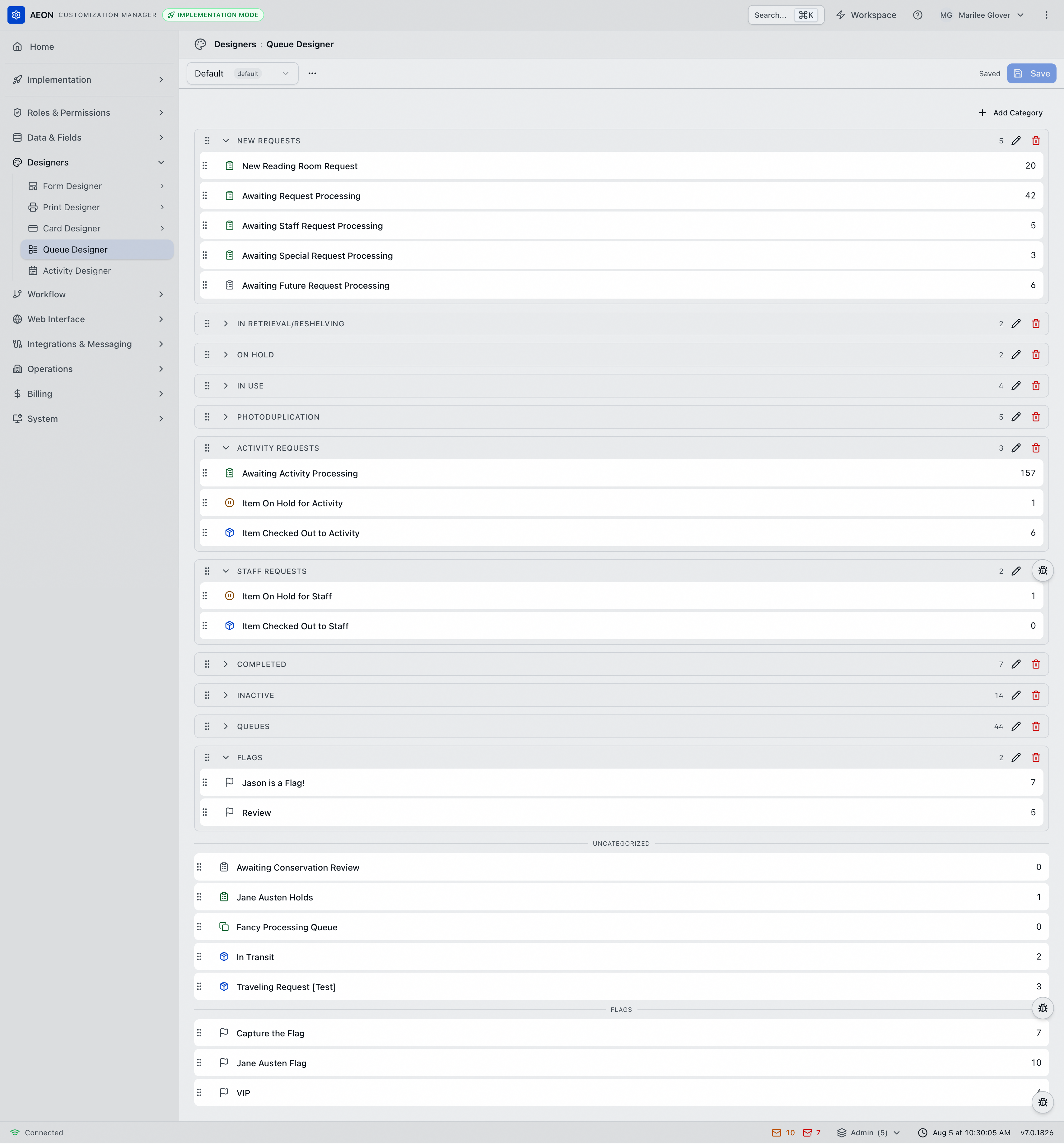
Every row in the Queue Designer carries a drag handle — the six-dot grip (⠿) at its left edge. Grab a category by its handle to move the whole category, or a queue or flag by its handle to move that one item.
Each category row shows a drag handle, an arrow that expands or collapses it, its name, how many items it holds, a pencil to rename it, and a trash button to delete it.
Each item row inside a category shows a drag handle, an icon for what kind of thing it is, its name, and its live count — the number of requests currently sitting in that queue or carrying that flag. The counts are real, so the designer doubles as a quick read on where work is piling up.
The category rows here are the same component the dashboard's Queues tab uses, so what you build is close to what staff see.
Working with categories
Add one
Click Add Category. Aeon creates a category called New Category and opens the name for editing straight away. Type the name you want, then click the ✓ to accept it or the ✕ to cancel. A category with nothing in it shows a Drop items here zone.

Rename one
Click the pencil on the category row. The name becomes an editable box in place — the same as when you created it — with ✓ and ✕ beside it.
Reorder, collapse, and delete
- Reorder a category by dragging it by its handle. The order here is the order on the dashboard.
- Collapse a category with the arrow beside its name. A category's collapsed state is part of the layout, so you can ship a layout with the busy categories open and the rest folded away.
- Delete a category with the trash button. Its queues and flags aren't deleted — they return to the uncategorized list at the end.
Filing queues and flags
Drag a queue or a flag by its handle and drop it into the category where you want it. Drag items between categories the same way, and drag them within a category to set their order.
Anything you haven't filed appears at the end of the list under two headings:
- Uncategorized — queues that no category holds.
- Flags — flags that no category holds.
These aren't categories you can rename or delete. They're where Aeon shows you what's left over, so nothing goes missing when you add a queue and forget to file it.
Aeon's built-in layout includes a Queues category and a Flags category that behave differently from the ones you build. While either one is empty, Aeon fills it with every queue or every flag as it draws the tab. That's how a new site gets a complete list without anyone assembling one.
That behavior ends the first time the layout is saved. The designer works from the filled-in version, so any change you save — even renaming a different category — writes the queues that exist at that moment into the Queues category as a fixed list. From then on it's an ordinary category.
The practical consequence: after the layout has been saved once, a queue someone creates later won't appear in Queues. It lands under Uncategorized until you file it. Check this page after you add a queue.
The same applies to a staff member's own copy — rearranging the tab on their dashboard fixes their list in the same way.
If your site has no request flags at all, the empty Flags category isn't shown. It appears once flags exist.
Templates
A queue layout is stored as a template, and you can keep more than one — a processing layout and a front-desk layout, say. The selector at the top left switches between them, and the one marked default is the starting point for staff who have no layout of their own.
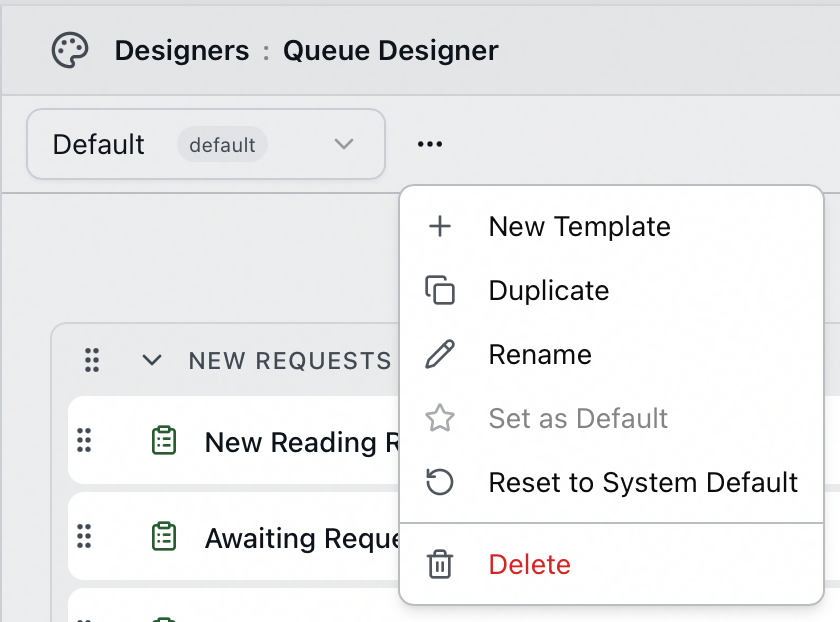
The ⋯ menu holds:
-
New Template — start a fresh layout.
-
Duplicate — copy the current one as a starting point.
-
Rename — rename the template.
-
Set as Default — make this the layout staff start from. Only one template is the default; setting a new one clears the old, which is why the item is grayed out on the template that already holds it.
-
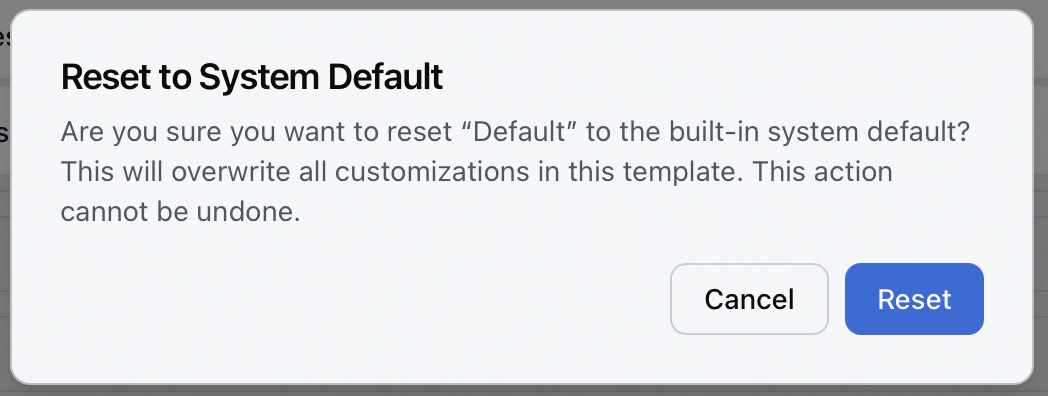
Reset to System Default — replace this template's layout with Aeon's built-in grouping. Aeon confirms first, naming the template: "Are you sure you want to reset “Default” to the built-in system default? This will overwrite all customizations in this template. This action cannot be undone." Choose Reset to go ahead, or Cancel to keep what you have.
-
Delete — remove the template.
Saving your work
Your changes aren't saved automatically. The toolbar shows Unsaved while you have pending edits and Saved once they're written. Click Save to commit, or the discard button beside it to throw the pending edits away and go back to the last saved version.
How a layout reaches staff
A queue layout resolves differently from a form or card layout, and it's worth knowing the order. Aeon works through three levels and stops at the first one it finds:
- The staff member's own arrangement. Anyone can rearrange the Queues tab on their own dashboard, and Aeon saves that as their personal layout. A personal layout always wins.
- A layout assigned to their role. In the Role Editor, open the Layouts tab and find Queue Layout under the Queue & Activity group. See Editing a Role: Layout Assignments.
- The default template — the one you marked default here.
Because a personal arrangement outranks yours, a staff member who has already rearranged their own Queues tab keeps what they had. Your new layout reaches everyone who hasn't. Anyone who wants your version can reset their own copy on the dashboard, which clears their personal layout and drops them back to the role or default layout.