Activity Designer
The dashboard's Activities tab lists the activities your reading room is running — classes, exhibits, projects, loans. The Activity Designer is where you group them into named, collapsible categories so the tab reads the way your team thinks about the work.
Out of the box you don't have to do anything: Aeon groups activities by their activity type for you. You come here when that isn't the grouping you want — when a season, a department, or a project should sit together instead.
- Your activities span several types, and you'd rather group them by term, department, or exhibit program.
- A handful of activities matter to everyone and should sit at the top, with the rest folded away.
- Different teams care about different activities, and you want a layout per role.
The Activity Designer shapes the Activities tab on the dashboard — one of the tabs on the card that also holds Queues and appointments. It doesn't change an activity's own record, and it doesn't produce anything printable — only how activities are grouped on screen. It's the sister of the Queue Designer, and works the same way.
Opening the Activity Designer
- Open the Customization Manager.
- In the left navigation, under Designers, choose Activity Designer.
The browser tab reads Activity Designer.
Building and saving activity layouts requires the Designers configuration capability. Without it, the Designers group doesn't appear in the Customization Manager, and the underlying layout-template API refuses the request. See Roles & Capabilities.
How the designer is laid out
There's no canvas here — just the toolbar and your list of categories.
| Area | What it's for |
|---|---|
| Toolbar (top) | The template selector with its ⋯ menu, the save-state indicator (Saved, Unsaved, Saving...), and Save. A discard (circular-arrow) button appears next to Save while you have unsaved edits. |
| Add Category (top right) | Creates a new, empty category. |
| The category list | Your categories in order, each holding activities. Activities in no category collect at the end. |
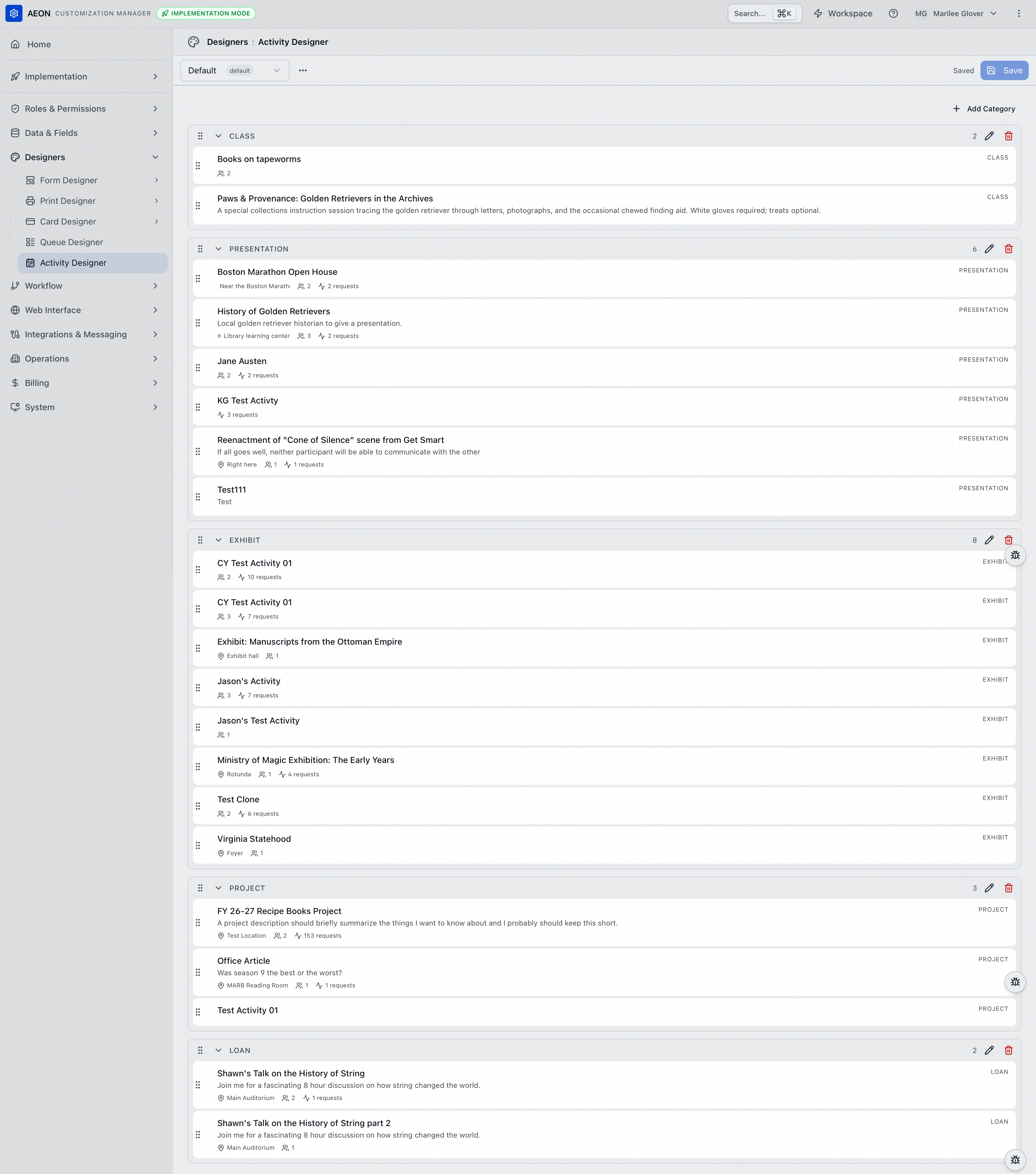
Every row carries a drag handle — the six-dot grip (⠿) at its left edge. Grab a category by its handle to move the whole category, or an activity by its handle to move that one activity.
Each category row shows a drag handle, an arrow that expands or collapses it, its name, how many activities it holds, a pencil to rename it, and a trash button to delete it.
Each activity row shows more than a queue row does, because an activity carries more with it: the drag handle, the activity's name, its description underneath if it has one, and a line of details — the location, the number of members, and the number of requests attached to it. Its activity type sits on the right.
Aeon's built-in grouping
Before you change anything, the built-in layout holds a single category called Activities, and Aeon does something useful with it: rather than listing every activity in one heap, it builds a category for each activity type and files the activities into them. That's why a site that has never opened this designer still sees tidy Class, Presentation, Exhibit, Project, and Loan groups.
Two details worth knowing:
- An activity with no type goes into a category named Other.
- Type names are matched without regard to case, so Class and class produce one category rather than two.
The generated type categories aren't stored — Aeon rebuilds them each time it draws the tab, but only while the built-in Activities category is still empty.
Saving any change ends that. The designer works from the generated version, so the first time you save — even if all you did was rename one category — those type groups are written into the template as ordinary, fixed categories.
After that, Aeon stops grouping for you:
- A new activity type doesn't create a category.
- A new activity lands under Uncategorized rather than joining its type.
So decide which you want. Leave the layout untouched and Aeon keeps grouping by type as activities come and go. Take control of it and the grouping becomes yours to maintain — check back here when activities are added.
Working with categories
Add one
Click Add Category. Aeon creates a category called New Category and opens the name for editing straight away. Type the name you want — Spring 2026 Classes, say — then click the ✓ to accept it or the ✕ to cancel. A category with nothing in it shows a Drop activities here zone.

Rename one
Click the pencil on the category row. The name becomes an editable box in place — the same as when you created it — with ✓ and ✕ beside it.
Reorder, collapse, and delete
- Reorder a category by dragging it by its handle. The order here is the order on the dashboard.
- Collapse a category with the arrow beside its name. The collapsed state is part of the layout, so a category you fold here starts folded for staff.
- Delete a category with the trash button. Its activities aren't deleted — they return to the uncategorized list at the end.
Filing activities
Drag an activity by its handle and drop it into the category where you want it. Drag activities between categories the same way, and drag one onto another to set the order within a category.
Anything you haven't filed appears at the end under an Uncategorized heading. That isn't a category you can rename or delete — it's where Aeon shows you what's left over, so a new activity doesn't go unnoticed.
Templates
An activity layout is stored as a template, and you can keep more than one. The selector at the top left switches between them, and the one marked default is the starting point for staff who have no layout of their own.
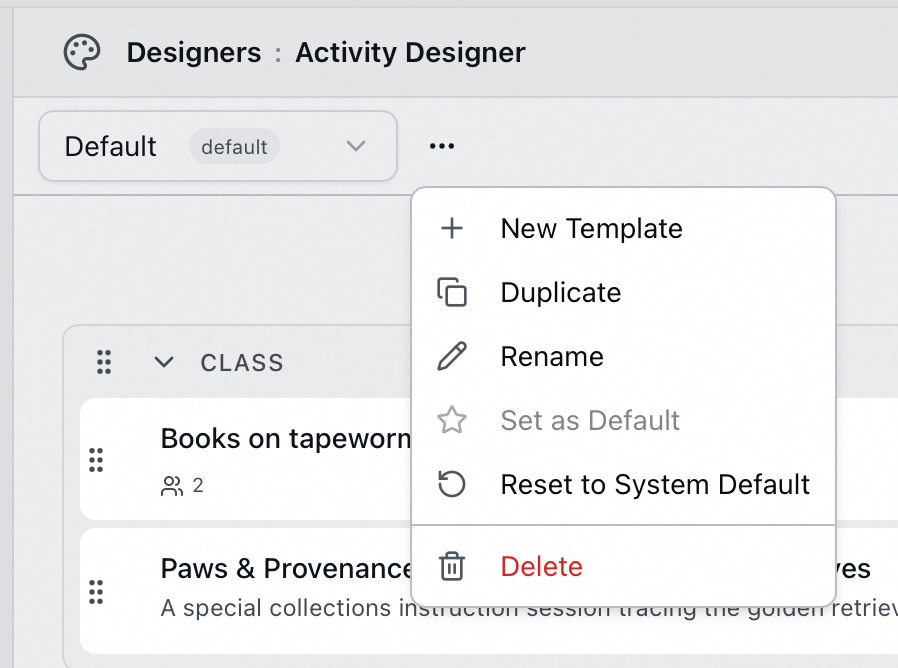
The ⋯ menu holds:
-
New Template — start a fresh layout.
-
Duplicate — copy the current one as a starting point.
-
Rename — rename the template.
-
Set as Default — make this the layout staff start from. Only one template is the default; setting a new one clears the old, which is why the item is grayed out on the template that already holds it.
-
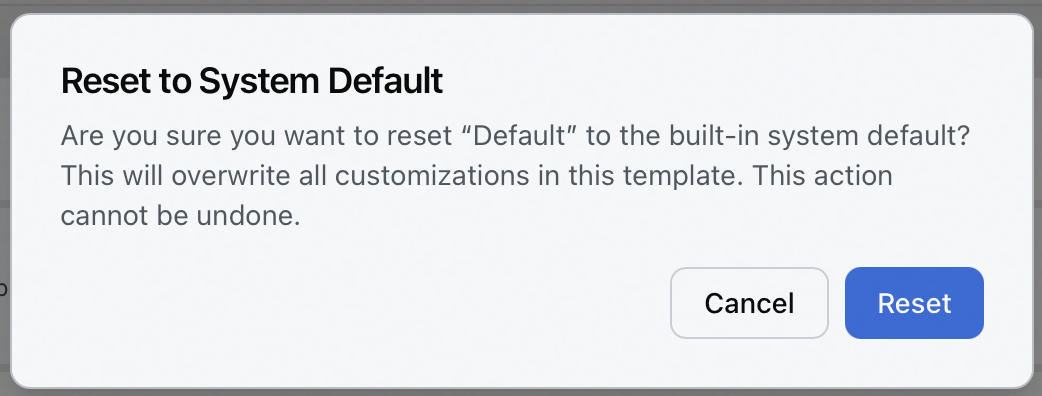
Reset to System Default — replace this template's layout with Aeon's built-in grouping, which also restores the automatic grouping by type. Aeon confirms first, naming the template: "Are you sure you want to reset “Default” to the built-in system default? This will overwrite all customizations in this template. This action cannot be undone." Choose Reset to go ahead, or Cancel to keep what you have.
-
Delete — remove the template.
Saving your work
Your changes aren't saved automatically. The toolbar shows Unsaved while you have pending edits and Saved once they're written. Click Save to commit, or the discard button beside it to throw the pending edits away and go back to the last saved version.
How a layout reaches staff
Like a queue layout, an activity layout resolves through three levels, and Aeon stops at the first one it finds:
- The staff member's own arrangement. Anyone can rearrange the Activities tab on their own dashboard, and Aeon saves that as their personal layout. A personal layout always wins.
- A layout assigned to their role. In the Role Editor, open the Layouts tab and find Activity Layout under the Queue & Activity group. See Editing a Role: Layout Assignments.
- The default template — the one you marked default here.
The tab itself is gated by the Activities: View permission. A staff member without it doesn't see the tab, so no activity layout reaches them — yours or their own.
Because a personal arrangement outranks yours, a staff member who has already rearranged their own Activities tab keeps what they had. Your layout reaches everyone who hasn't. Anyone who wants your version can reset their own copy on the dashboard, which clears their personal layout and drops them back to the role or default layout.